Transfer Data from ASV-BW (Baden-Wuerttemberg) to edjufy
Introduction
To conveniently import the data required for edjufy from ASV-BW into edjufy, please use our pre-made ASV-BW export formats.
In the following instructions, we explain how to import the export formats into your ASV-BW installation and then export the required data from ASV-BW to import it into edjufy.
Import edjufy Export Formats into ASV-BW
Please download the current version of the edjufy ASV-BW export formats:
ASV-BW Export Formats for Teachers: Download Export Formats Teachers (edjufy-asv-bw-lehrkraefte-v1.exf))
ASV-BW Export Formats for Pupils: Download Export Formats Pupils (edjufy-asv-bw-schueler-v4.exf)
After downloading the export formats, you can import them into ASV-BW.
Import Export Formats into ASV-BW
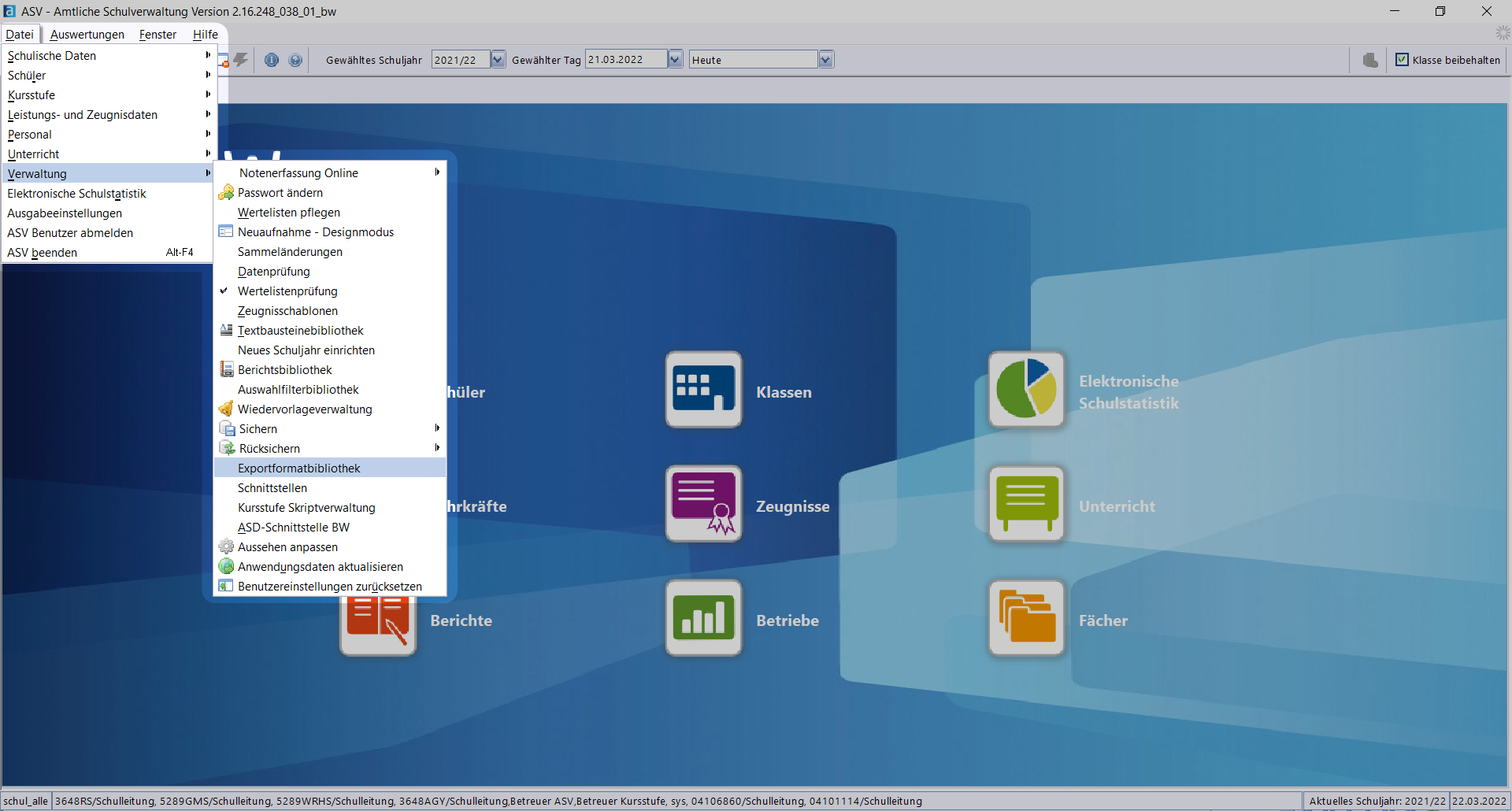
- Open ASV-BW and select the option Administration in the File menu, then select Export Format Library.
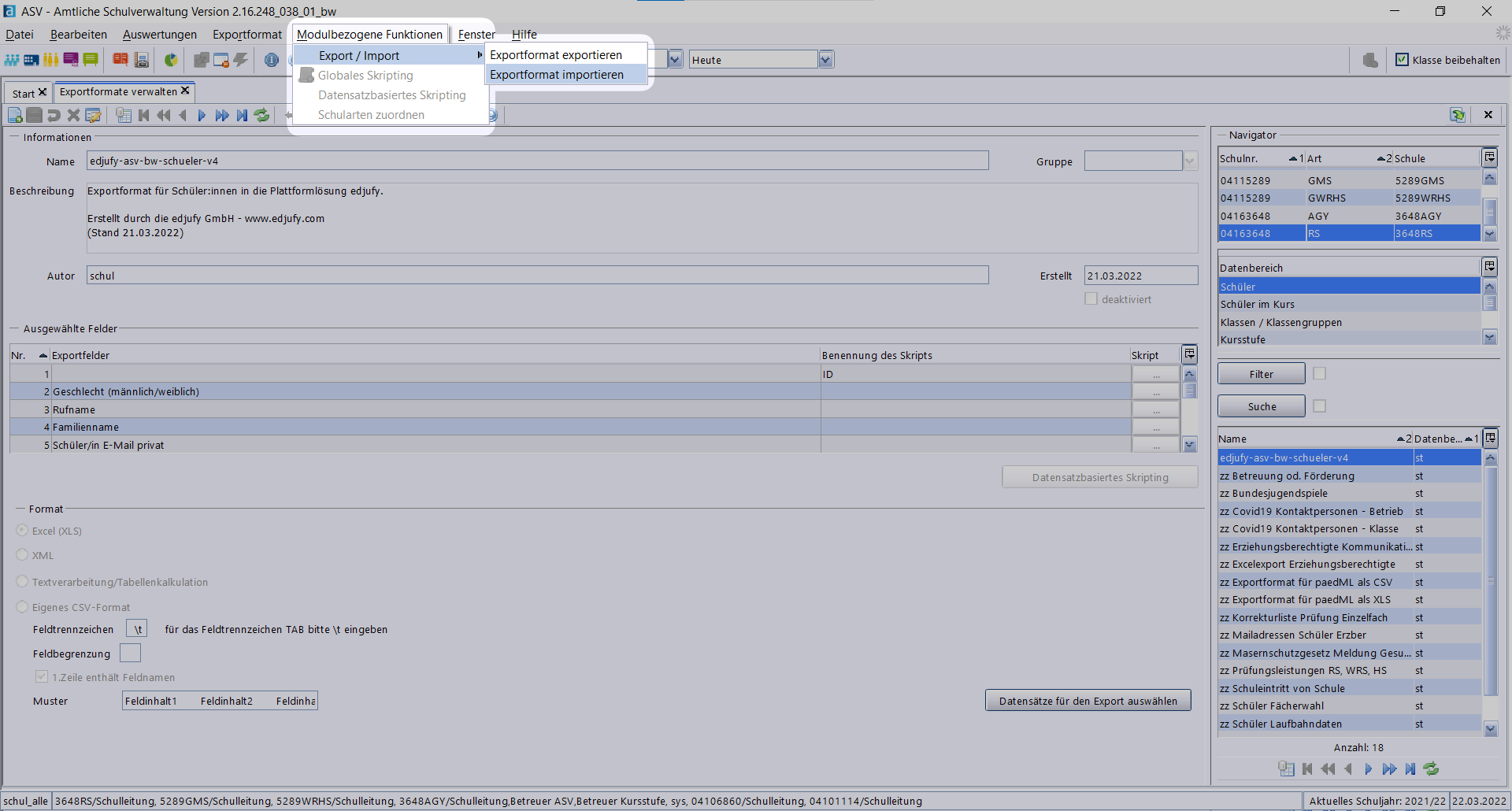
- Now open the option Export / Import in the Module-Related Functions menu, then select Import Export Formats.
Then select the previously downloaded fileedjufy-asv-bw-lehrkraefte-v1.exfin the Explorer and confirm with Open.
Repeat this step for the fileedjufy-asv-bw-schueler-v4.exf.
You have now imported the edjufy export formats into ASV-BW and can now use them to export the required data from ASV-BW.
Export Data from ASV-BW
Export Teachers
-
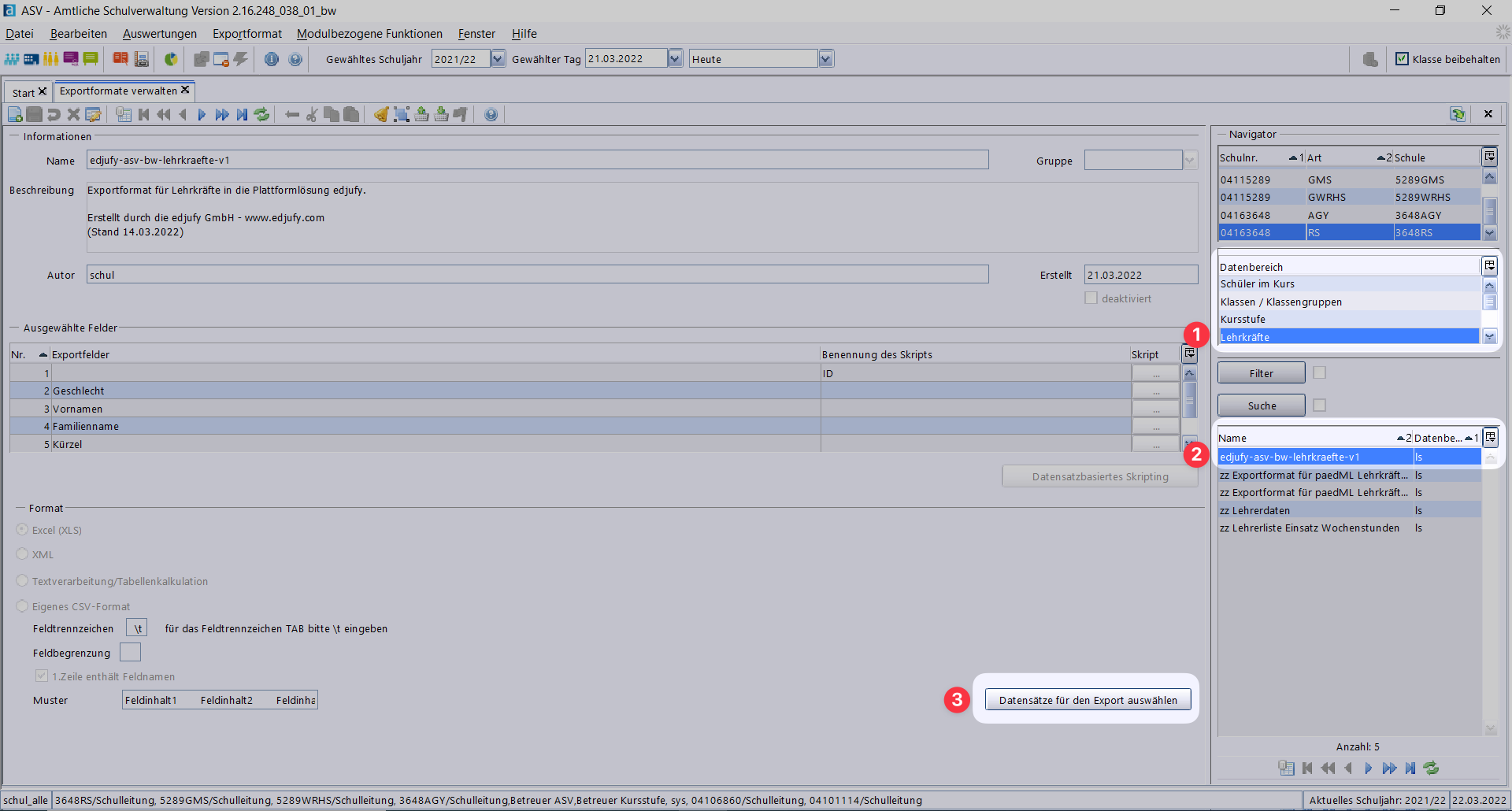
To export teachers from ASV-BW, select the option Teachers under Data Area on the right in the Export Format Library.
-
Now select the previously imported export format
edjufy-asv-bw-lehrkraefte-v1and then click on Select Records for Export.
-
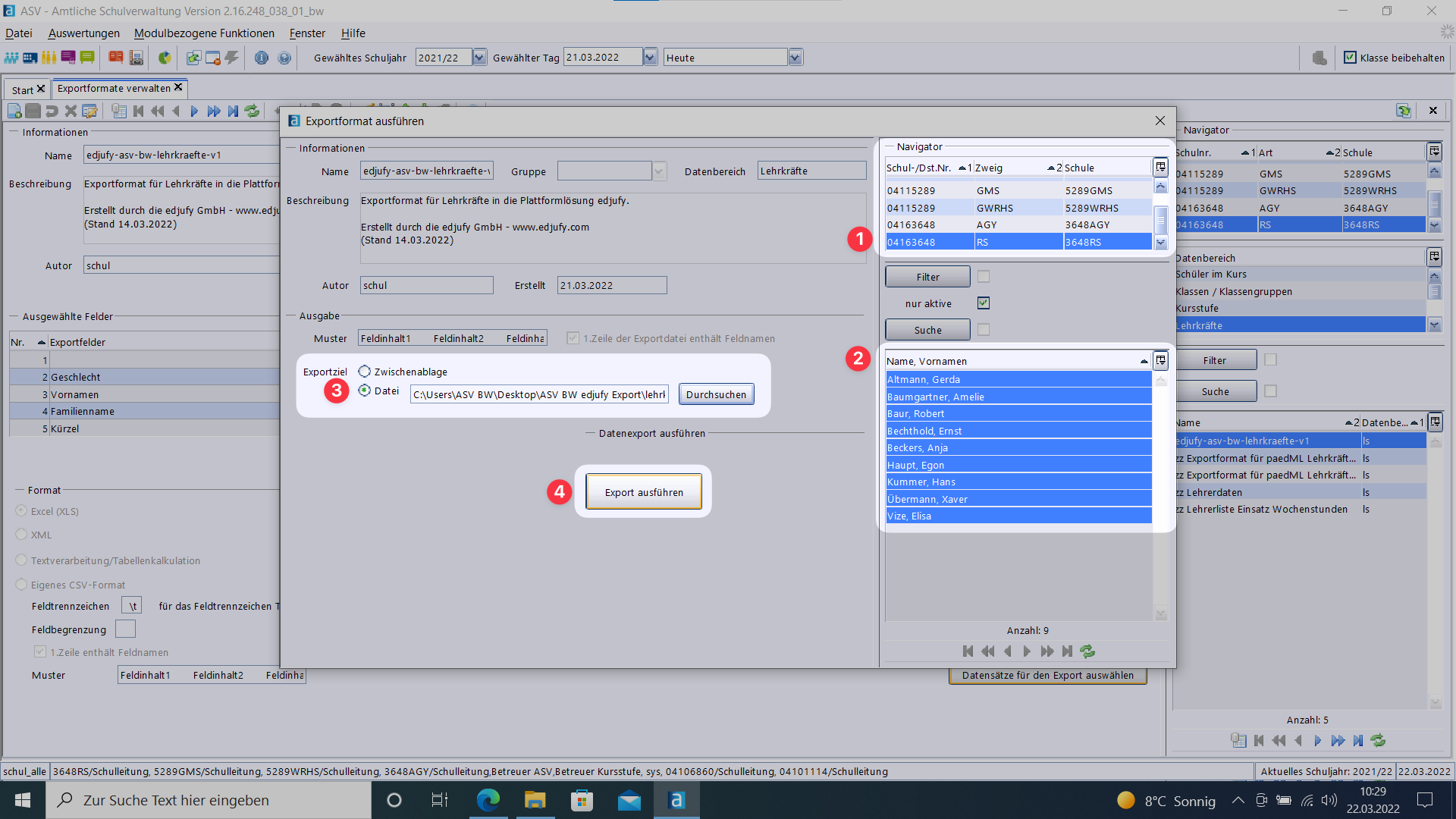
Now select your school in the displayed dialog and select all teachers you want to export.
-
Please now select the option File as the export destination and then select the storage location for the export file.
-
Now start the export by clicking on Execute Export.
You have now exported the teachers from ASV-BW and can import them into edjufy.
Export Pupils
-
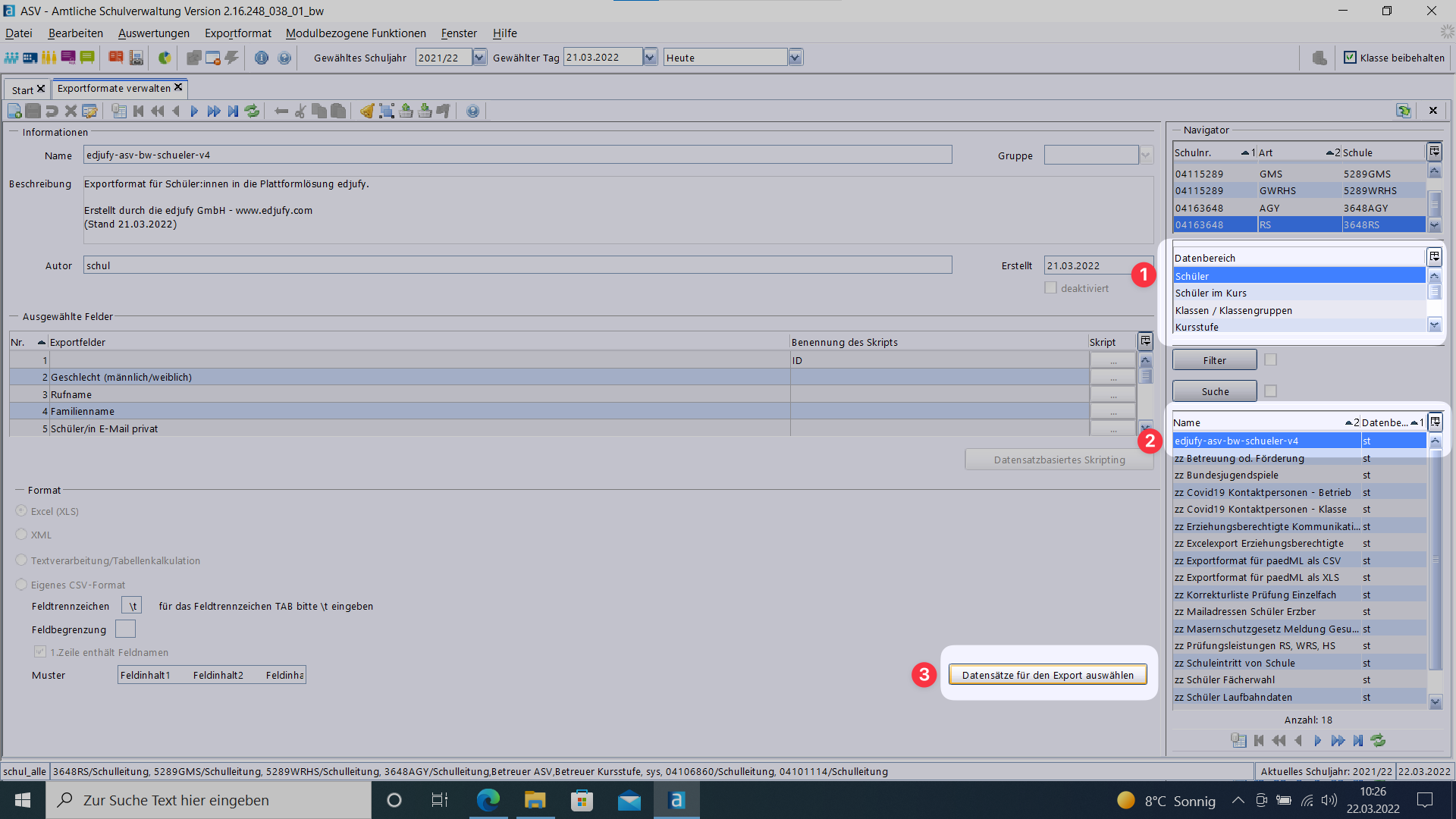
To export pupils from ASV-BW, select the option Pupils under Data Area on the right in the Export Format Library.
-
Now select the previously imported export format
edjufy-asv-bw-schueler-v4and then click on Select Records for Export.
-
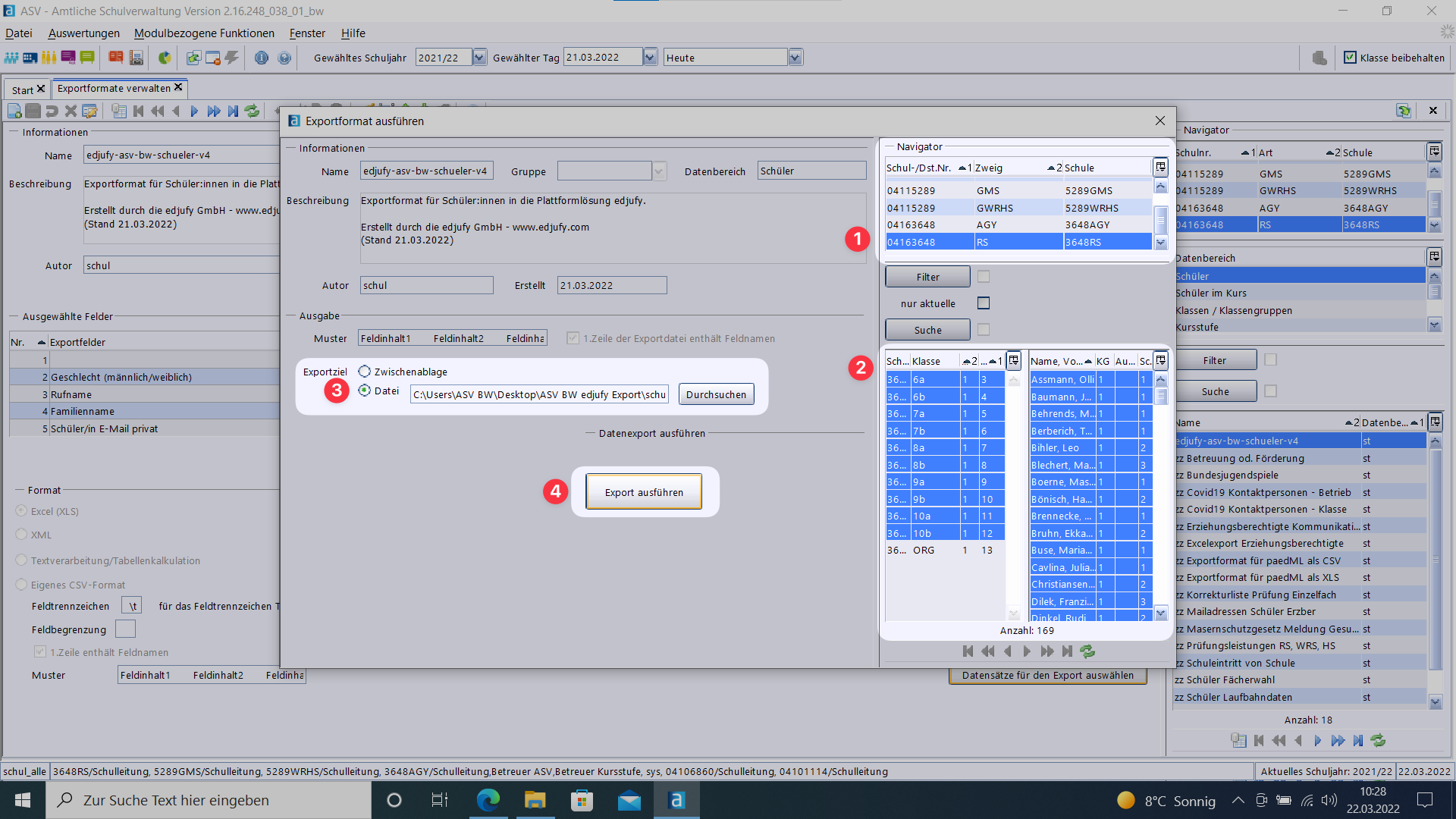
Now select your school in the displayed dialog and select all school classes and pupils you want to export.
-
Please now select the option File as the export destination and then select the storage location for the export file.
-
Now start the export by clicking on Execute Export.
You have now exported the pupils from ASV-BW and can import them into edjufy.
Import Data into edjufy
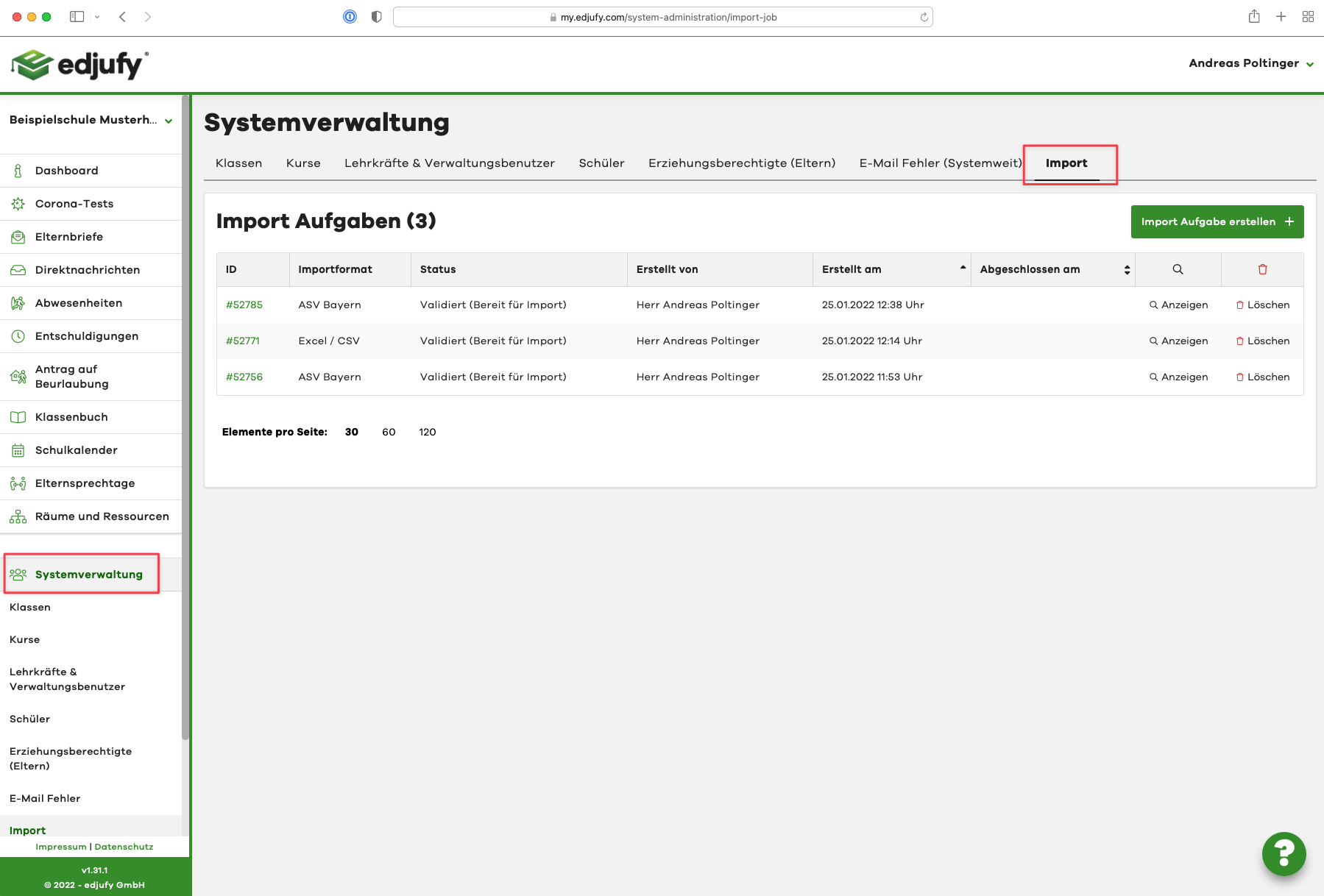
Open the Import tab in the System Administration.
In this list, you can see all previously created import tasks.
To create a new import task, please click on the Create Import Task button in the upper right corner.
- Now select the desired Import Type.
If you want to import data into edjufy for the first time or update the data during the current school year, please select the option Standard Import.
Then please set the Import Format to ASV-BW (Baden-Wuerttemberg).

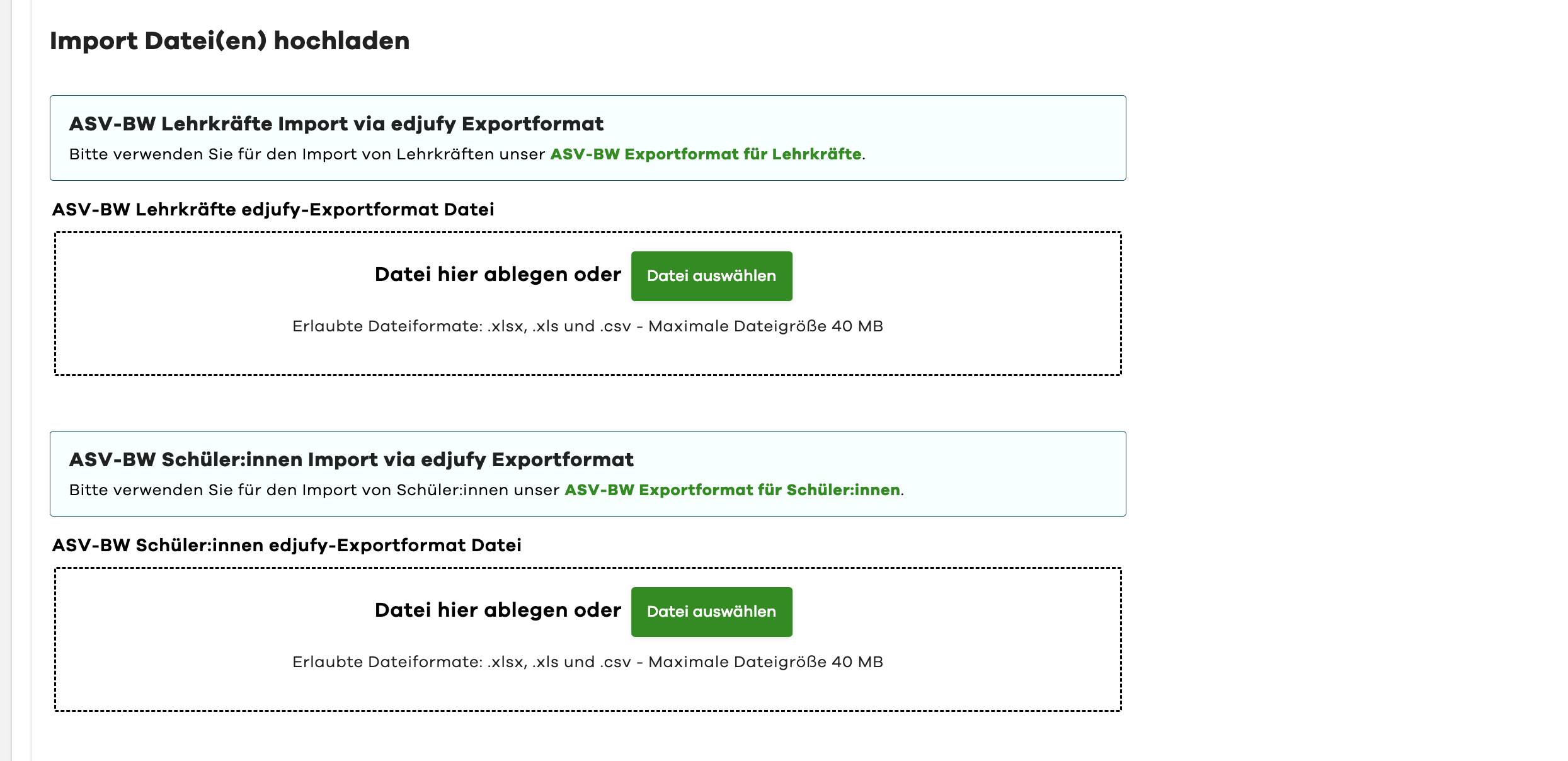
- Next, please upload the previously exported data from ASV-BW into edjufy.
Please make sure to upload the data with the correct assignment.
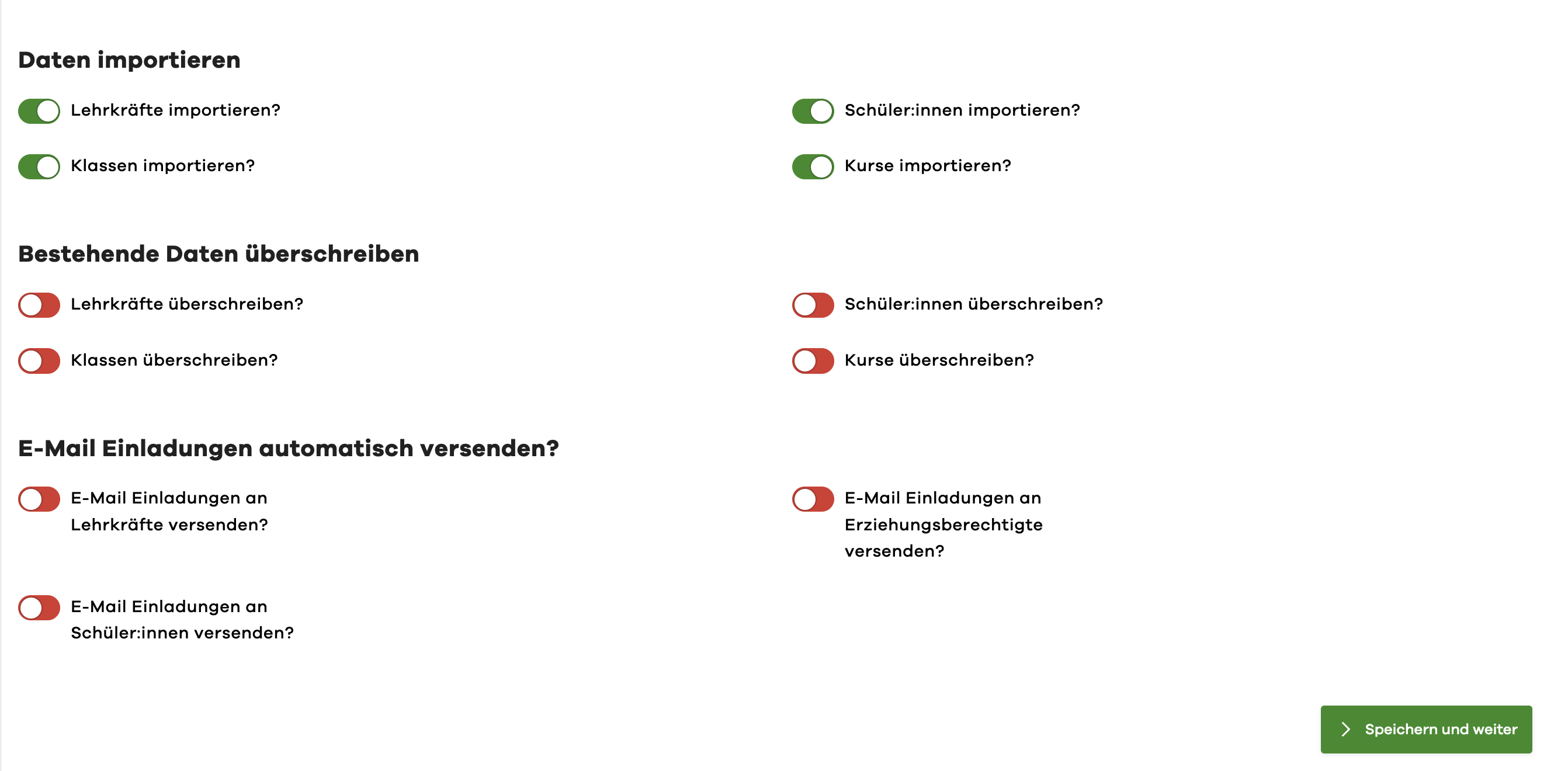
- Now please select which data should be imported.
For the Standard Import, we recommend selecting all options.
If you want to overwrite existing data or send invitations to edjufy directly after the import, you can also configure this here.
Validate Import Task
-
Click on the Save and Continue button in the import task you just created to begin validating the data.
-
edjufy now checks the data for errors and displays them to you.
If you find errors in your files, you should correct the data in ASV-BW and export again.
You can return to the first step via the Back button in the lower right corner and upload the data again. -
If your validation was successful, you can start the import task.
Click on the Start Import Task button at the bottom of the page.
Data Import
After you have started the import task, the import is performed.
This may take a few minutes depending on the amount of data.
Evaluate Import Result
Once the import task is complete, you can view the result in the last step.