Perform School Year Change in edjufy
Introduction
At the end of a school year, the data in edjufy must also be prepared for the new school year. This includes the school classes, groups and courses, the teachers and the pupils.
To perform the school year change in edjufy, the already known system import is used. This imports the data for the new school year into the system. At the same time, the data from the old school year is archived.
Create School Year Change Import
To create a new school year change import, please open the tab "Import" in the edjufy System Administration.
Then click on the button "Create Import Task".
We are now in the familiar import configuration.
In the first step, we now select the import type "School Year Change".
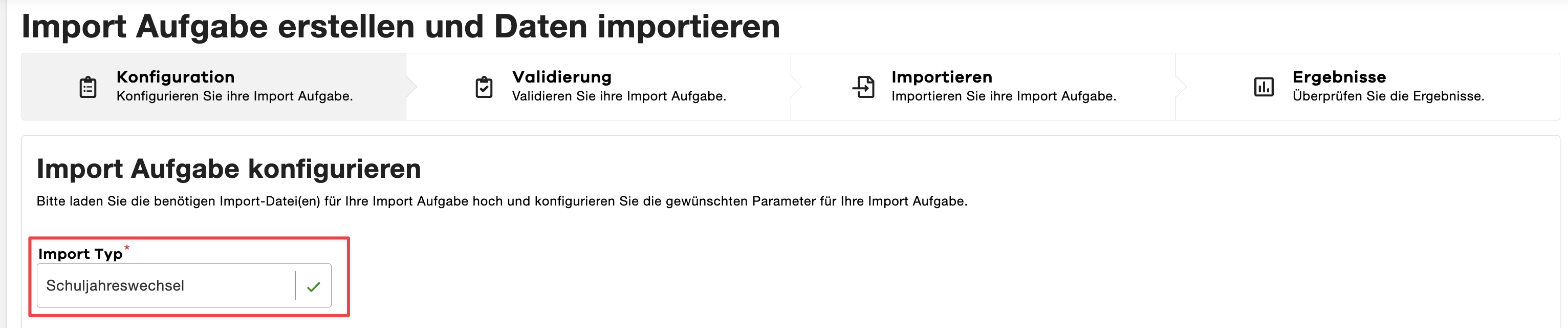
Only one import of type School Year Change may be created and performed per new school year.
Since a repeated import of type School Year Change always archives the currently active school year and creates a new school year.
Configure School Year
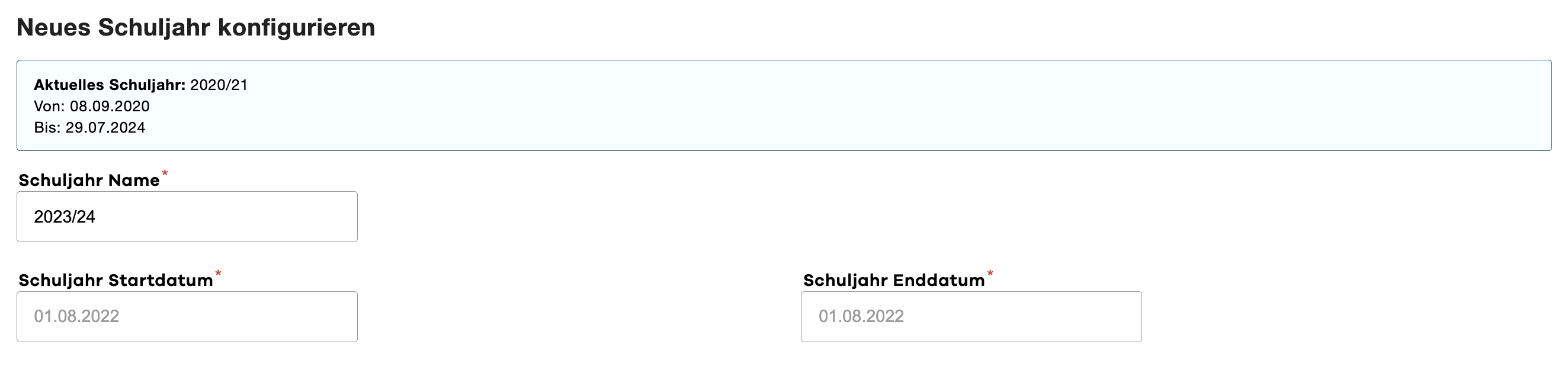
In the next step, the new school year is configured.
Please enter the name, start date and end date of the new school year.
The start date of the new school year must be after the end date of the old school year.
Configure Import
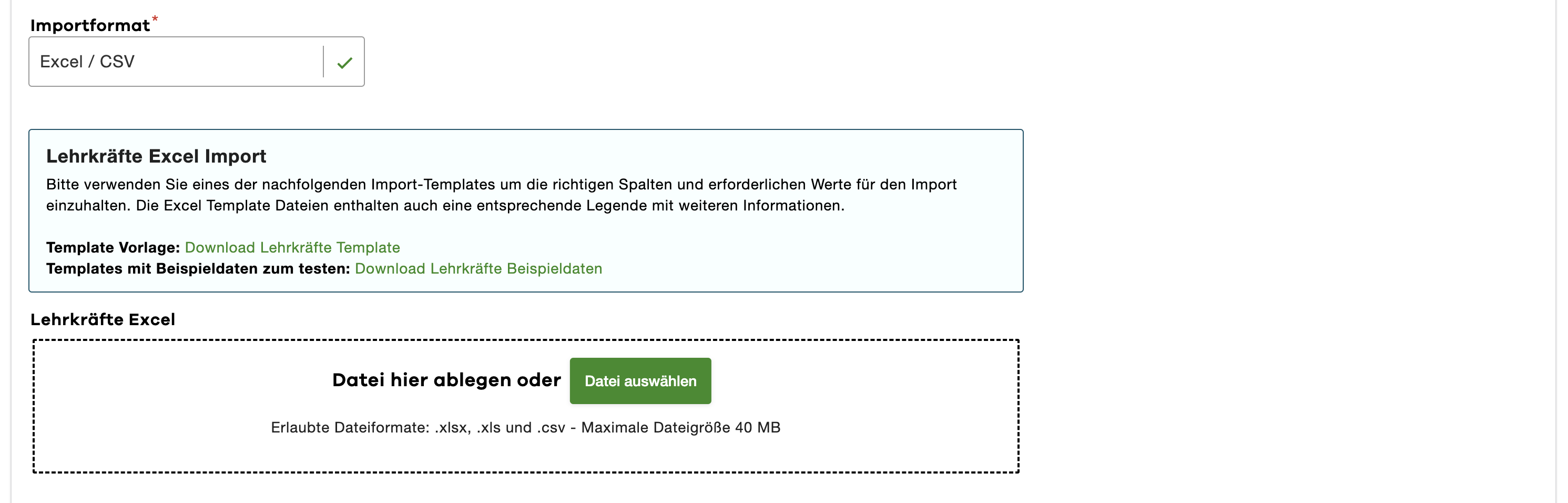
Now you can configure the import as usual.
To do this, please first select the desired import format.
Then you can configure the import as usual.
If you need further help with the configuration of the selected import format, you can find it under Import Data into edjufy.
With the import of type School Year Change, certain data is automatically overwritten.
When importing pupils, existing pupils are always overwritten or updated.
Pupils who are not included in the import are automatically archived.
Teachers are also always automatically overwritten or updated during import.
It is recommended that you always import all data at the same time during a school year change import.
So provide both the teachers as well as the pupils, school classes and courses for the new school year in one import.
Perform Import
After you have configured the import accordingly and checked the data in the preview, you can perform the import.
Use the "Start Import Task" button in the "Validation" step for this.
The import will then begin and you will be notified by email upon completion.
Please note that after the school year change import, all active sessions of all edjufy users at your school will be terminated.
All users must log in to edjufy again after the import.