Manage School Classes in edjufy
General
First, select the System Administration module.
The System Administration module is divided into different menu items (School Classes, Courses, Teachers, etc.). Please select the menu item School Classes.
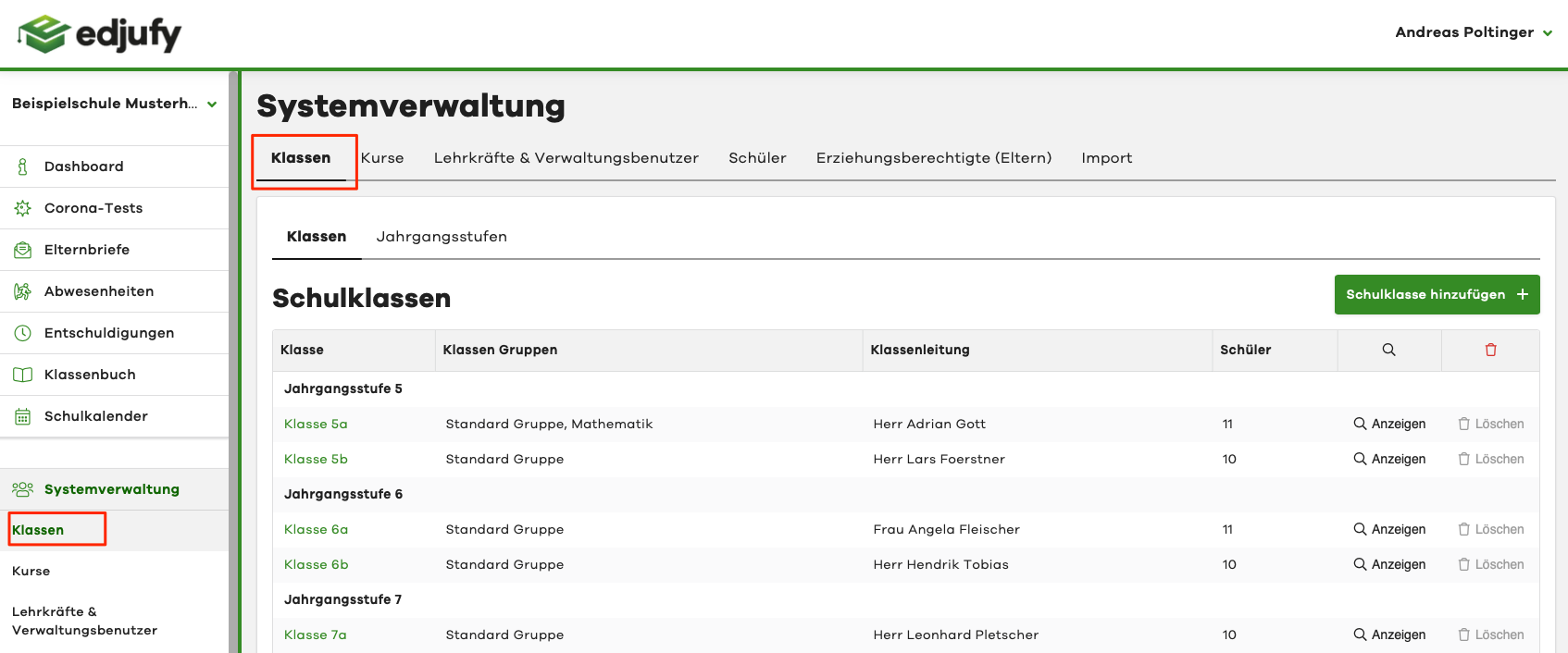
The menu item School Classes is divided into two sub-items:
- School Classes
- Grade Levels

School Classes
Overview
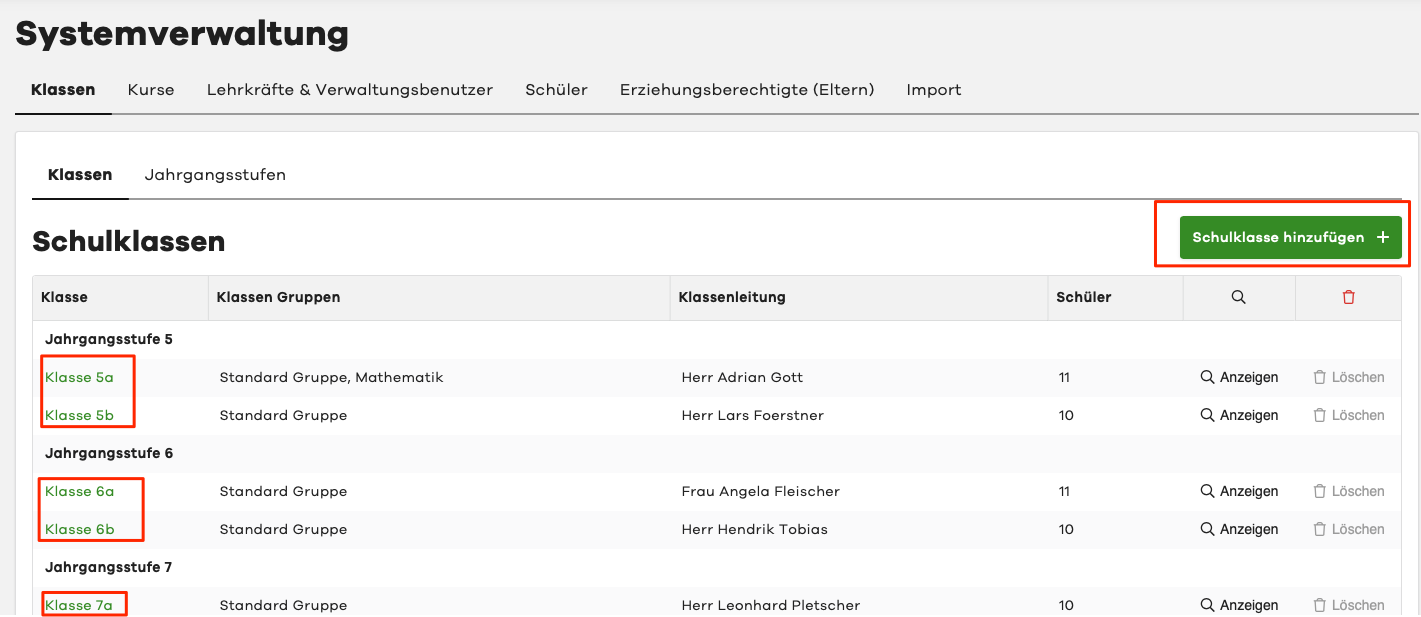
Please click on the menu item School Classes in the System Administration. In the sub-item of the same name School Classes, you can view all previously created school classes grouped by grade levels. You can view the details of an existing school class by clicking on the desired class name. And with the Add School Class + button, you can manually create additional school classes.
Create School Class
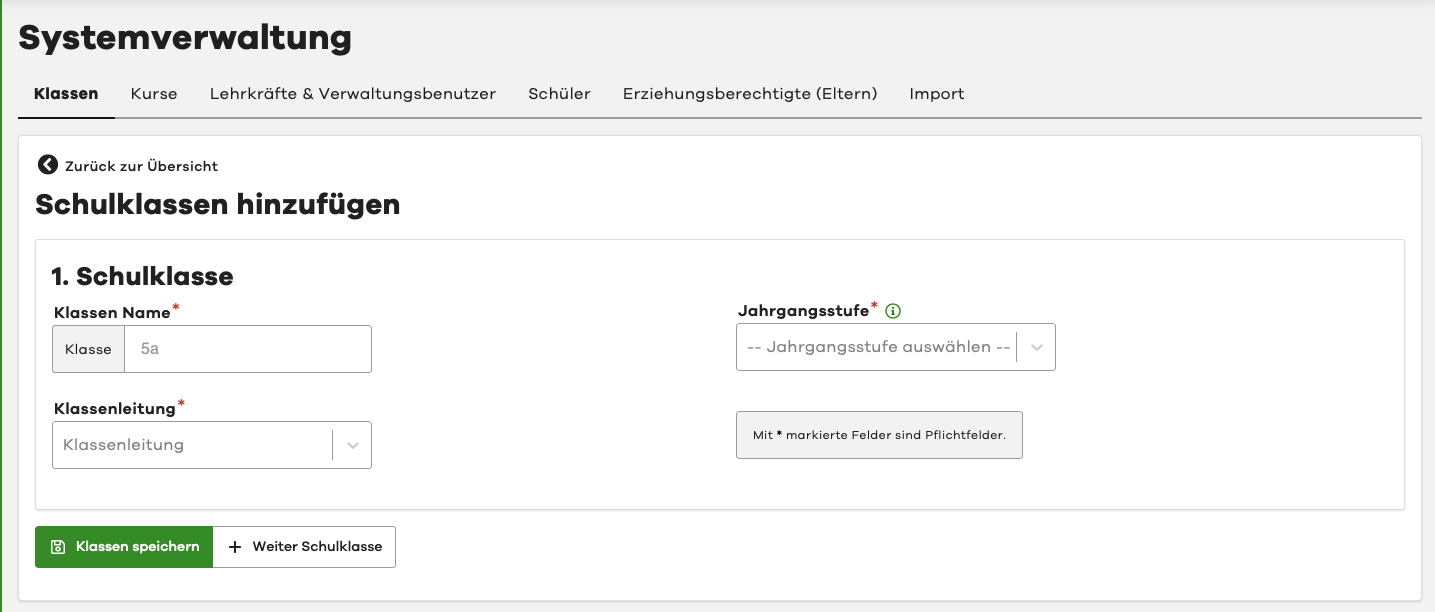
If you clicked on Add School Class in the previous view, the corresponding dialog opens.
- Enter the class name (without the prefix "Class")
- Select the class teacher (edjufy teacher user)
- Select the desired grade level
With the + Add Another School Class button, you can add another school class, and with Save Classes, you save your entries. Please remember to create the teachers and grade levels beforehand so that you can select them.
View / Edit School Class
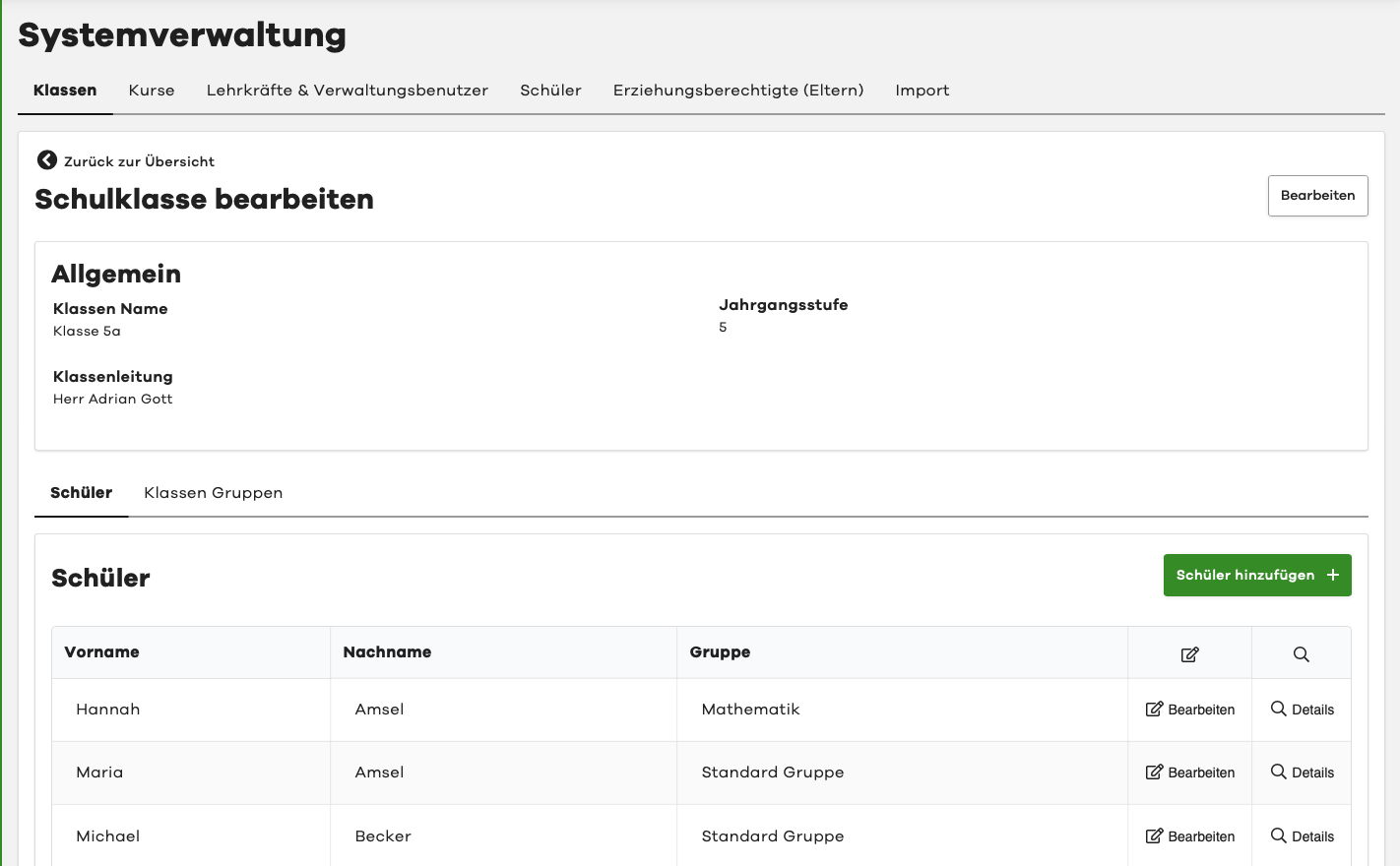
To view or edit a school class, please click on the name of the desired school class in the class overview as mentioned at the beginning. In the following view, you will see some metadata of the school class, the assigned pupils, and the class groups. To edit a school class, simply click on the Edit button in the upper right corner.
Grade Levels
Overview
Please click on Grade Levels in the class overview.

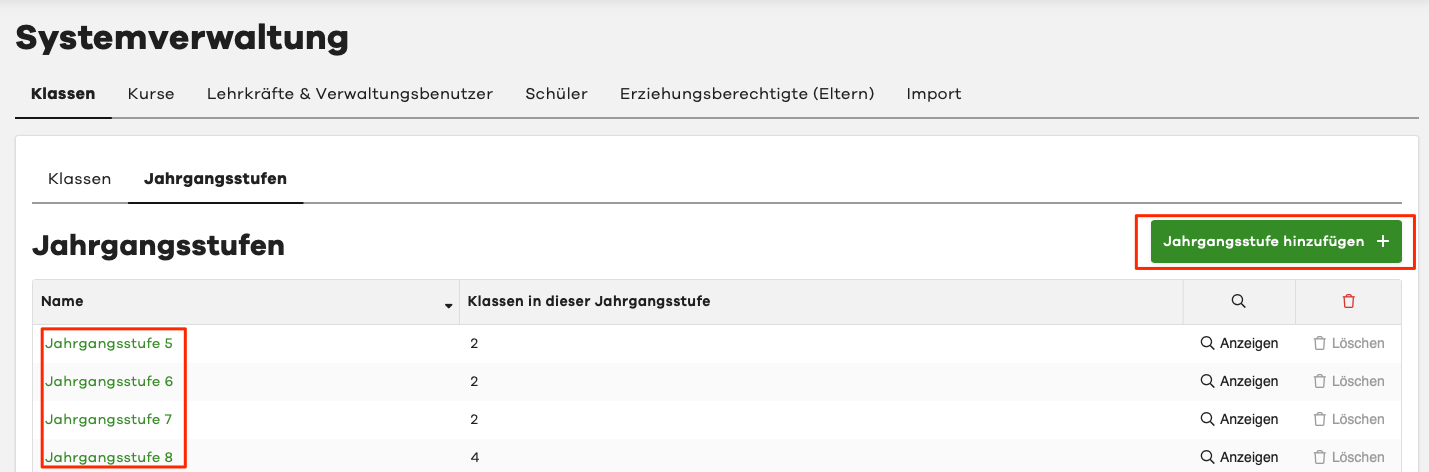
In the following view, you will see all previously created grade levels. To edit an existing grade level, simply click on the green-highlighted name of the grade level to be edited. You can conveniently create new grade levels using the green Add Grade Level button.
Create Grade Level
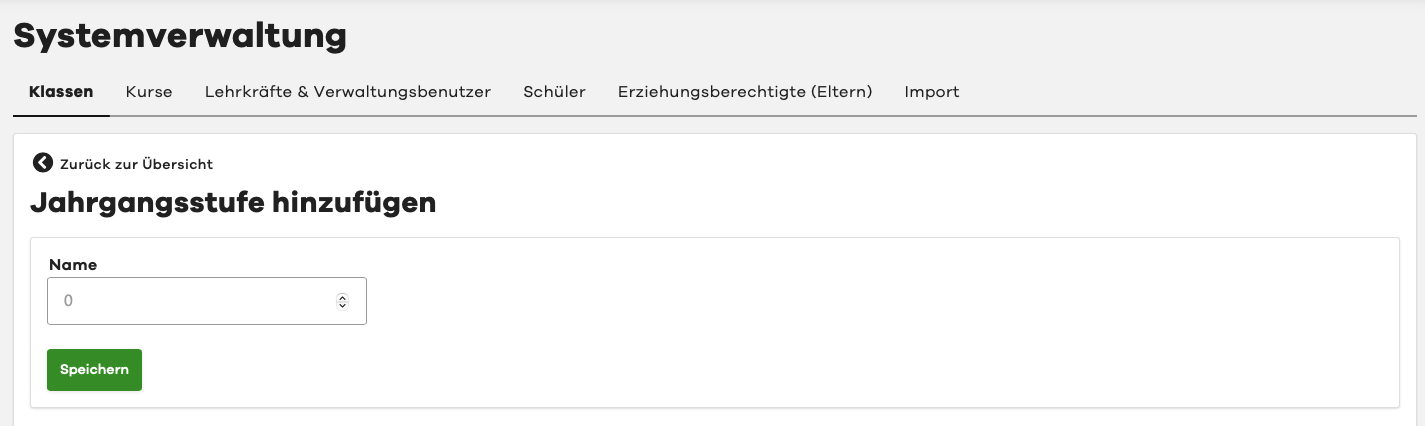
If you clicked on Add Grade Level in the previous view, the corresponding dialog opens. Please enter the value of the grade level you want to create here. Please note that the system only allows whole numbers and no letters, etc.
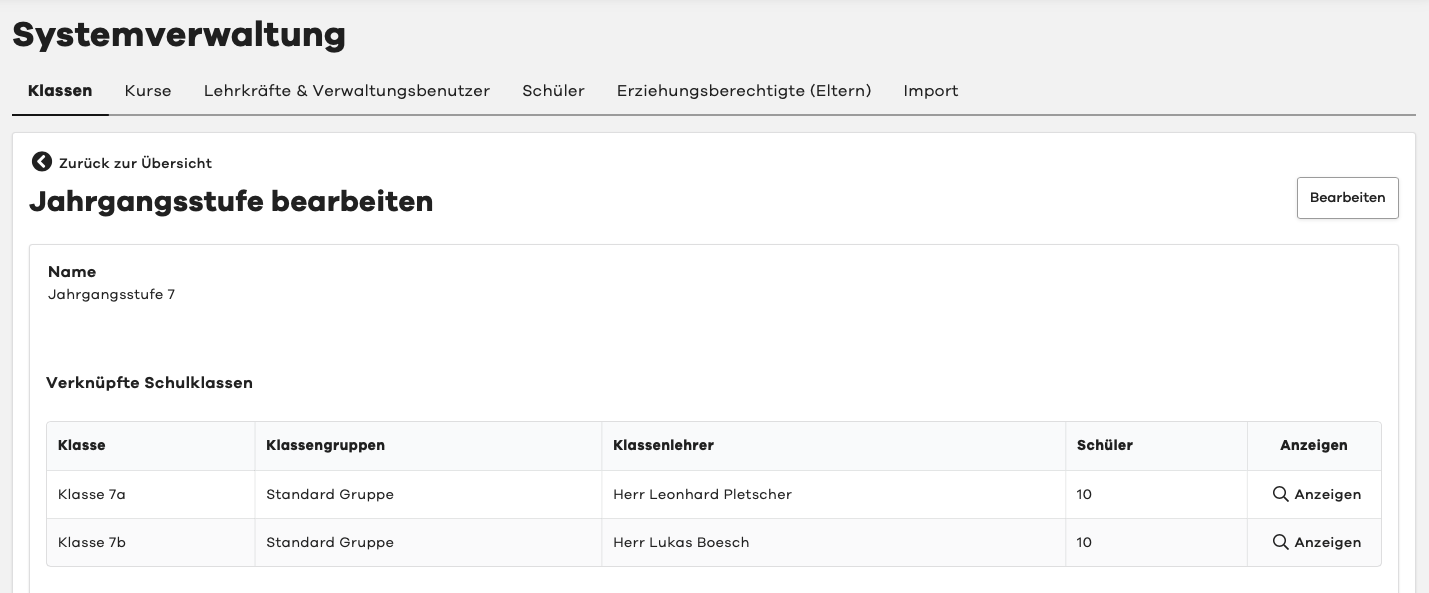
View / Edit Grade Level
To view or edit a grade level, please click on the name of the desired grade level as mentioned at the beginning. In the following view, you will see - if already created - all school classes assigned to this grade level. To edit a grade level, simply click on the Edit button in the upper right corner. Please note, however, that the assignment between school classes and grade levels is saved in the School Class.