Lesson Plan Import
Introduction
With the Lesson Plan Import you can import your lesson plan in a specified format into edjufy. The imported lesson plan will then be displayed in the edjufy class register. The teacher can then adopt these into a class register entry with just a few clicks.
Create New Import
To create a new lesson plan import, please open the tab "Lesson Plan Import" in the edjufy System Administration. Then click on the button "Start New Import".
Here you need to assign a name for your import and select the import format. Please note that we currently only support an Excel / CSV import in our specified format.
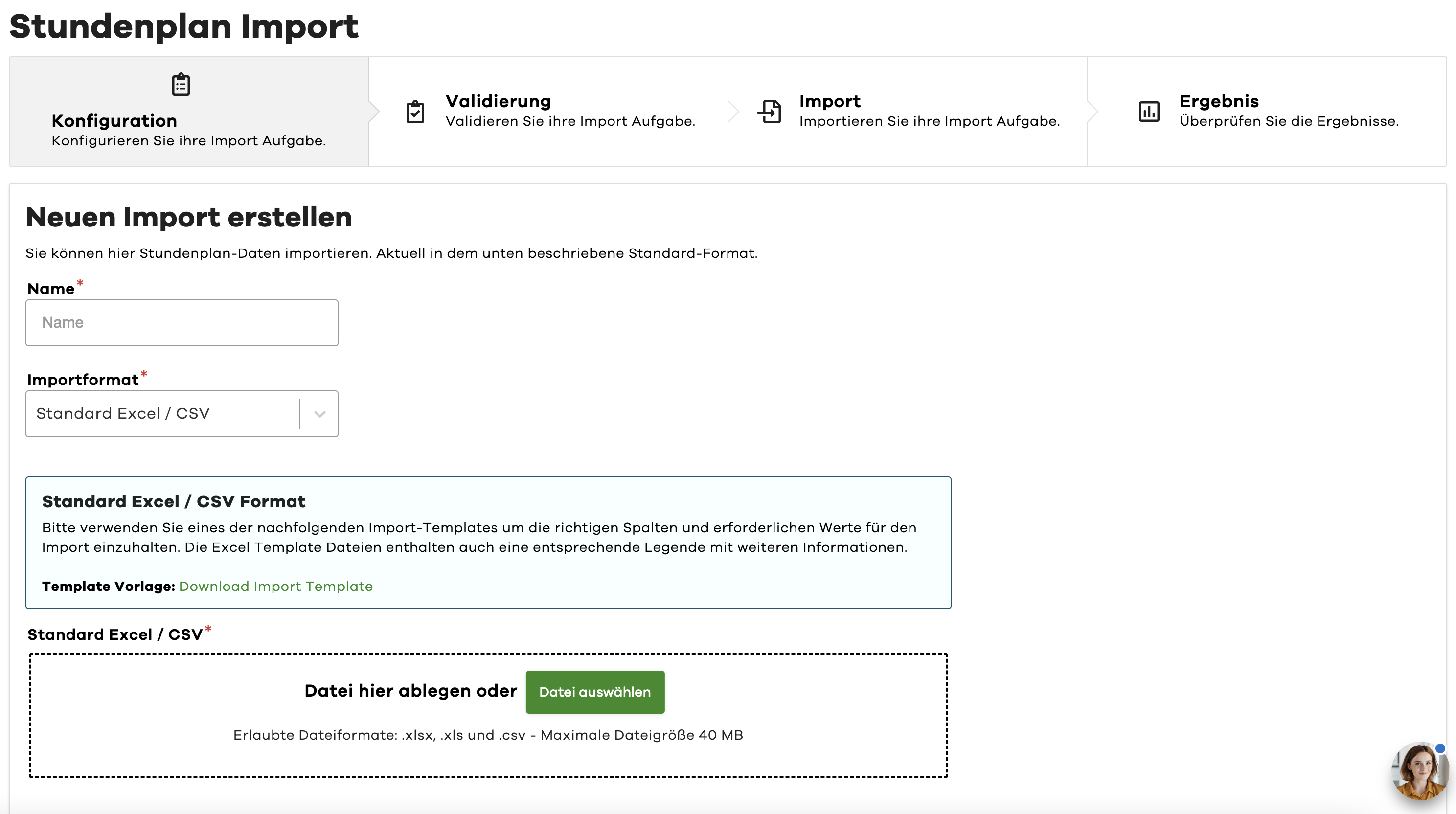
Please use the following import template to ensure the correct columns and required values for the import. The Excel template file also contains a corresponding legend with further information.
Standard Template: Download Standard Import Template
Recurring Import Template: Download Recurring Import Template
Import Template
To ensure an error-free import, we recommend using our specified import template. Below you will find a description of the individual columns and their meaning.
One of the two columns "schoolClass" or "schoolCourse" must be filled in. The column "schoolClassGroup" can only be used in conjunction with the column "schoolClass".
Description of Import Columns
| Column | Description |
|---|---|
| schoolClass | Name of the desired school class for the import (Optional) |
| schoolClassGroup | Name of the desired group for the import (Optional - only in conjunction with schoolClass) |
| schoolCourse | Name of the desired course for the import (Optional) |
| schoolSubject | Name of the desired subject for the import |
| date | Date of the entry in format dd.mm.yyyy e.g. 01.01.2023 |
| startTime | Start time of the entry in format hh:mm e.g. 08:00 |
| endTime | End time of the entry in format hh:mm e.g. 08:45 |
| lessonType | Type of lesson (see table below) |
| lessonNote | Note for the lesson |
| homeworkNote | Homework for the lesson |
| teacher | Abbreviation or email address of the teachers |
| internalId | Internal ID of the lesson (Assigned by edjufy and later included in the download file for possible changes) |
| externalId | External ID of the lesson (Can be assigned by you for later changes) |
| deleteFlag | Set to "yes" to delete the entry. Assignment is done via internal or external ID. |
Options for the "lessonType" Column
| Value | Description |
|---|---|
| LESSON_TYPE_DEFAULT_LESSON | Standard Lesson |
| LESSON_TYPE_SUBSTITUTION_LESSON | Substitution Lesson |
| LESSON_TYPE_CANCELLED_LESSON | Cancelled Lesson |
Recurring Import
In addition to the standard import, we also offer you the option of a recurring import.
The recurring import allows you to create an import with repeating lesson plan entries.
You can use the additional columns repetitionPeriod and repetitionTerminationDate to set the repetition duration and the end date of the repetition.
Please use the corresponding template for the recurring import:
Recurring Import Template: Download Recurring Import Template
Additional Columns for Recurring Lesson Plans
The following columns are additionally available for the recurring import:
| Column | Description |
|---|---|
| repetitionPeriod | Repetition period of the entry (Optional - see table below) |
| repetitionTerminationDate | End date of the repetition period (Optional - only in conjunction with repetitionPeriod) If no end date is set, the repetition automatically ends at the end of the school year. |
Options for the "repetitionPeriod" Column
| Value | Description |
|---|---|
| weekly | Entry repeats every week |
| biweekly | Entry repeats every two weeks |
| monthly | Entry repeats every month |
Import Validation
After uploading your import file, the data is validated by our system before the import. If the system finds errors in the file, these will be displayed to you in an error message. The import will then receive the status "invalid".
You can now correct the errors in your import file and discard the failed import using the "Discard Import" button.
After you have fixed the errors, you can create a new import.
Start Import
After successful validation, you can start the import. Click on the "Start Import" button for this.
The import will now be performed and the data imported into edjufy. Depending on the number of entries to be imported, the import may take a few minutes.
To better manage your imports, we recommend separating the imports into separate files, e.g. by school class.
Import Result
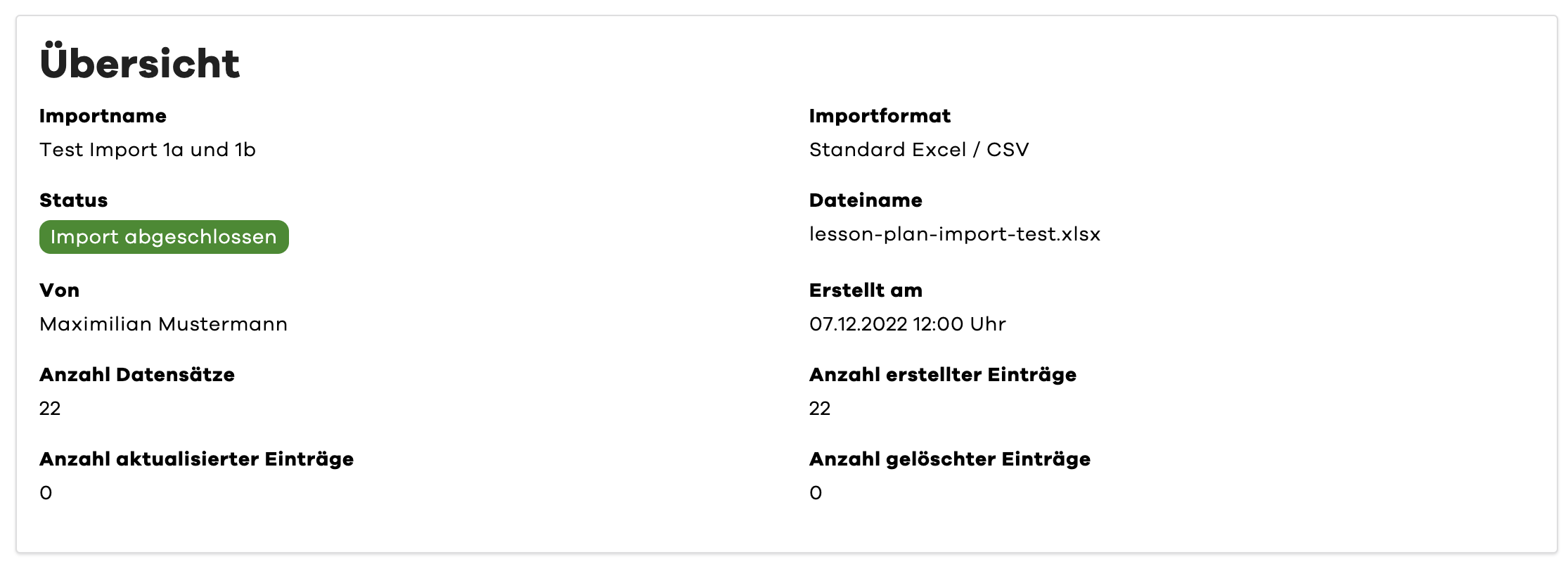
After your import is complete, you can view the result.
In the overview you will find, for example, the number of imported entries:
Download the Import File with Internal IDs
You also have the option to download a copy of your import file in the result view via the "Download Original File with Internal IDs" button.
This copy contains, in addition to your data, the internal IDs of the imported entries.
If you want to make changes to your entries in the future, you can identify them via the internal IDs.
Please note that the file with the internal IDs is only generated after the import. This generation may take some time.
Reset Import
If you want to reset a complete import, you can do this via the "Reset Import" button in the result view. This will delete all entries created by the import.
To update or delete only individual entries of an import, you should perform another import with the corresponding changes.
Use the internal IDs from the download file to assign the entries (if you have not assigned an external ID).
To delete an entry, please set the value of the "deleteFlag" column to "yes".