Transfer Data from ASV-Bayern to edjufy
Introduction
To conveniently import data from ASV-Bayern into edjufy, we use a special export interface of the ASV. The so-called "Export for a Grade Management System" includes teachers, school classes, pupils, legal guardians, subjects, and courses, making it the simplest way to transfer your school's data to the edjufy platform.
Export from ASV-Bayern
Start ASV Interface "Export for a Grade Management System"
Open the ASV Interface Module in the ASV under File -> Administration -> Interfaces.
Please note that you may need appropriate permissions to open the ASV Interface Module.

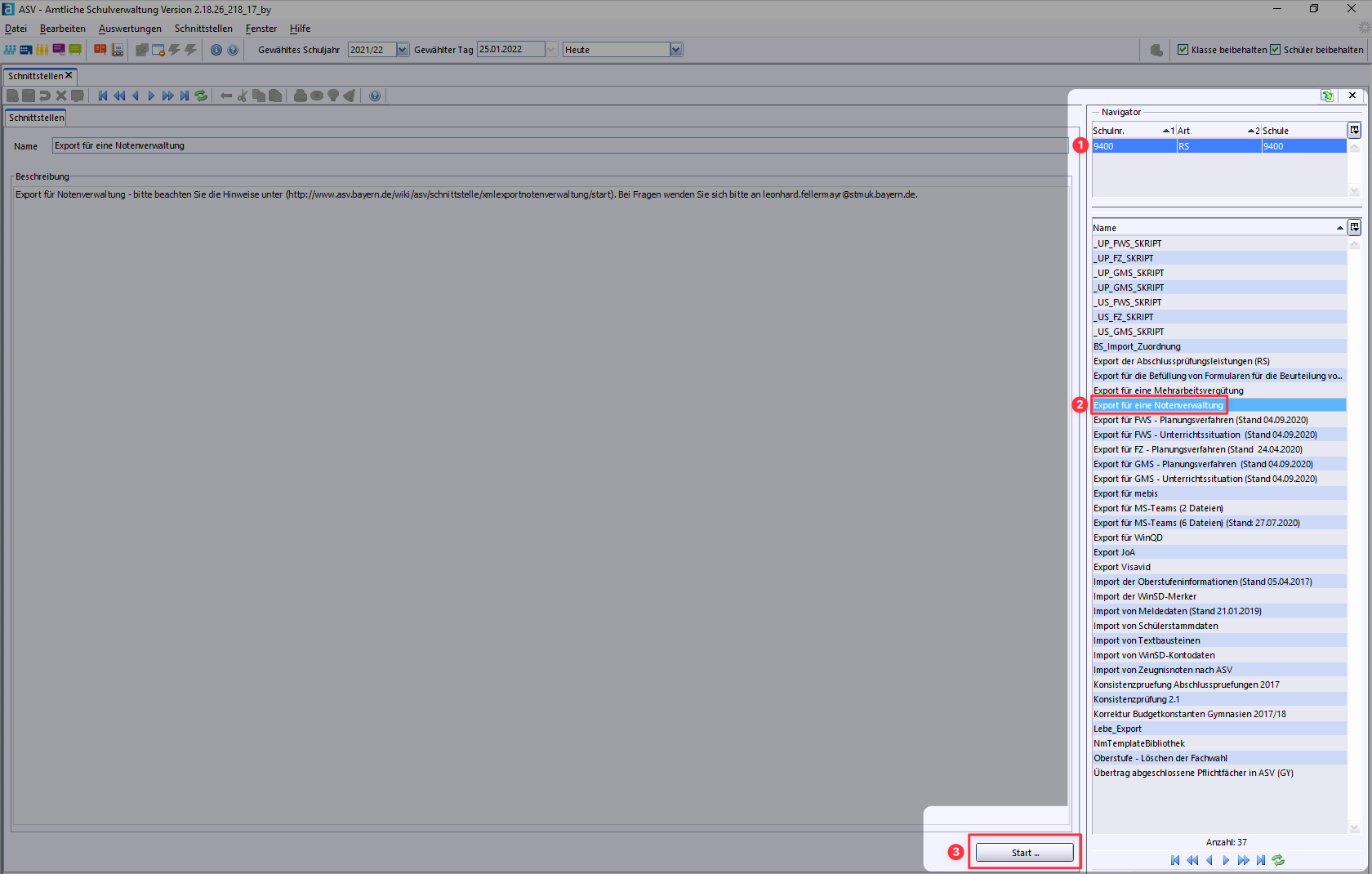
Select your school (1) and then the interface (2) Export for a Grade Management System and start your export with the Start ... button (3).
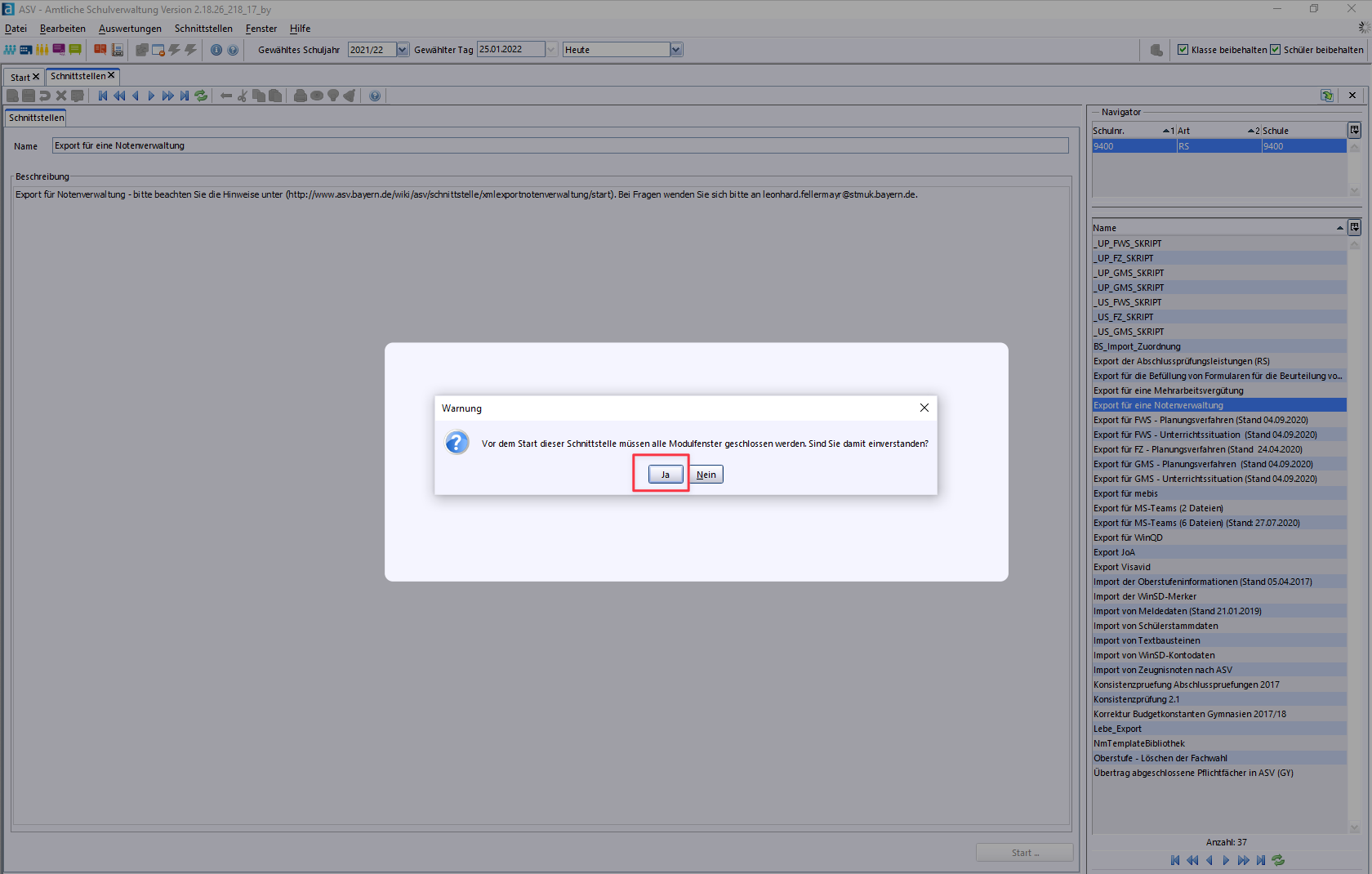
You may need to close all module windows. You can conveniently do this via the Yes button.
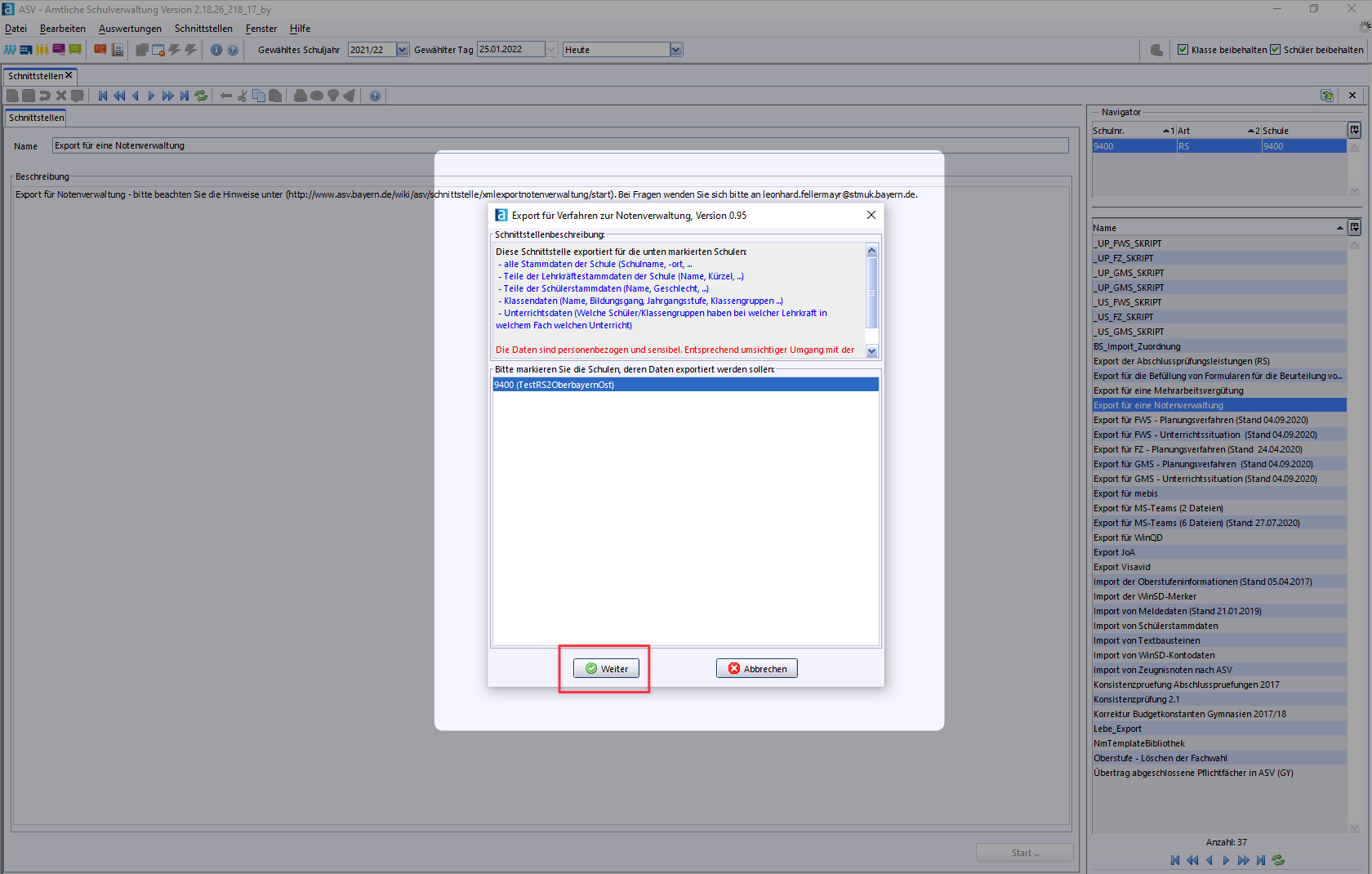
Start Export
Start the export via the Next button.
Select Storage Location for Export File
Now select a suitable storage location and a name for the export file. In this example, we save the export under the name edjufy-asv-bayern.zip on the Desktop.
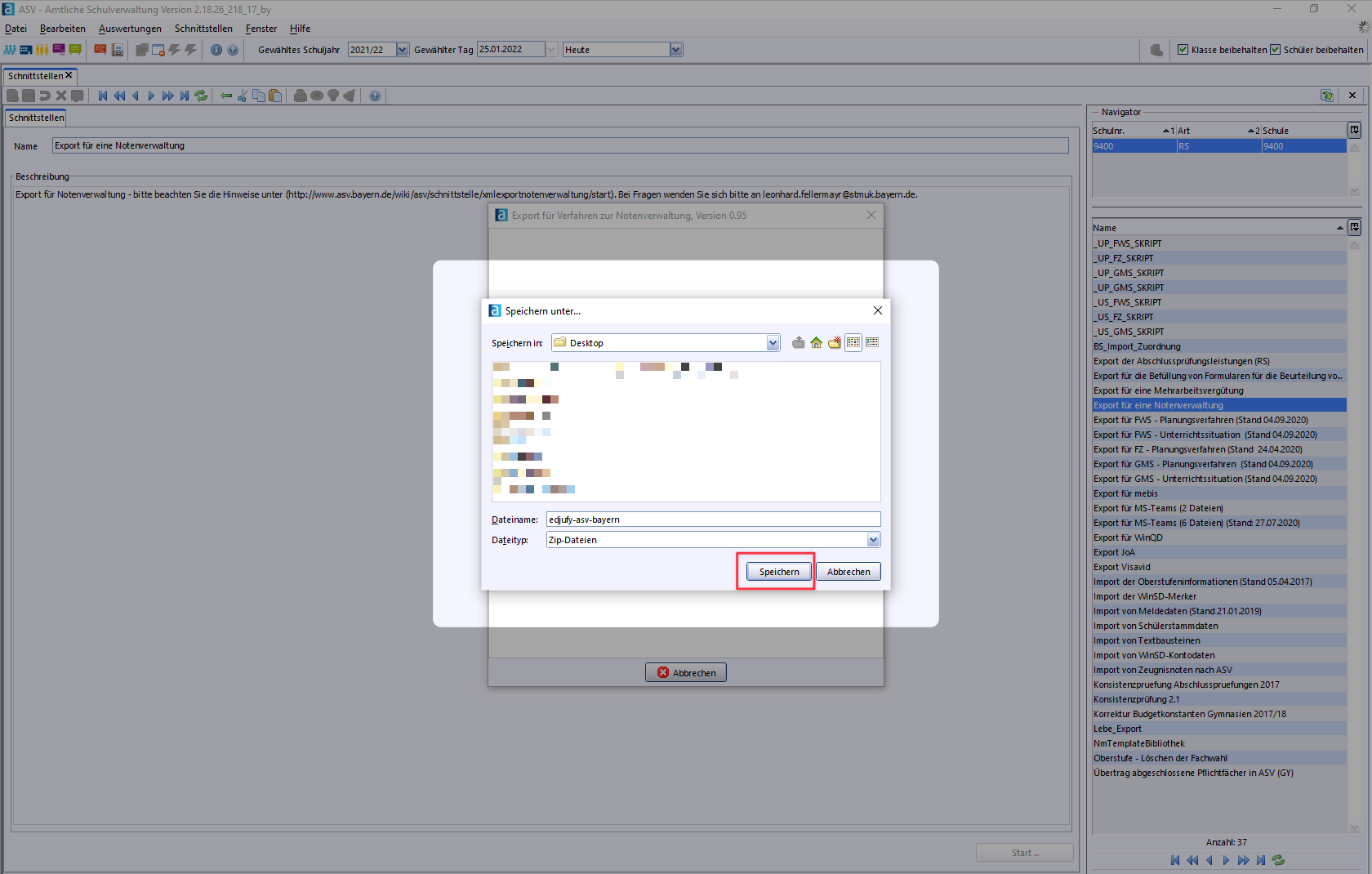
Save ZIP Archive Password
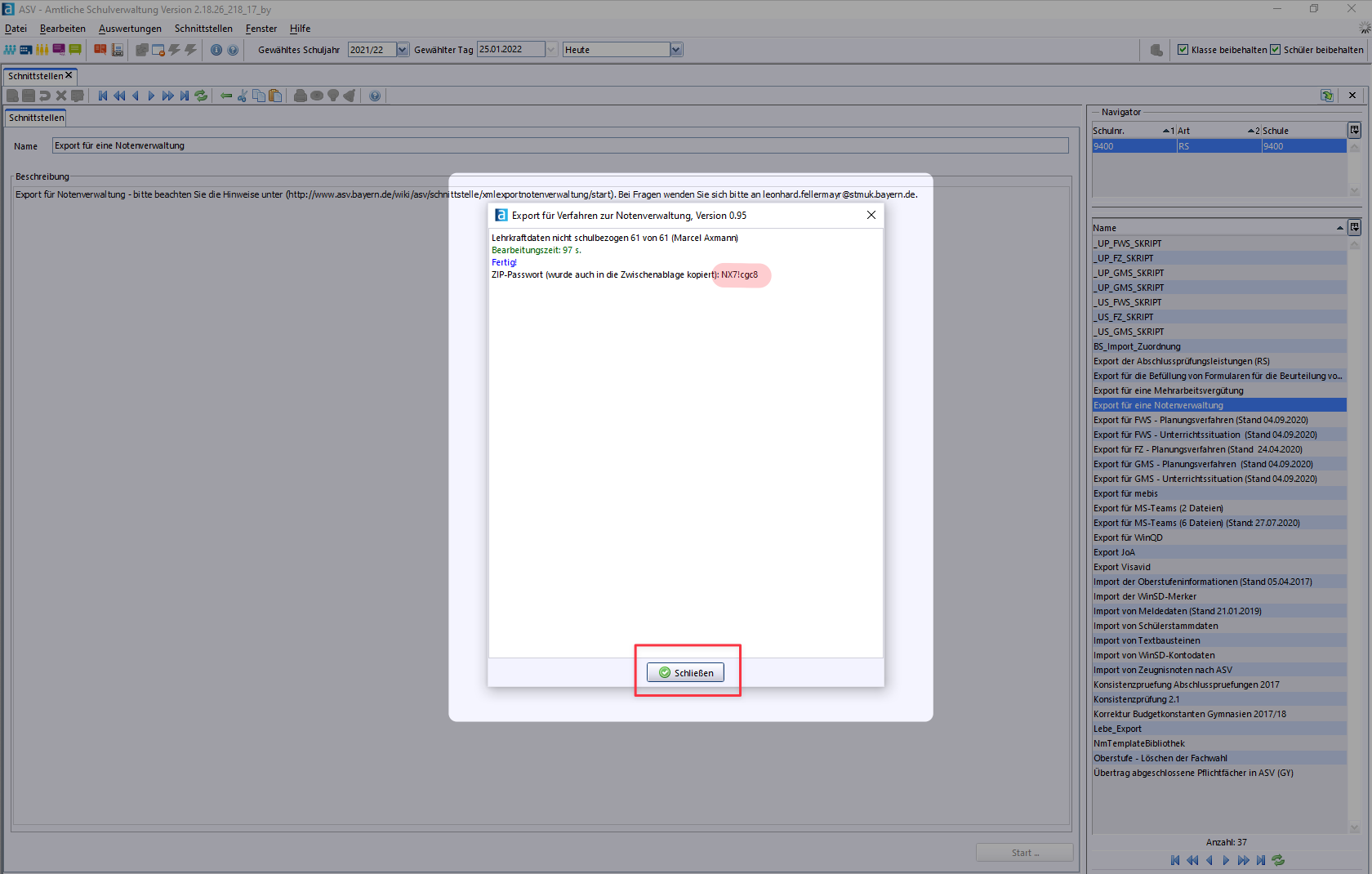
The exported ZIP archive is password protected. The ASV displays this password at the end of the export. Additionally, the password is saved to your computer's "clipboard" so you can retrieve it with CTRL + V.
Extract ZIP Archive
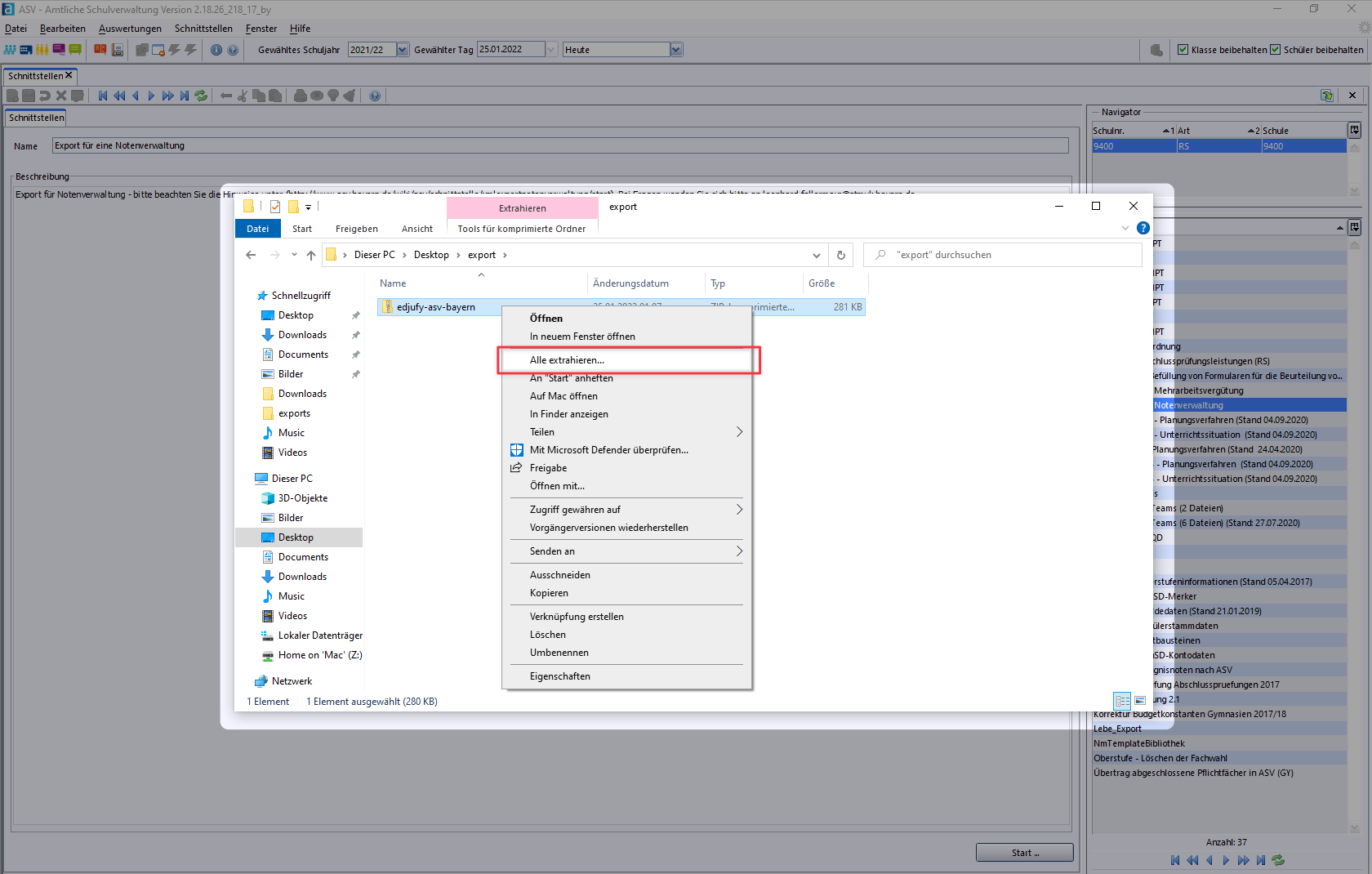
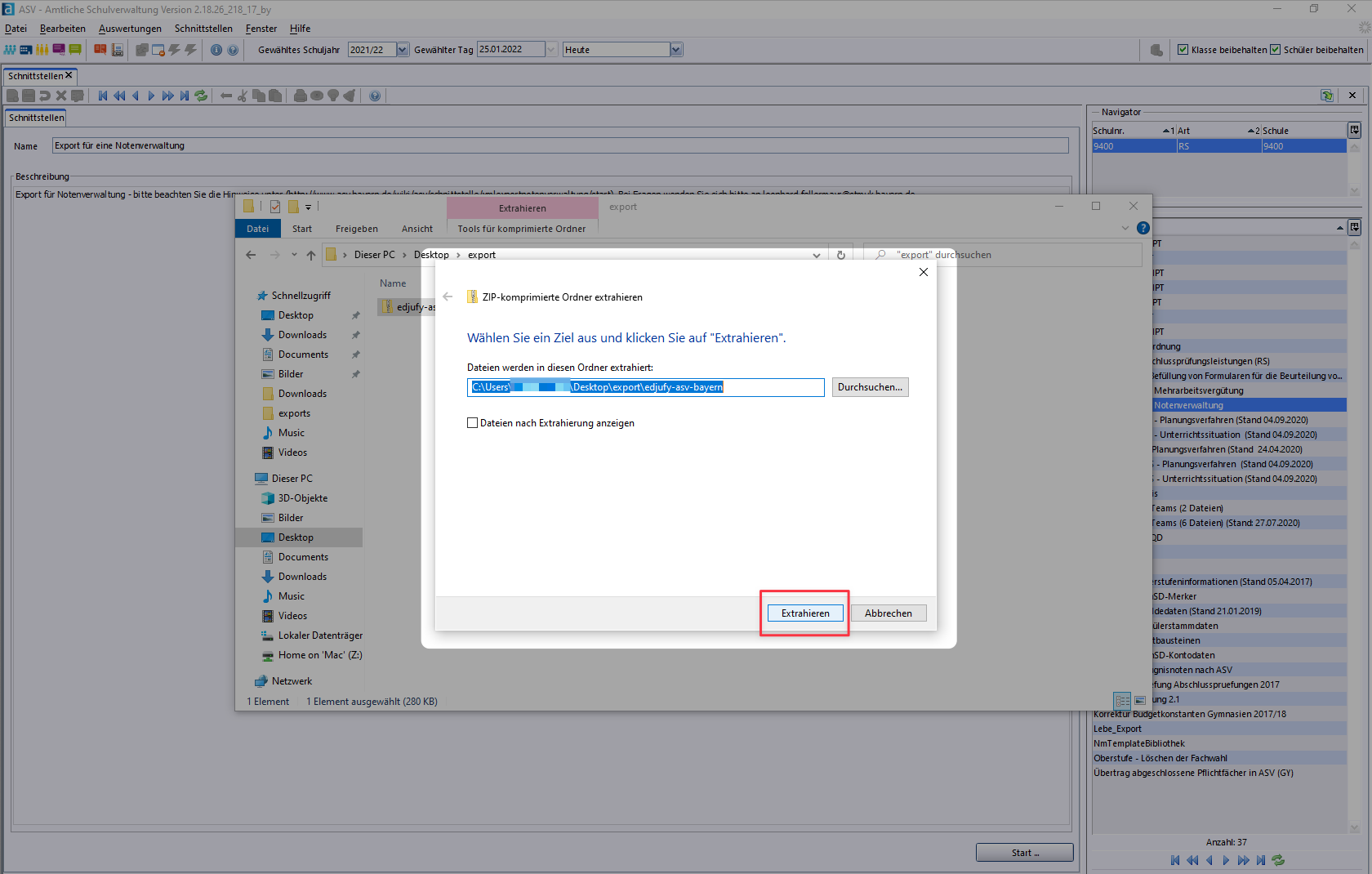
Now go to the folder you previously selected as the export destination and extract the ZIP archive. To do this, right-click on the exported file -> Extract All -> and then click on the Extract button. Now enter the password displayed earlier and your ASV export is ready for transfer to edjufy.
Unfortunately, on some Windows versions there is a known problem when extracting the password-protected ZIP archive file created by the ASV. When attempting to extract, you will see the error "0x80004005". To solve this problem, we recommend using alternative software such as WinRAR to extract the ZIP archive file.
Import into edjufy
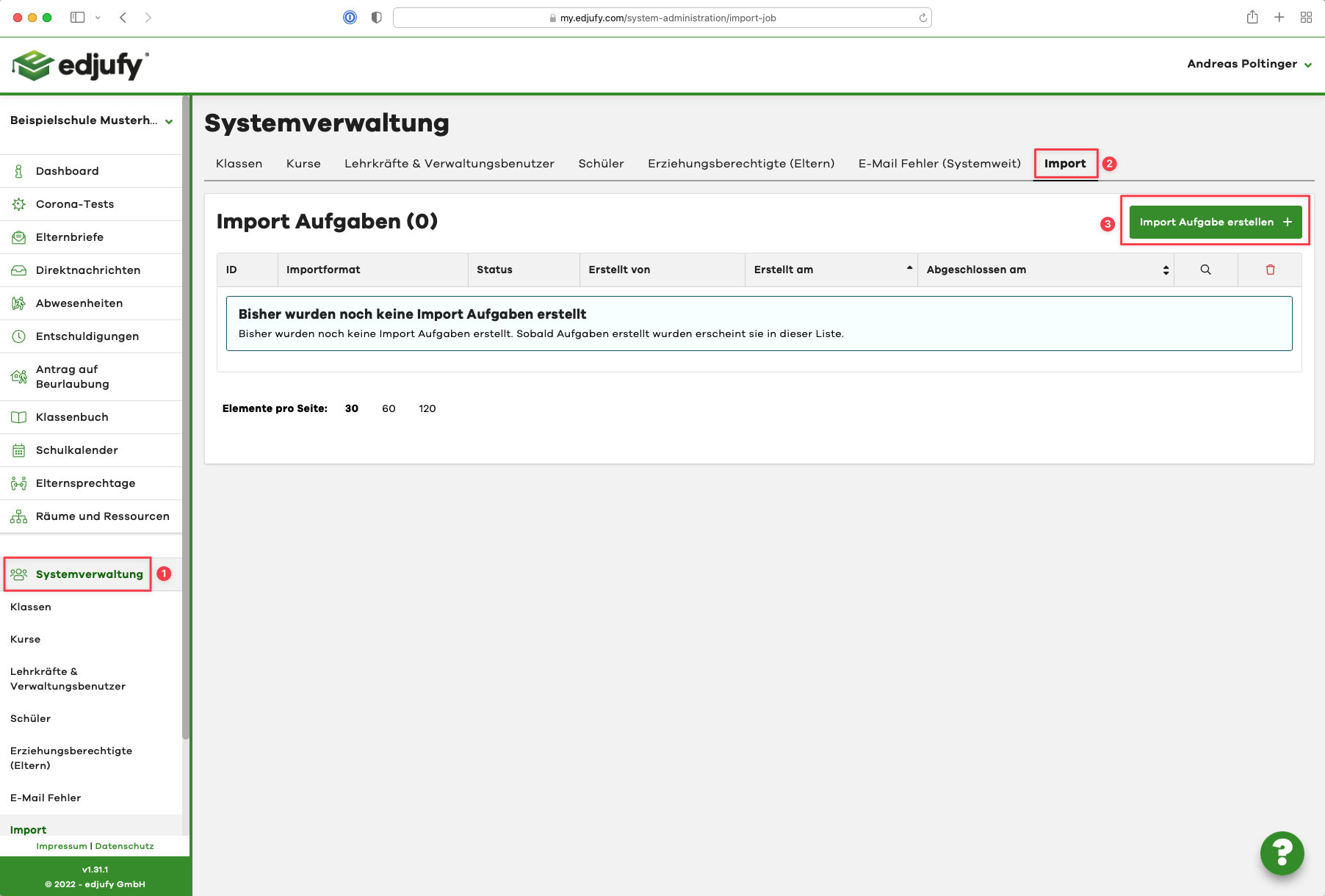
Open the edjufy Import dialog (2) in the System Administration (1). In this list, you can see all created "import jobs". For a new import, click on the Create Import Task + button (3).
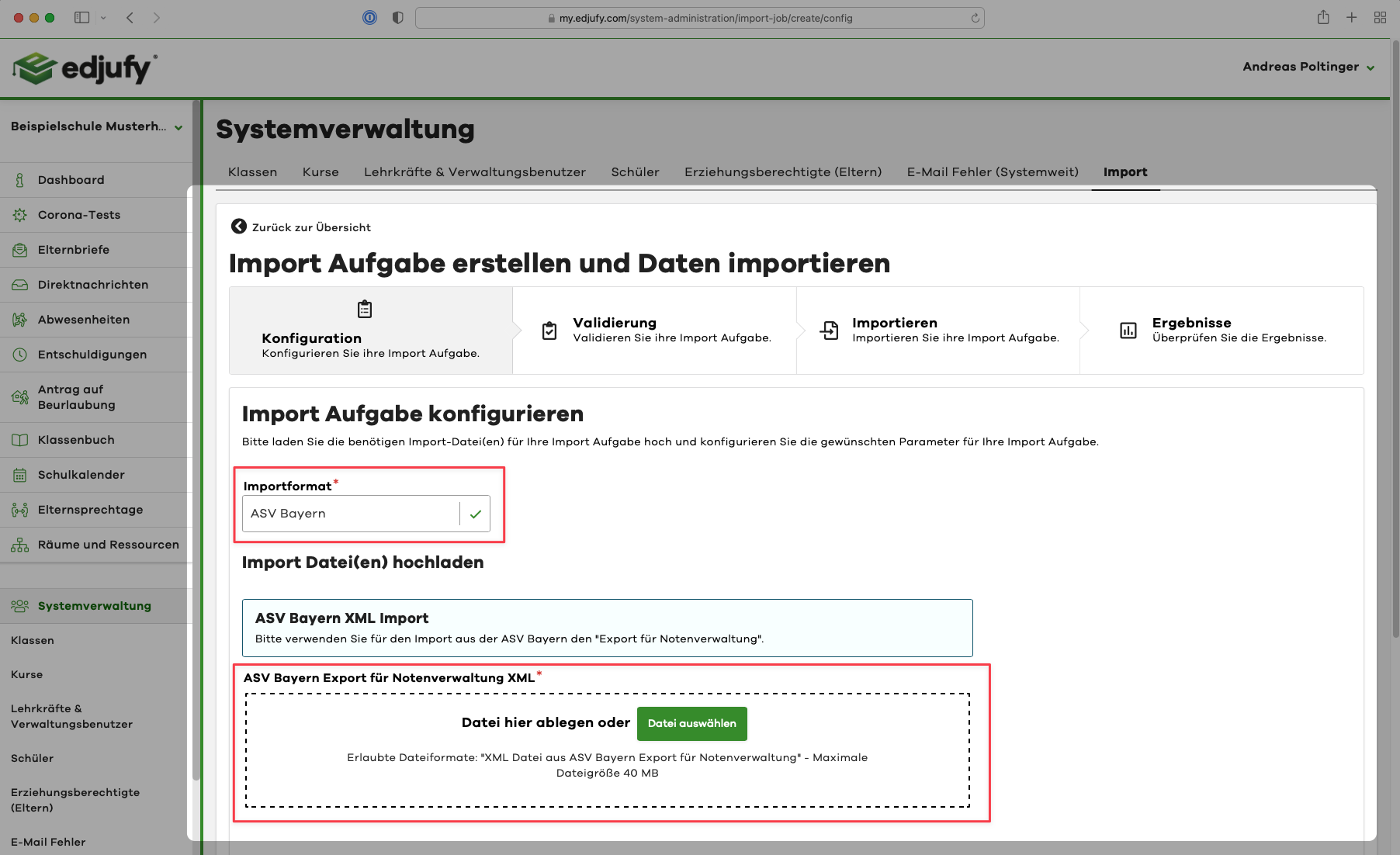
Please select the import format ASV Bayern and upload the previously created ASV XML via our file uploader.
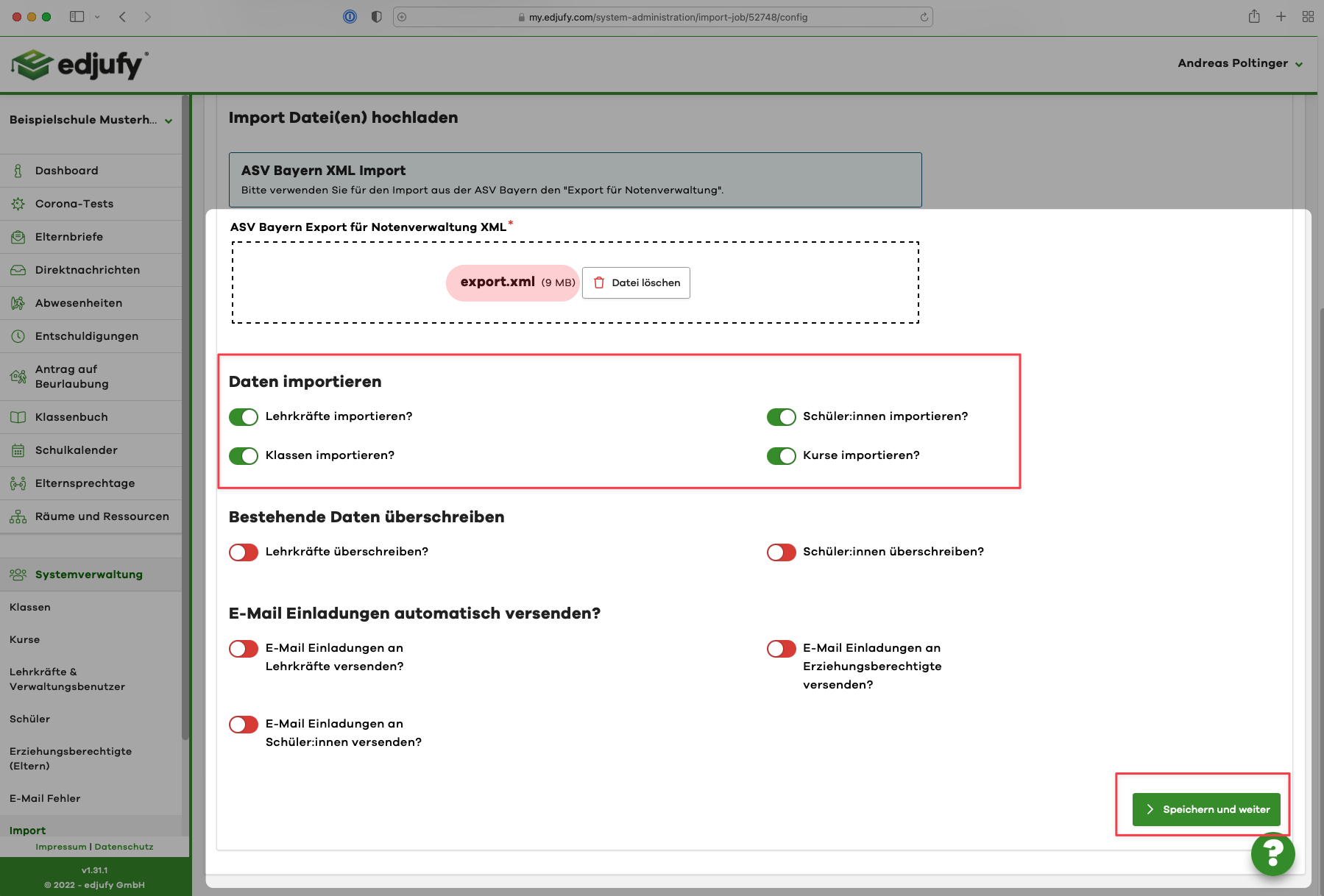
Then select the records you want to import or overwrite and click on the Save and Continue button to proceed to the next step.
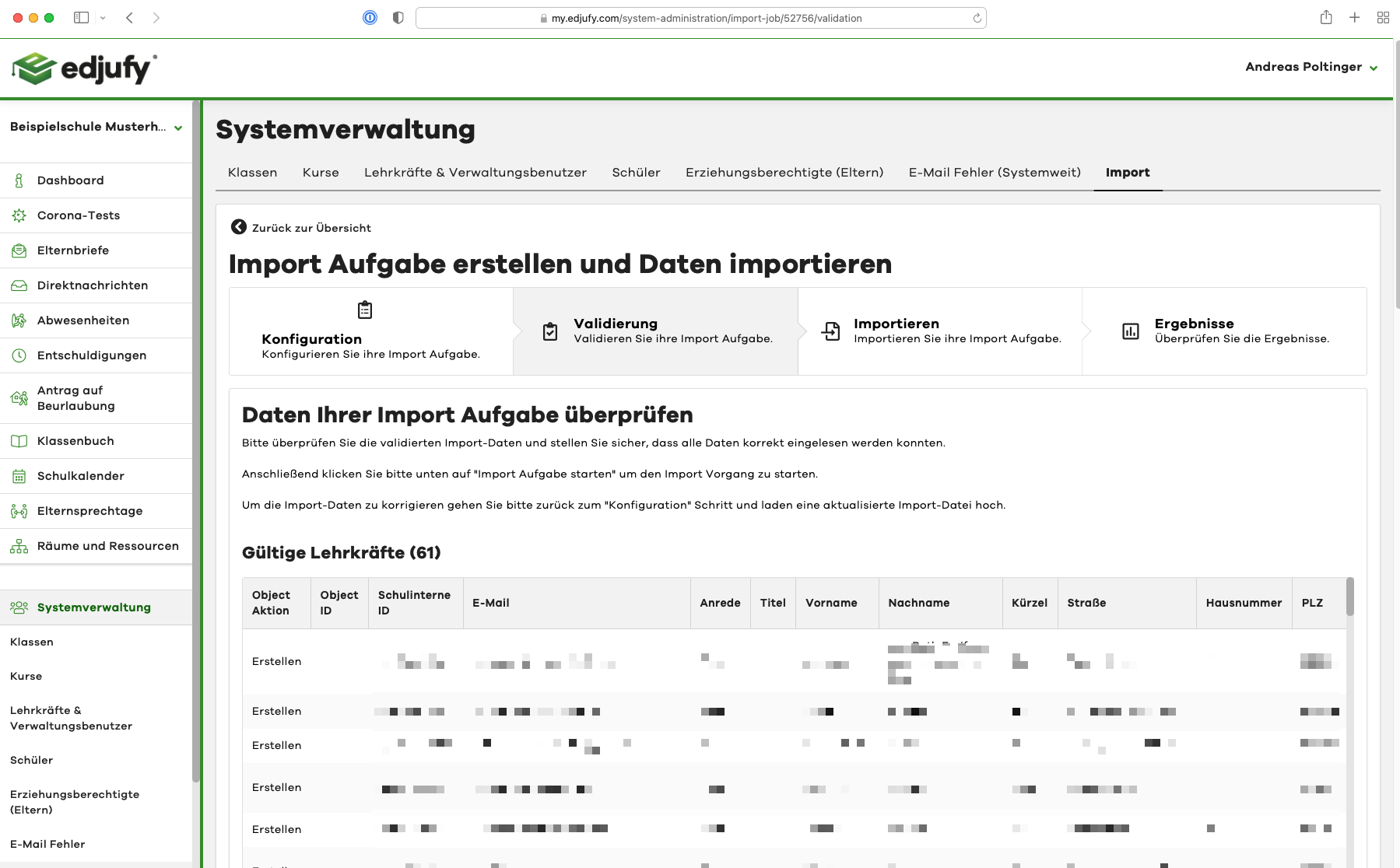
edjufy then performs a validation and provides a summary of the import. Please briefly review this summary and then start the import using the Start Import Task button.