End Absence
Introduction
Generally, absences in edjufy are automatically ended at the end of a day.
If a pupil returns to school on the day of the absence, the absence can and should be manually ended.
The following sections explain how to end an absence.
Manually End Absence
To manually end an absence, proceed as follows:
- Navigate to the Absences module.
- Switch to the All Absences tab.
- Select the desired absence from the list.
- Click End Absence in the Actions section on the right.
- Follow the displayed dialog.
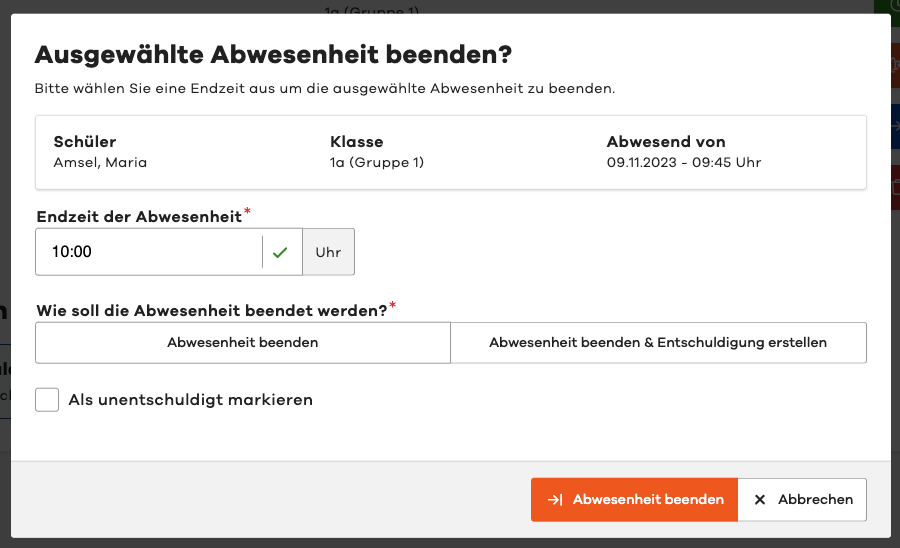
The absence will now be ended.
In the dialog, you can optionally also create an excuse.
This makes sense, for example, in cases of late arrival.
End Absences in the List View
In most list views for absences, you can also end an absence directly.
Simply use the End button in the list next to the desired absence.
In the list view, you can also perform additional actions via the More button.

End Absences in the Class Register
You can also end an absence directly in the class register.
Simply open a class register entry with the absence and click End in the Absence section in the list.
