Edit Absence
Introduction
Absences can still be edited and adjusted after creation.
The following describes how you can edit an absence.
Edit Absence Basic Information
To edit an absence, proceed as follows:
- Navigate to the Absences module.
- Switch to the All Absences tab.
- Select the desired absence from the list.
- Click the Edit button in the top right.
- Adjust the desired information.
- Finally, click Save.
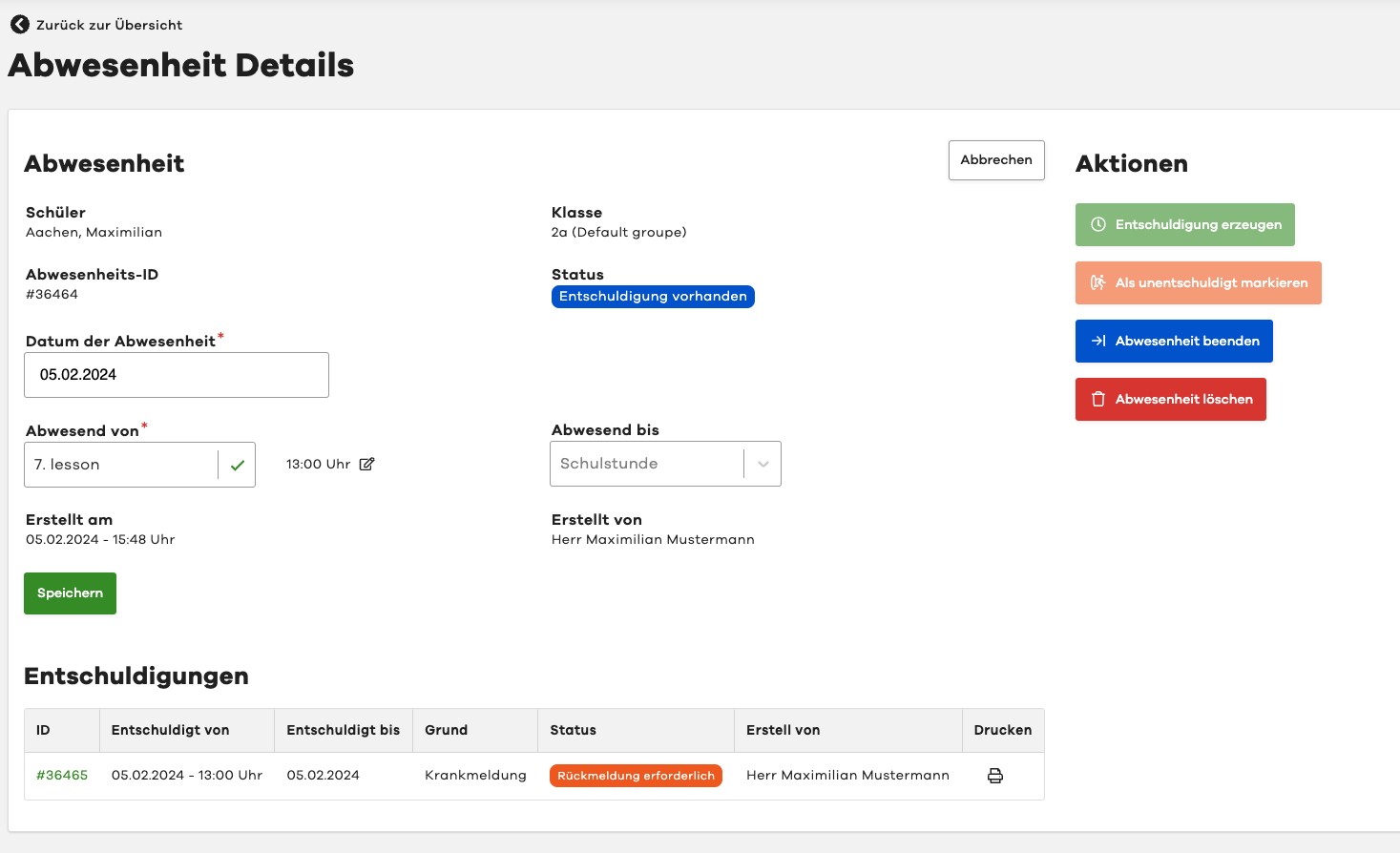
Mark Absence as Unexcused
To mark an absence as unexcused, proceed as follows:
- Navigate to the Absences module.
- Switch to the All Absences tab.
- Select the desired absence from the list.
- Click Mark as Unexcused in the Actions section on the right.
- Confirm the action.
Note
Absences can only be marked as unexcused if their status is Unknown.
If an excuse already exists, you must reject it to mark the absence as unexcused.
Create Excuse
To create a matching excuse for an absence, proceed as follows:
- Navigate to the Absences module.
- Switch to the All Absences tab.
- Select the desired absence from the list.
- Click Create Excuse in the Actions section on the right.
- Follow the displayed dialog.
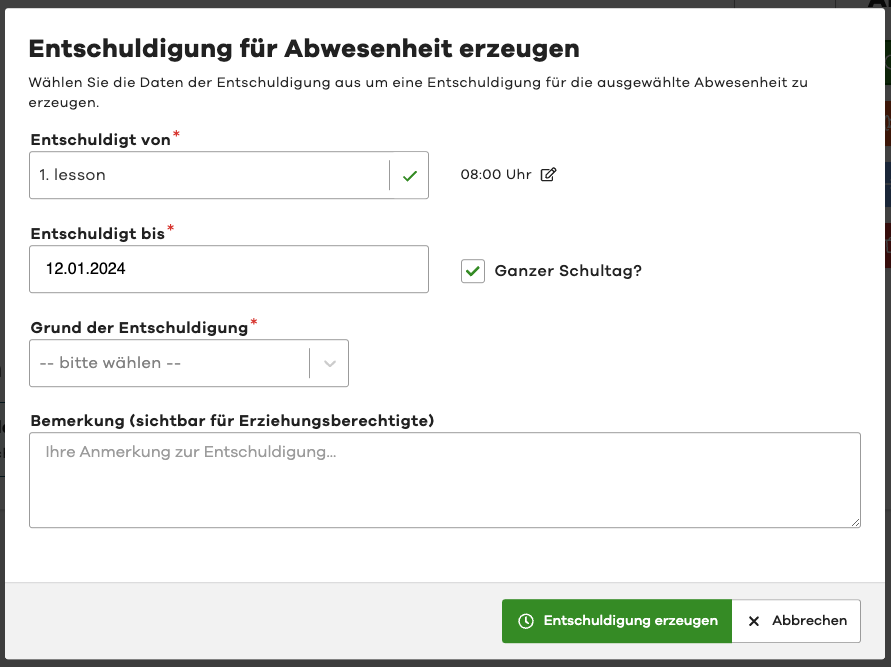
The system will now automatically create a matching excuse for the absence.
End Absence
Information about ending an absence can be found in the document End Absence.