Export Absences
Introduction
edjufy offers you the ability to export absences created in the system. The export can be done in various formats.
Permissions are required for exporting absences.
You need both the permission to view absences and the permission to export absences.
Permissions are granted via "Account Groups" under "System Administration / Teachers & Administrative Users".
Contact your school's internal edjufy administrator if necessary.
Prepare Export
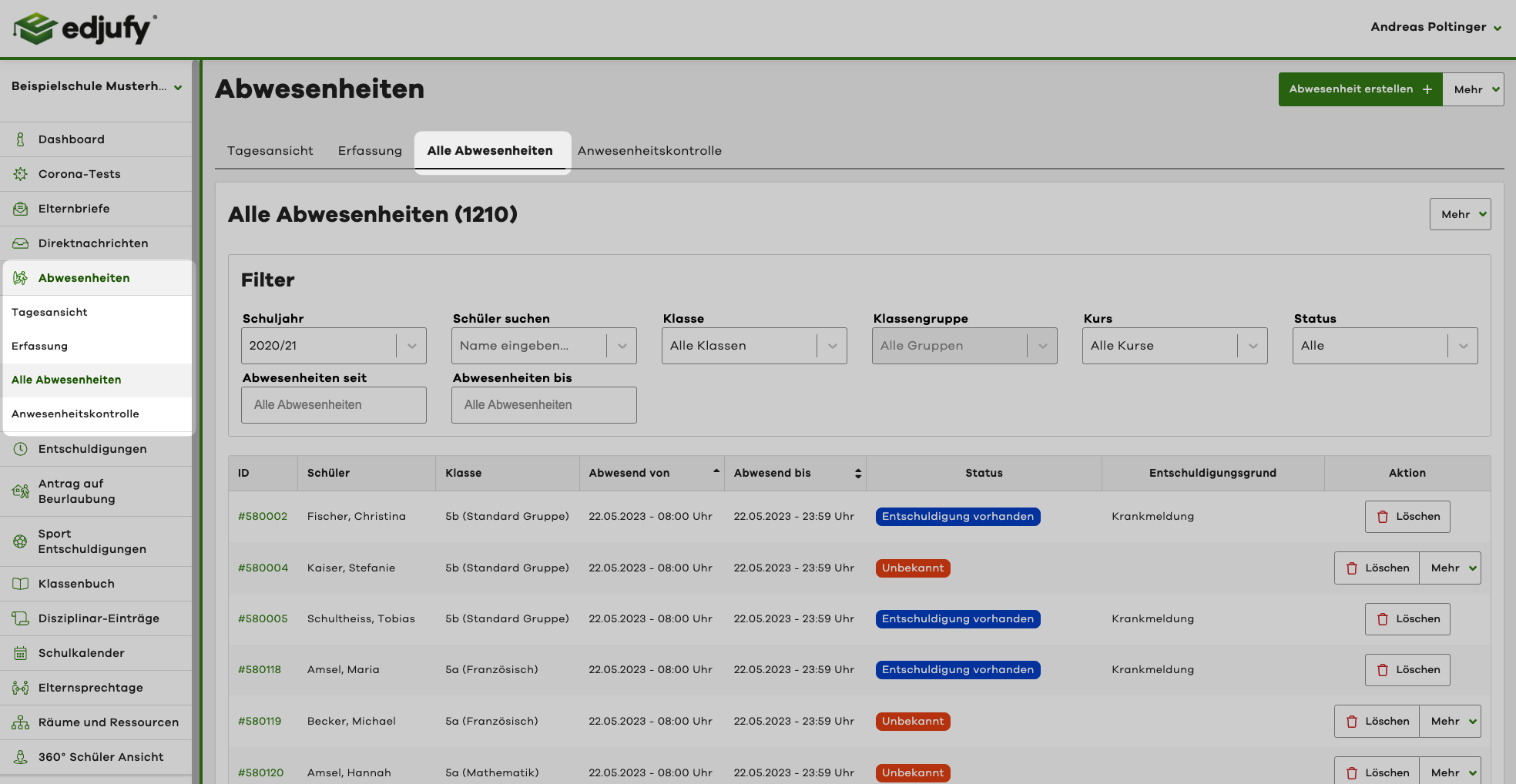
To prepare an export, navigate to "Absences" in the menu and select the "All Absences" tab. You should now see a list of all absences for your school.
Select Absences for Export
In the absences overview, you can now select the absences you want to export. Use the provided filter options for this purpose.
For example, if you want to export the absences of a specific pupil, you can use the "Search Pupil" filter.
Once you have selected the desired absences, you can proceed with the export.
Perform Export
To perform the export, click the "More" button in the top right next to the "All Absences" heading and select the "Export Absences" option.
The "More" button is only visible if you have the necessary permissions.

Select Export Format
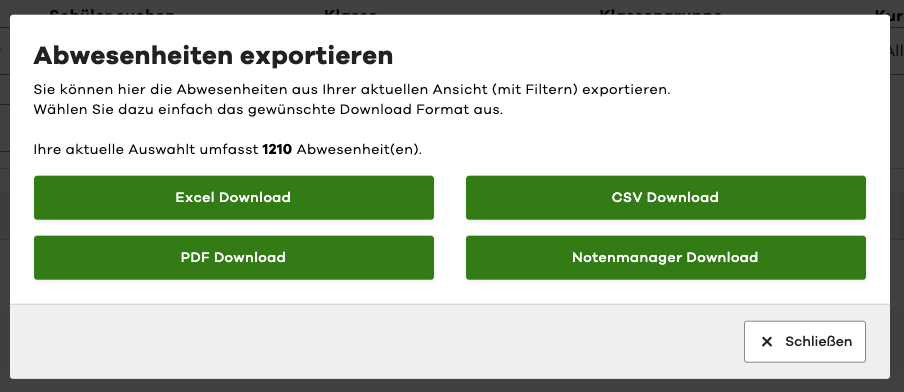
In the next step, you can select the desired export format.
Start Export
After selecting the desired format, the export starts automatically. Your export file will now be generated and then downloaded.