Create and Send Parent Letter
Login
To send a parent letter with edjufy, simply log in to edjufy with your personal credentials. To log in, please open the following URL in your browser: https://my.edjufy.com and select the menu item "Parent Letters" in the menu bar on the left side.
Overview
Select the menu item "Parent Letters" in the menu bar on the left side.
To create a new parent letter, click on the green button in the upper right corner Create Parent Letter +
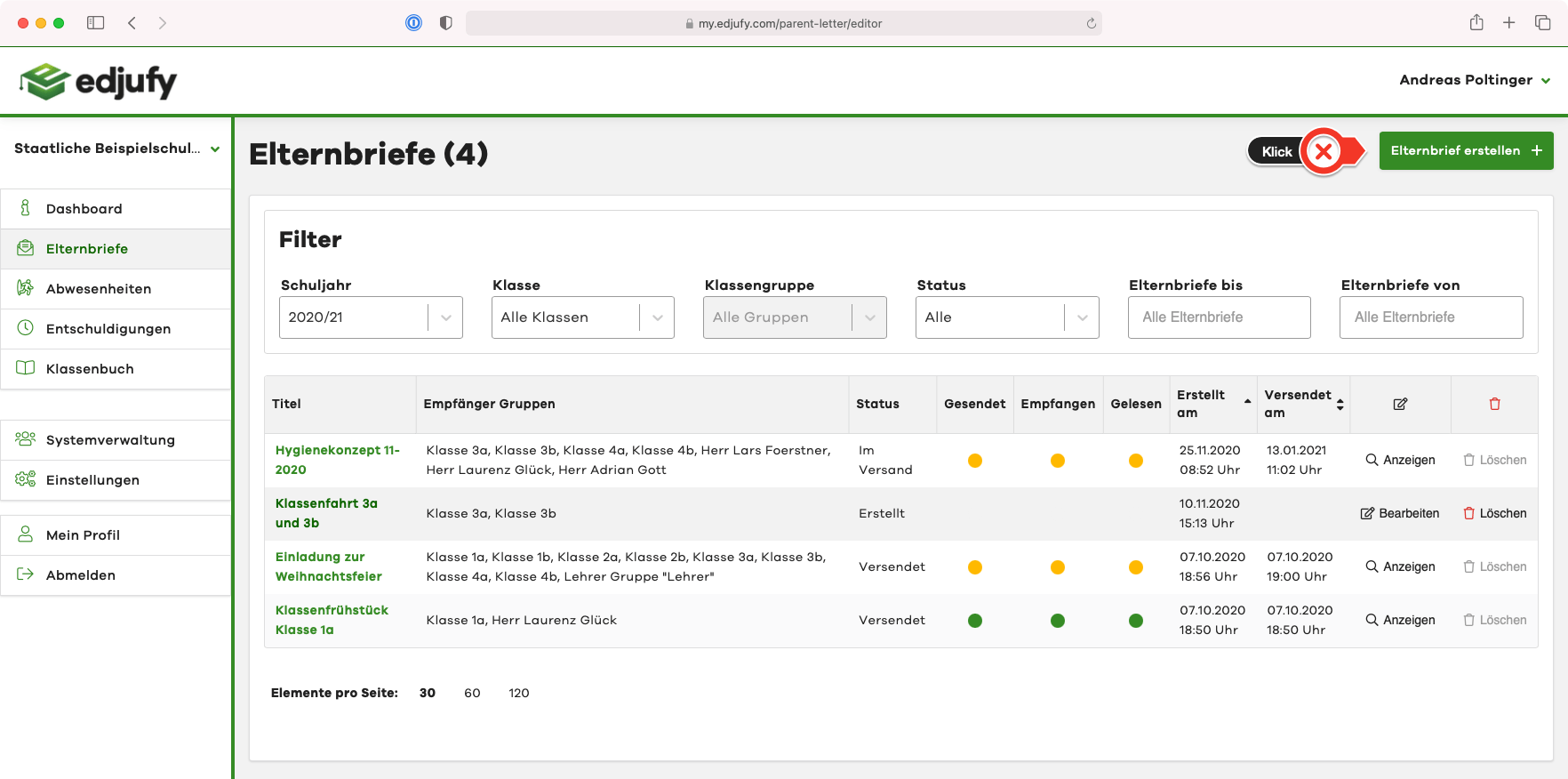
Create Parent Letter
The wizard for creating and sending parent letters is divided into the following 5 steps:
- Content
- Attachments
- Responses
- Recipients
- Summary
In each of these individual steps, you can save your current progress with the Save and continue button and continue editing and sending at a later time.
Content
In the first step, you define the title and message of the parent letter. The message field is particularly practical when you only want to send short information to legal guardians without a PDF attachment. If you want to send an attachment with your parent letter, this field serves as a brief introduction.
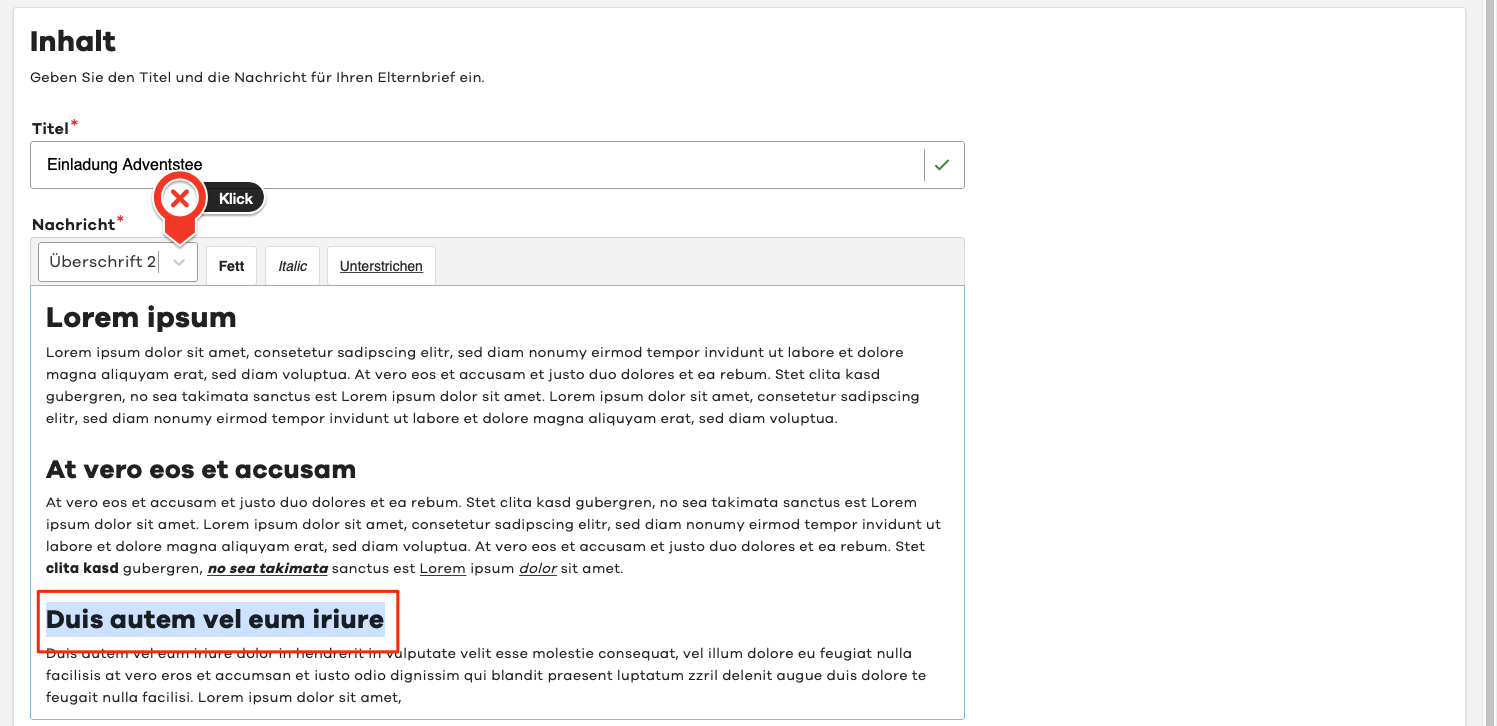
The message text field also allows you various formatting options such as:
- Four different headings
- Bold
- Italic
- Underlined
Simply highlight the desired text with your mouse and select a formatting option, such as Heading 2 in this example.
Sensitive Data
Below the message field, you will find the option Mark parent letter message as "sensitive data"?. If you enable this option, the content of the parent letter will be marked as particularly sensitive.
This option is particularly useful when the parent letter contains confidential information that requires special protection.
Once you have entered the title and a message, you can save your entries with the Save and continue button and proceed to the next step.
Attachments
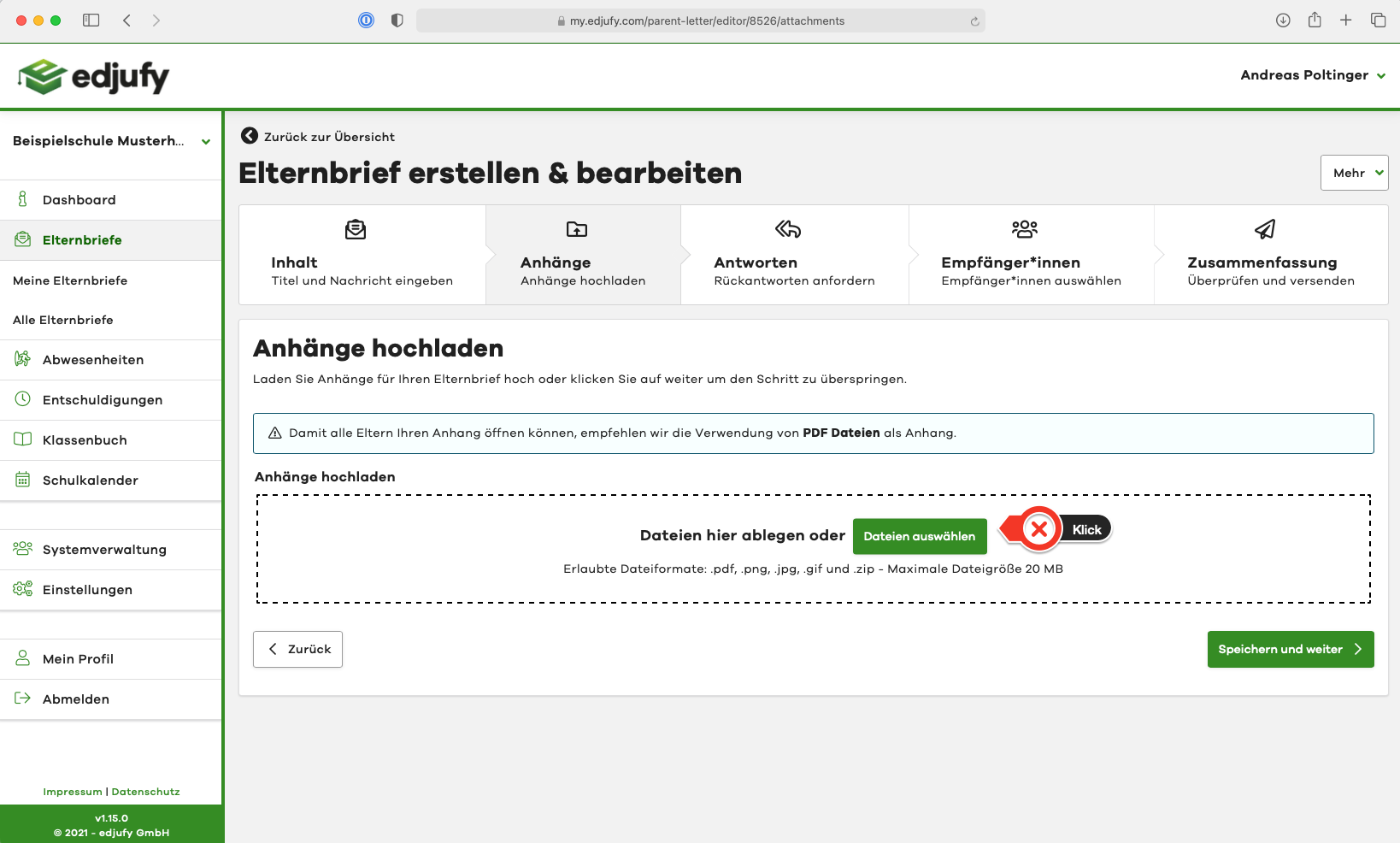
In the second step, you can optionally send various documents as attachments. Please note the allowed file formats and the maximum file size.
To upload one or more attachments, either click on the Select files button or drag and drop the file into the upload section.
Responses
edjufy provides you with 3 response options for your parent letter. In this example, we select the Simple Read Confirmation. The different response options and their features are explained in more detail in a separate chapter.
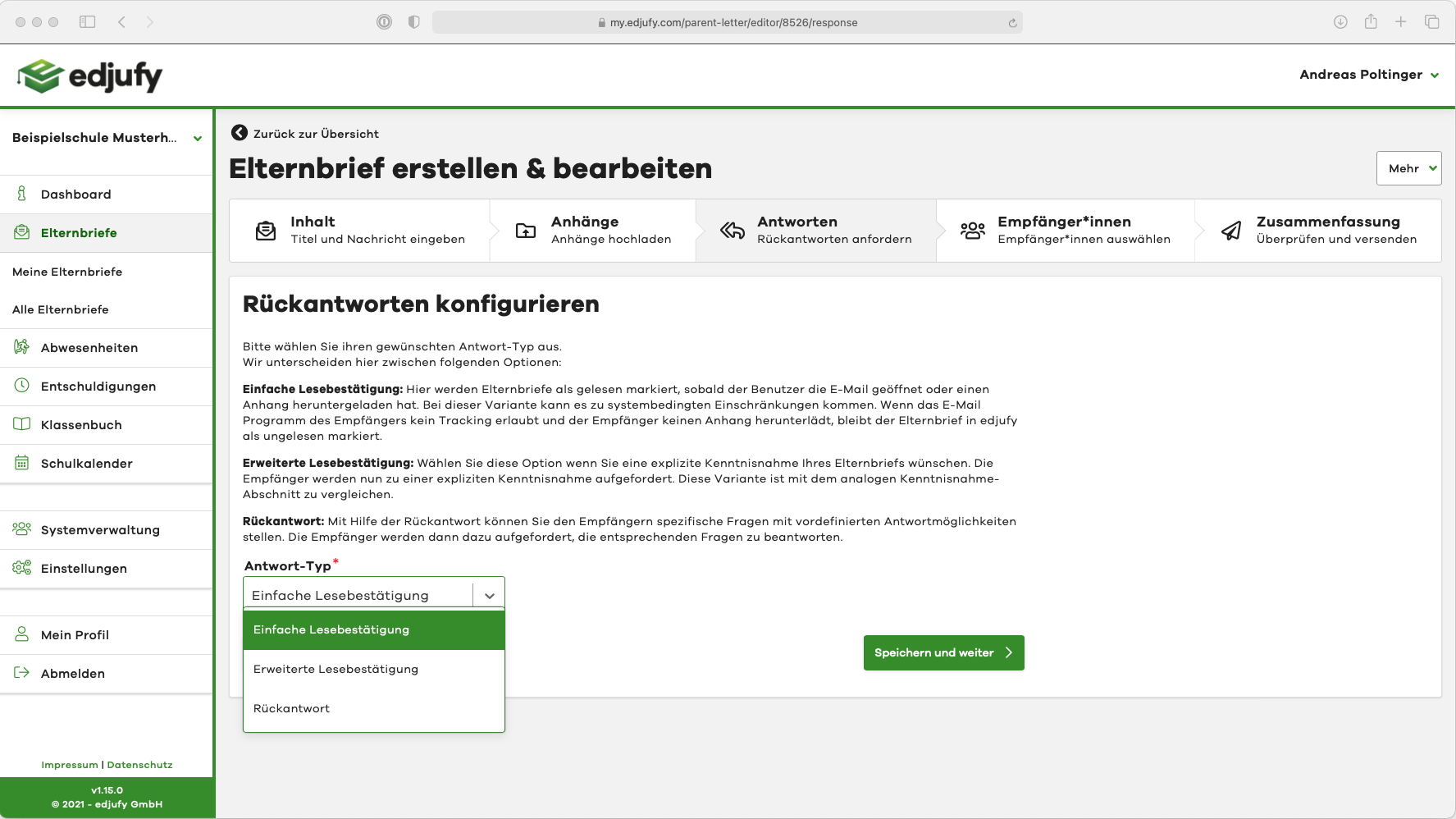
For better readability, the response options and their features are described in more detail in a separate chapter.
Recipients
General
With edjufy, you can send a parent letter both to the legal guardians of your pupils and to colleagues. For this purpose, you have the option in the Recipients section to include:
- Legal guardians of classes / class groups
- Teacher groups
- Individual teachers
- Legal guardians of individual pupils
in the recipient list of your message.
With edjufy, you no longer have to worry about whether all parents and legal guardians of a child have verifiably received the parent letter.
As a teacher, you simply select a class, a class group, or individual pupils in the sending process. edjufy then sends the parent message to all legal guardians stored in the system for the respective children.
Classes / Class Groups
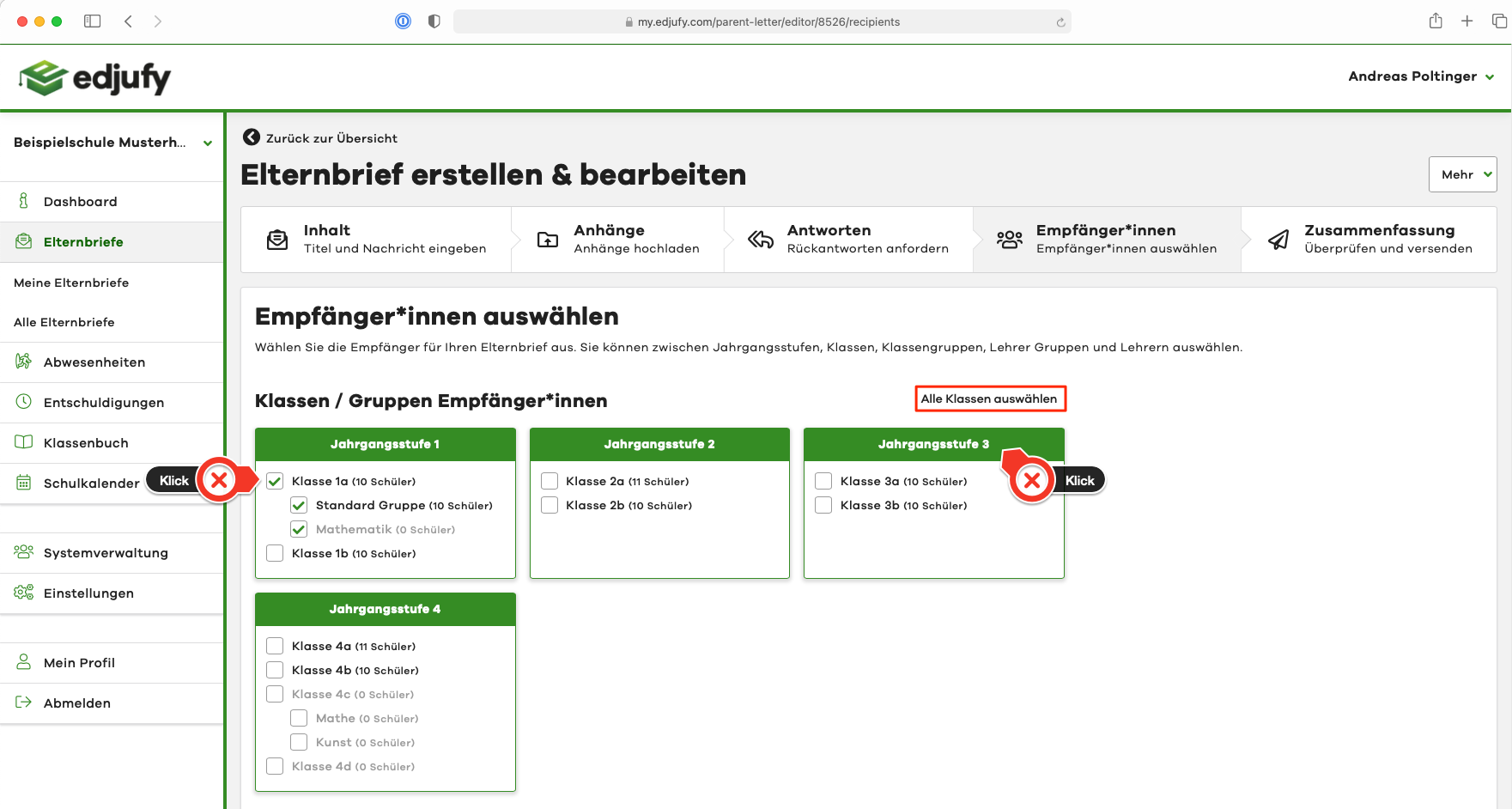
To select, click on the desired class / class group or on a grade level. With the Select all classes button, you can also conveniently select all classes / class groups and deselect them again with another click.
Teacher Groups / Individual Teachers
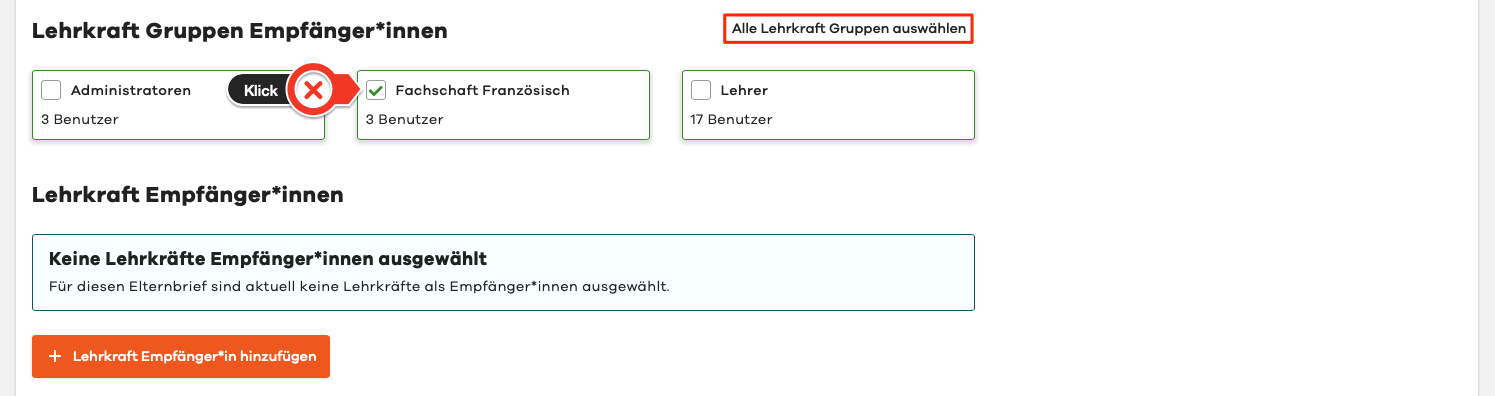
To select, click on the desired teacher group. Similar to classes, you can also select all teacher groups at once and deselect them again with another click.
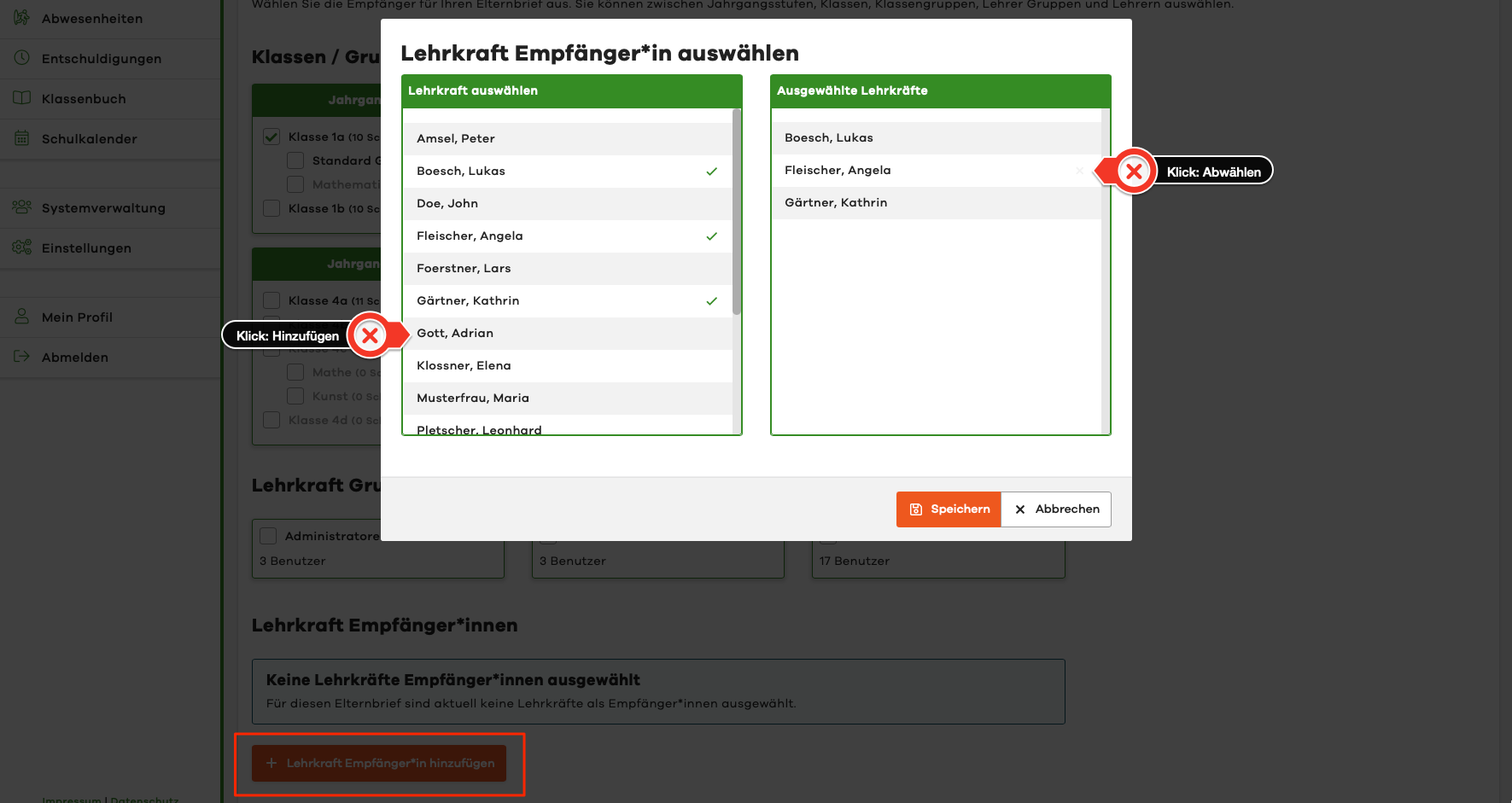
Additionally, you can also add individual teachers to the recipient list via the + Add Teacher Recipient button. In the following view, you have 2 columns. By clicking on a teacher on the left side, you can add a person. This person then appears on the right side in the Selected Teachers list. By clicking on a selected person again, you can deselect them.
Individual Pupils
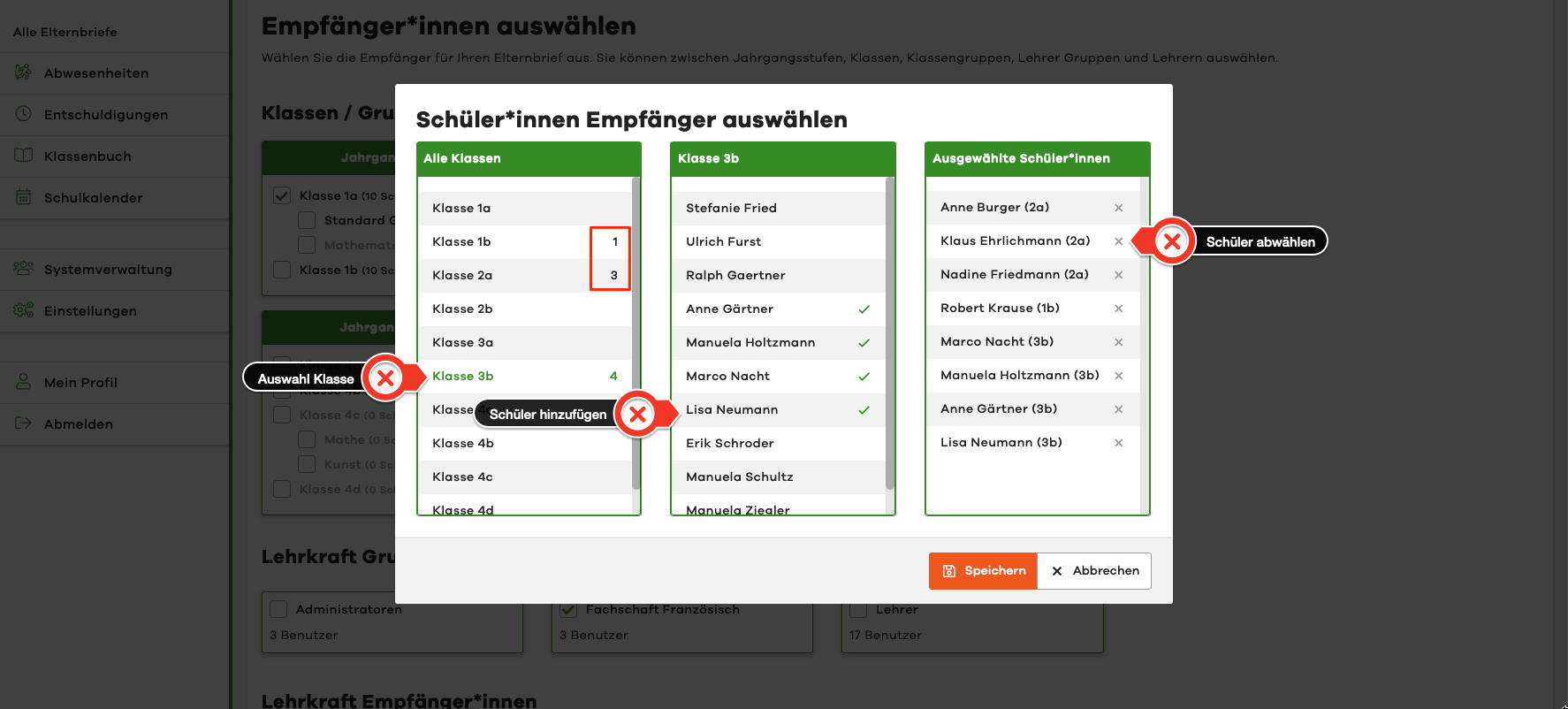
Additionally, you can also add individual pupils to the recipient list via the + Add Pupil Recipient button. In the following view, you have 3 columns. By clicking on a class and then on a pupil, you can add a person to the recipient list. This person then appears on the right side in the Selected Pupils list. By clicking on a selected person again, you can deselect them.
In the class column, the number next to the class name tells you how many individual pupils you have already selected.
With edjufy, you no longer have to worry about whether all parents and legal guardians of a child have verifiably received the parent letter.
As a teacher, you simply select a pupil here. edjufy then sends the parent message to all legal guardians stored in the system for the respective child.
Summary
The summary is the last step before you send the parent letter.
It shows you all previous entries and contains the button to start sending at the bottom.
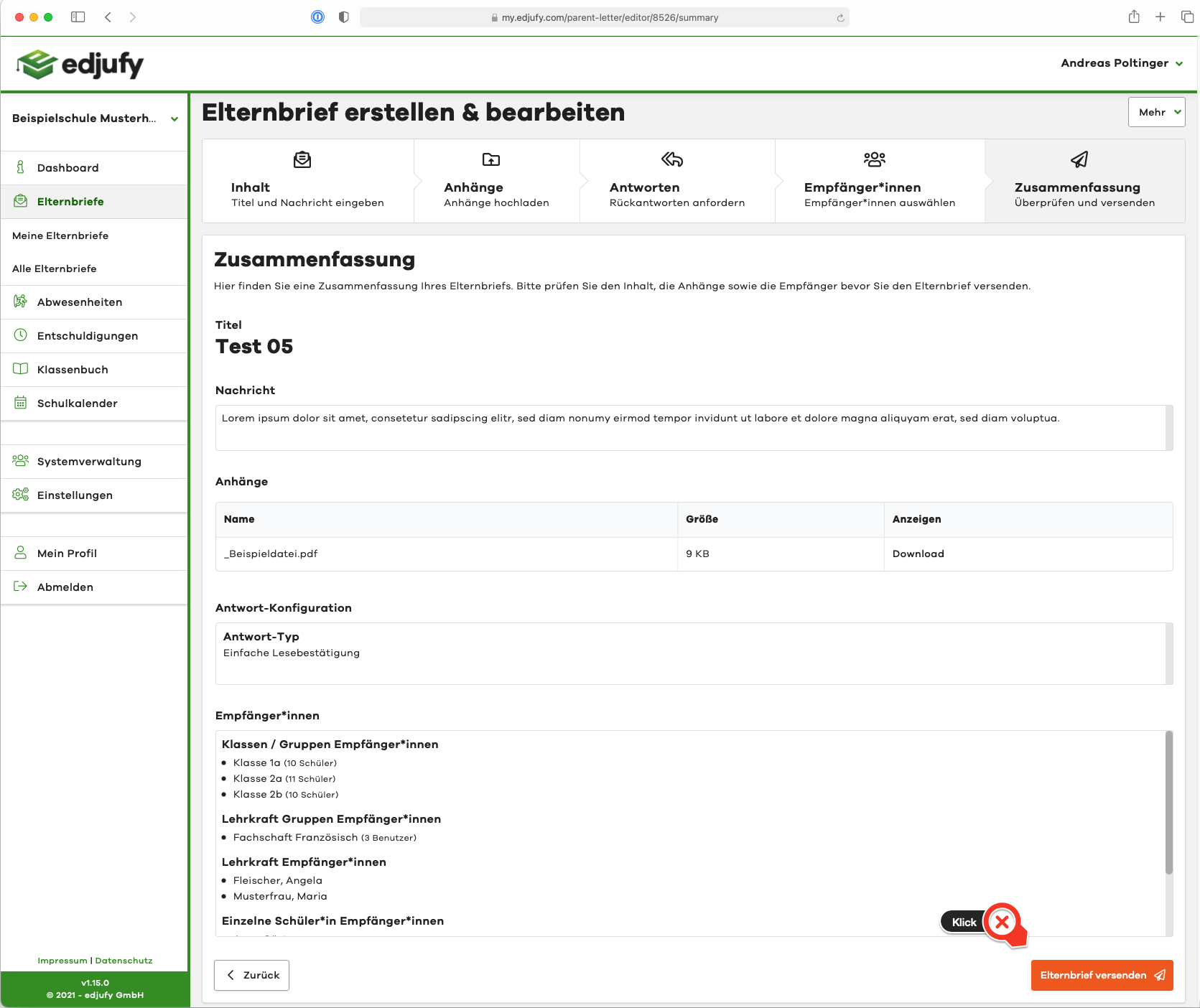
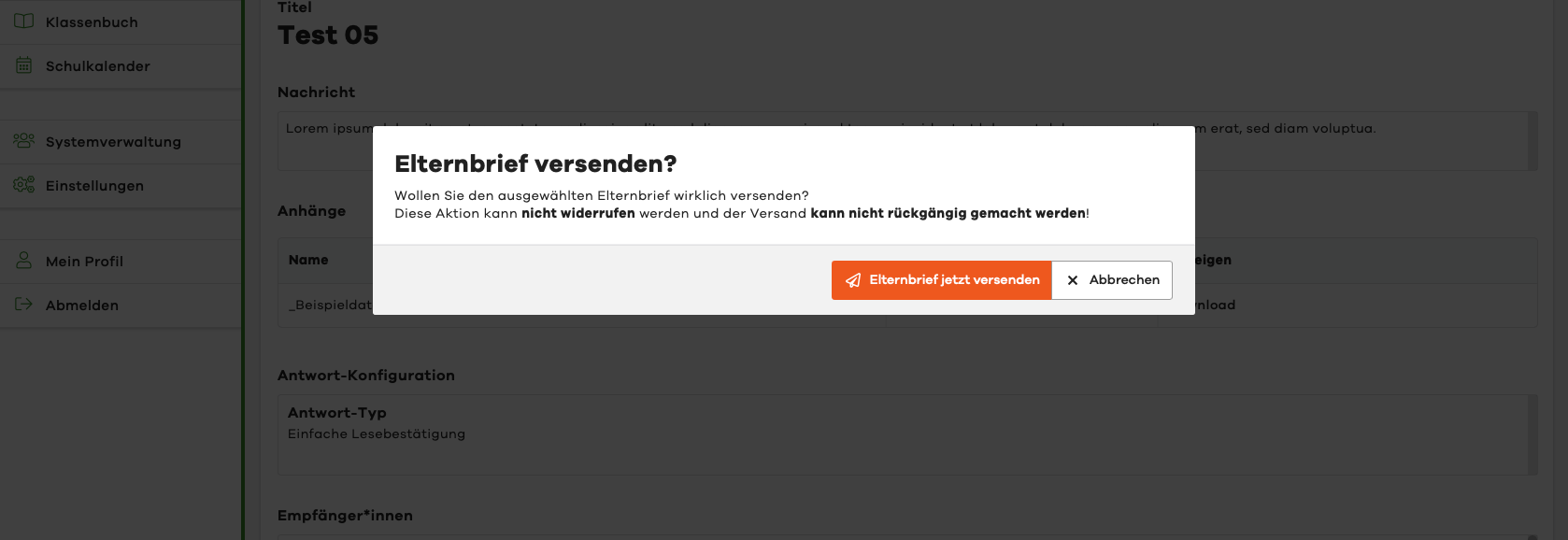
By clicking on Send Parent Letter, you will be asked one last time whether you want to send the parent letter. Please remember that this action cannot be undone.