Manage Pupils in edjufy
General
First, select the System Administration module.
The System Administration module is divided into different menu items (School Classes, Courses, Teachers, etc.). Please select the menu item Pupils.
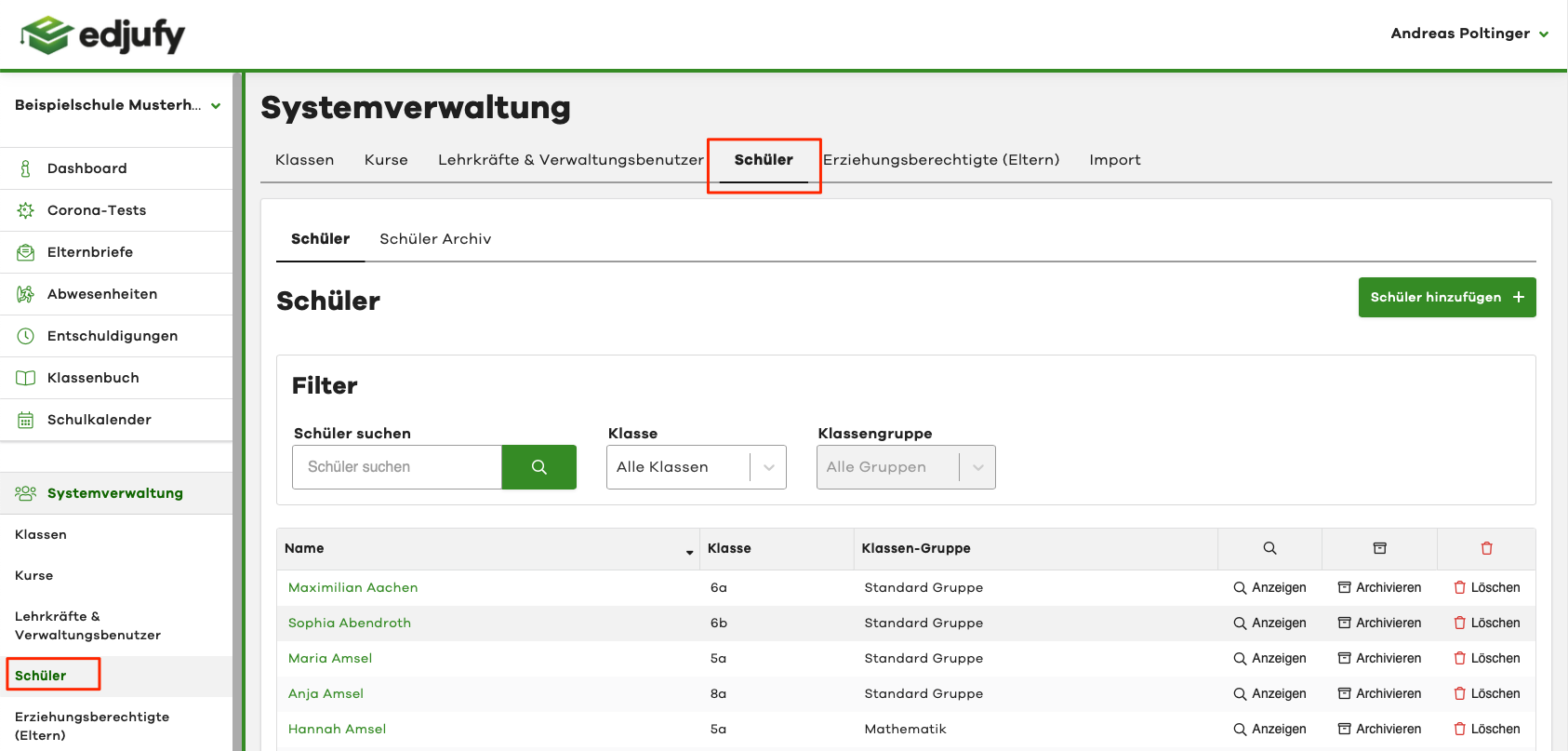
The menu item Pupils is divided into two sub-items:
- Pupils
- Pupil Archive

Pupils
Overview
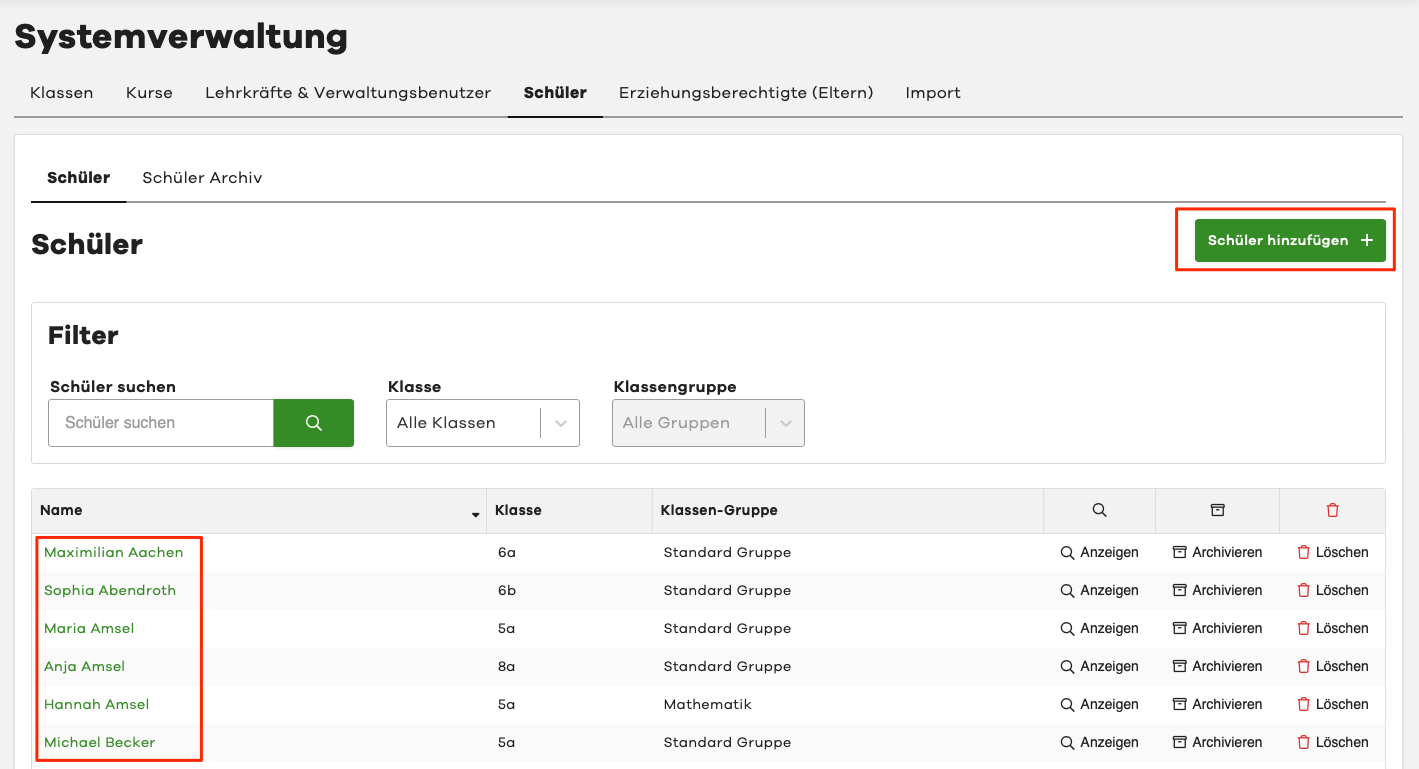
Please click on the menu item Pupils in the System Administration. In the sub-item of the same name Pupils, you can view all previously created pupils. You can view the details of an existing pupil by clicking on the desired name. And with the Add Pupil + button, you can manually create additional pupils.
Create Pupil
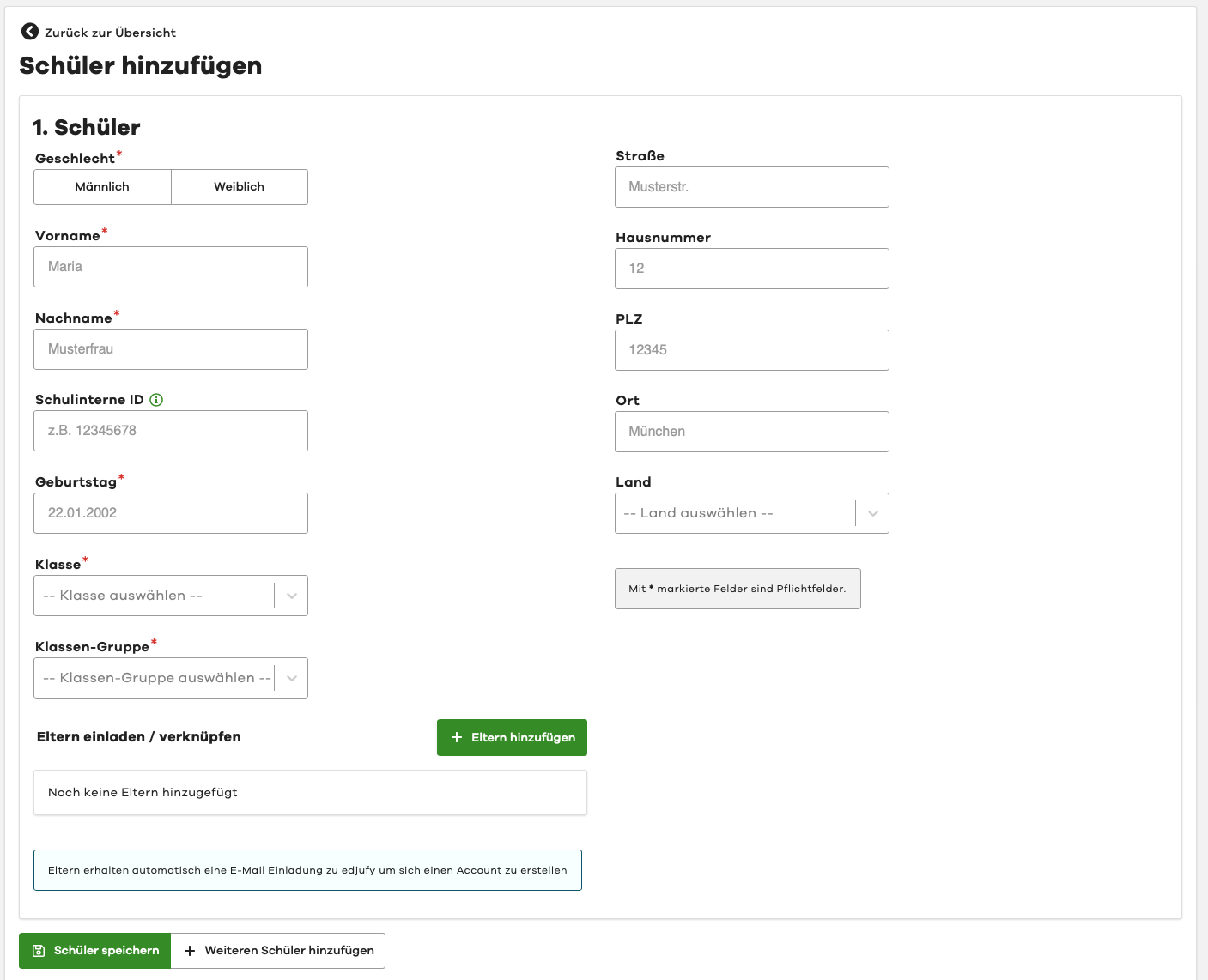
If you clicked on Add Pupil in the previous view, the corresponding dialog opens.
- Please enter the required master data
- Please specify the desired school class and class group
- Please enter the email address of the legal guardians using the + Add Parents button. They will receive an invitation to the system when you save.
With the + Add Another Pupil button, you can add another pupil, and with Save Pupil, you save your previous entries.
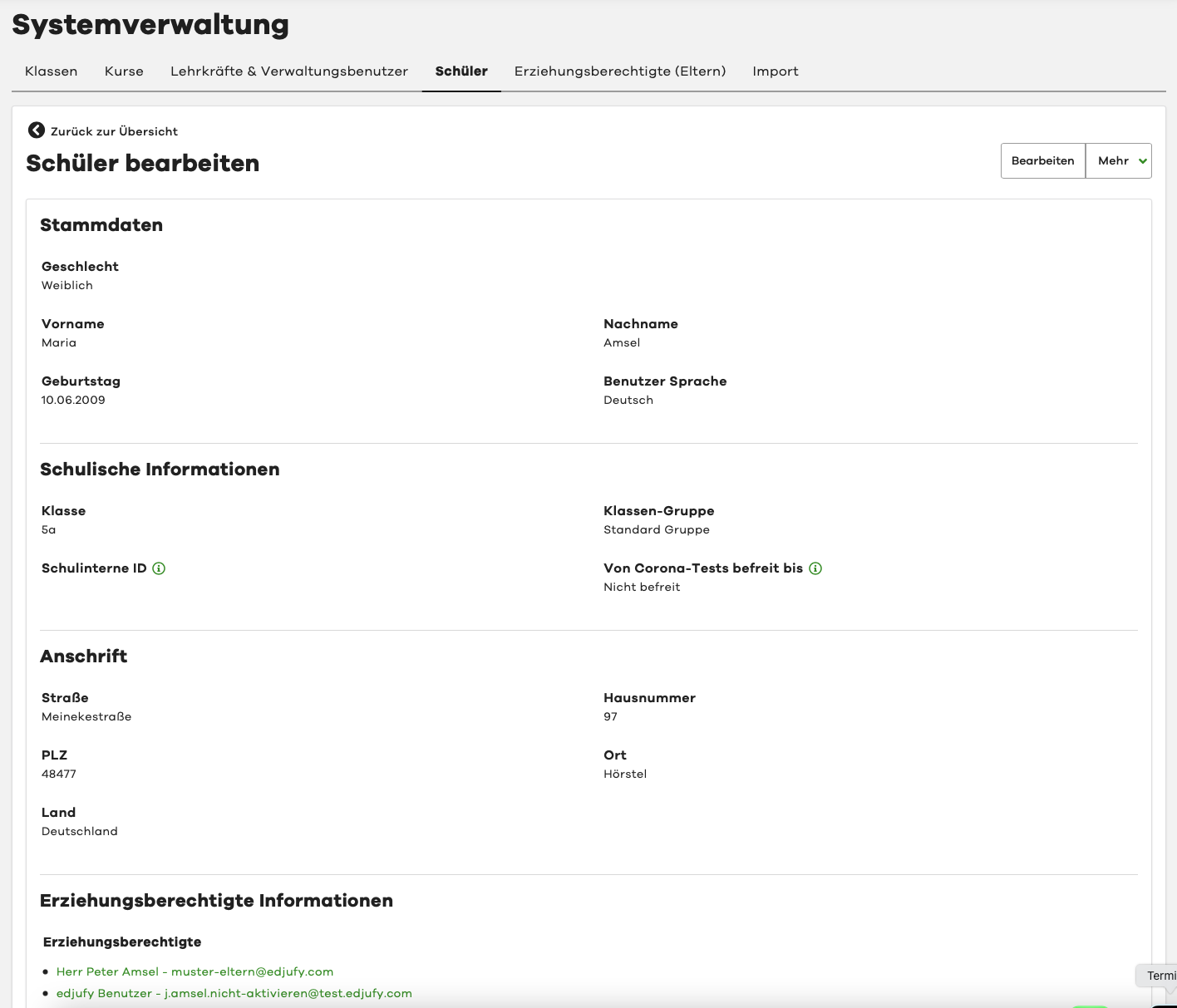
View / Edit Pupil
To view or edit a pupil, please click on the name of the desired pupil in the pupil overview as mentioned at the beginning. In the following view, you will see some metadata of the pupil. To edit the pupil, simply click on the Edit button in the upper right corner.