Private Lesson Note
General
In the digital Lesson Log, lessons, homework, and other information are documented. This content is available to all colleagues and the school administration and forms the legal and required lesson documentation that must be archived by the school for years.
Now there are notes that you want to record during a lesson but that are not intended for colleagues, the school administration, or the archive. This could be, for example, a personal note about a special incident or problem in the class. But also which topics you want to quiz pupil XY on in the next lesson. You determine the content of the private lesson note yourself, of course. At edjufy, we want to give you the opportunity with this function to save your own lesson-specific comments for a lesson.
The content of this note is not visible to colleagues, the school administration, or edjufy administrators at your school. There is also no disclosure of this note by edjufy Software GmbH to your school administration.
Creating a Private Lesson Note
A private lesson note can only be created, edited, and viewed by the teacher who created a Lesson Log entry.
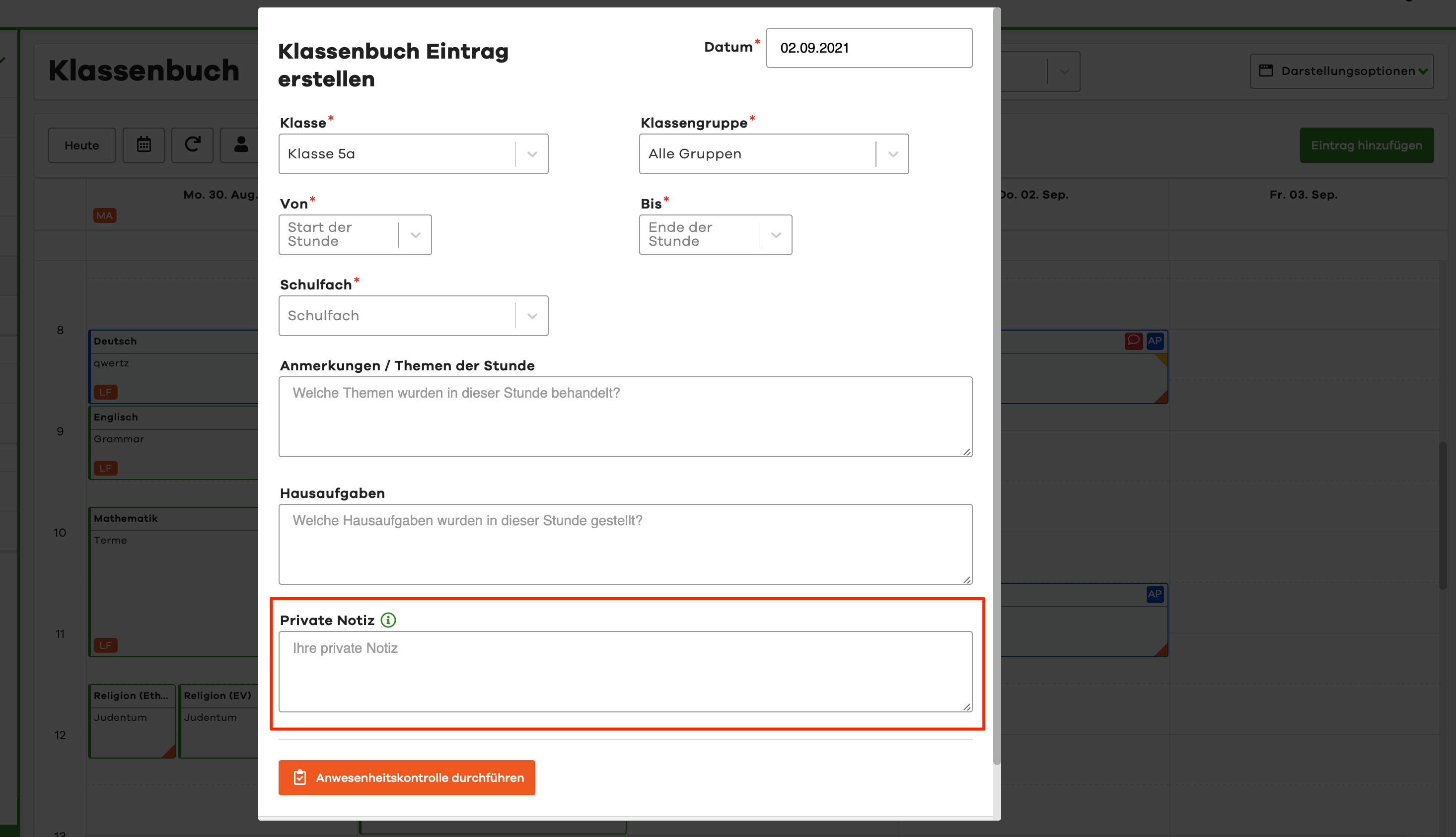
When creating a lesson entry, you will therefore find a field titled Private Note at the very end.
Display in the Lesson Log Overview
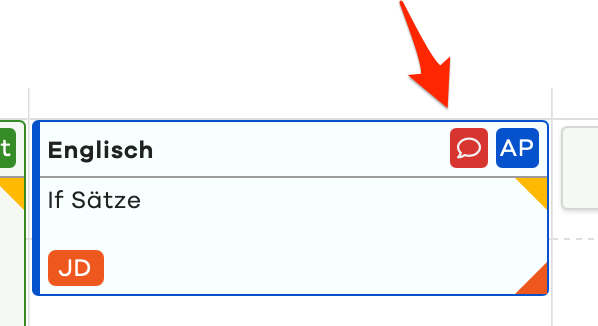
Lessons in which a private note has been written by the creator are marked with a red speech bubble. The red speech bubble as well as the note itself are only displayed to the creator of the private note. This means that neither:
- Colleagues
- Principals
- edjufy administrators of the school
can see whether a private note has been created for a lesson and what content was saved.
Viewing Private Notes
To read the content of a private note, simply open the corresponding Lesson Log entry. Since more and more schools work with projectors and the content of the computer screen is often mirrored, we have built in a small security feature for you.
If a private note exists in a lesson, it is not immediately displayed when opening the Lesson Log entry. This prevents your pupils from seeing the content when you have just turned on the projector, for example.
To make the content visible, simply click on the Show Private Note button.
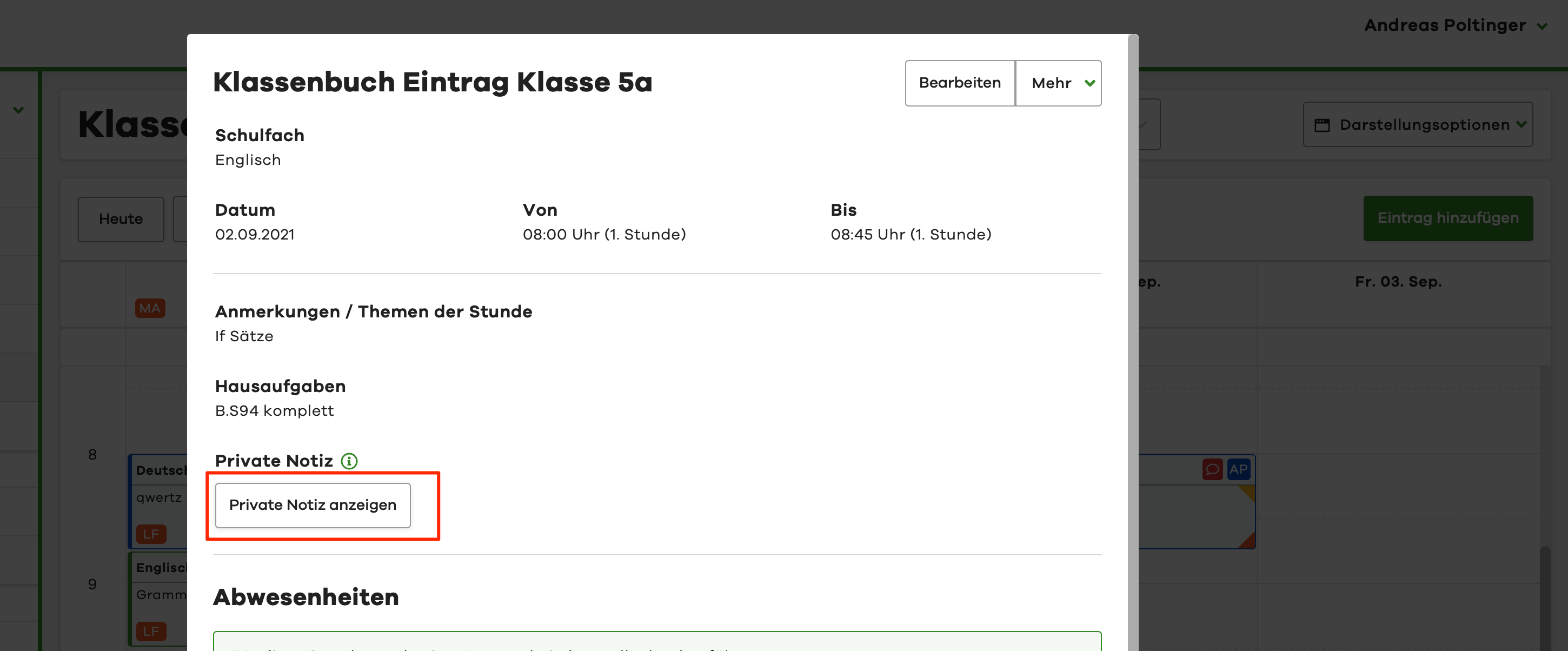
To hide the content again, simply click on the Hide Private Note button.
