Creating and Editing Lesson Log Entries
Module Selection
To create or edit a Lesson Log entry, select the menu item "Lesson Log" from the menu bar on the left side. Then select the desired class and optionally the desired class group.
Creating an Entry
Option 1
To create a new Lesson Log entry, click on the green button Add Entry + in the upper right corner.

Option 2
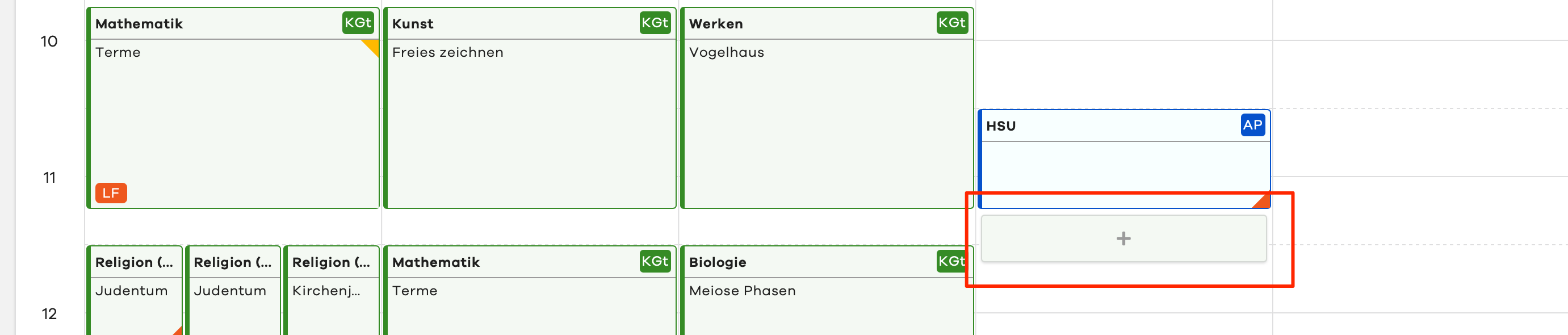
The much more convenient option is to create an entry via the button within the day column. Here, for example, the date from the column in which you want to create the entry is automatically filled in.
Input Window
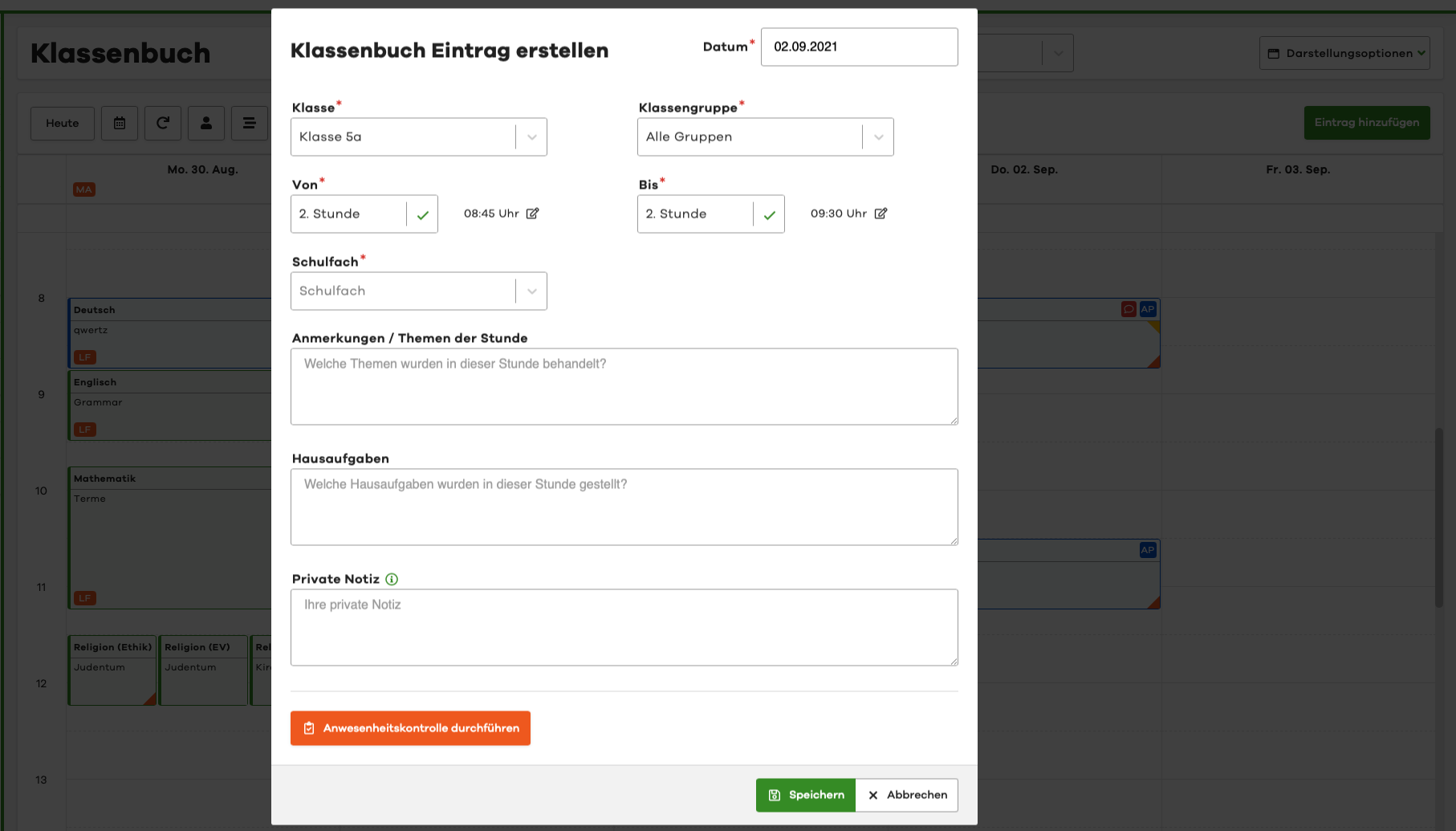
The input window looks roughly like the following screenshot shows. The system automatically pre-fills some values, which can be changed by you at any time.
Class / Class Group
When creating a Lesson Log entry, the system takes the selected class/class group into the Create Dialog. However, you can still change the group for which you want to create an entry.
Lesson Time
Based on the master timetable stored in the system, the system also suggests the current lesson period. You can of course edit this suggestion. Deviations from the master timetable - e.g., in the case of shortened periods before holidays - are also taken into account, provided they have been set up by your school's edjufy administrator.
However, you can bypass the time binding to the master timetable at any time by defining your own start and end times for your lesson.
To do this, click on the Edit icon next to the period selection to define your own times for your entry.


Notes / Topics of the Lesson
This field is for the classic documentation of the lesson:
- The content of this field can be seen by all colleagues with the appropriate Lesson Log permission
- The content of this field is archived as part of the school's legal documentation requirements
- Pupils or legal guardians cannot view this content
Homework
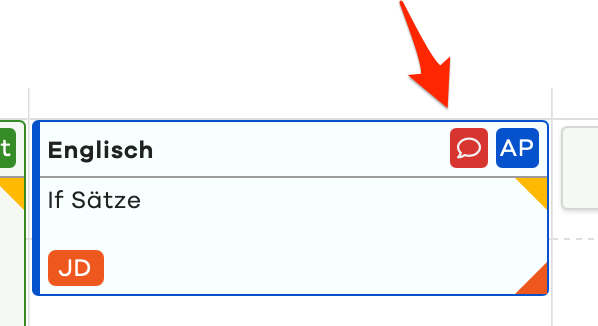
This field is for documenting the homework assigned during a lesson. In the Lesson Log overview, lessons in which homework has been assigned are marked with a yellow triangle in the tile.
- The content of this field can be seen by all colleagues with the appropriate Lesson Log permission
- The content of this field is archived as part of the school's legal documentation requirements
- Depending on the settings, pupils or legal guardians may be able to view this content
Depending on the system setting chosen by your school administration, the content from the homework field can be made accessible to legal guardians and pupils for individual classes. Please keep this in mind when entering homework and ask your school administration to what extent and for which classes homework is shared.
For parents and pupils, the output looks roughly like this:

Private Note
This field is for your personal and private notes. The content of this field and the information that a private note was created for a lesson is only visible to you.
- Only the creator can see the content of this field
- The content of this field is not archived as part of the school's legal documentation requirements
- Pupils or legal guardians cannot view this content
- There is no disclosure of this note by edjufy Software GmbH to your school administration
The content of this note is not visible to colleagues, the school administration, or edjufy administrators at your school. There is also no disclosure of this note by edjufy Software GmbH to your school administration.
For better readability, private lesson notes are described in more detail in a separate chapter.
Lessons in which a private note has been written by the creator are marked with a red speech bubble in the Lesson Log Overview.