Manage Meetings
Access Meetings
To manage the individual meetings of a legal guardian meeting event, please open the "Legal Guardian Meetings" module and then select the desired event from the list.
Then switch to the "All Meetings" tab to get a list of all meetings:
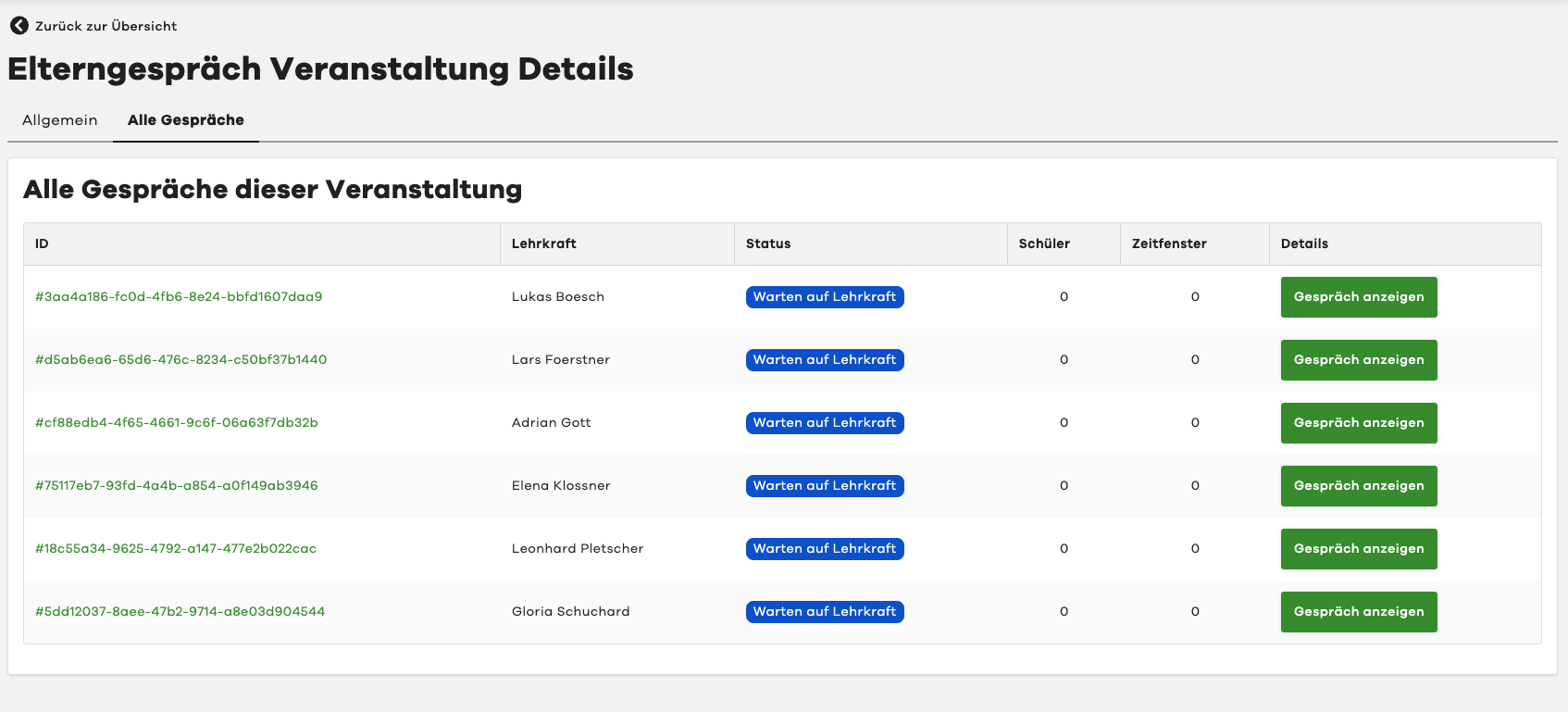
Access and Manage a Meeting
To manage a meeting, please click on the "View Meeting" button in the list.
This will take you to the detail view of the meeting:
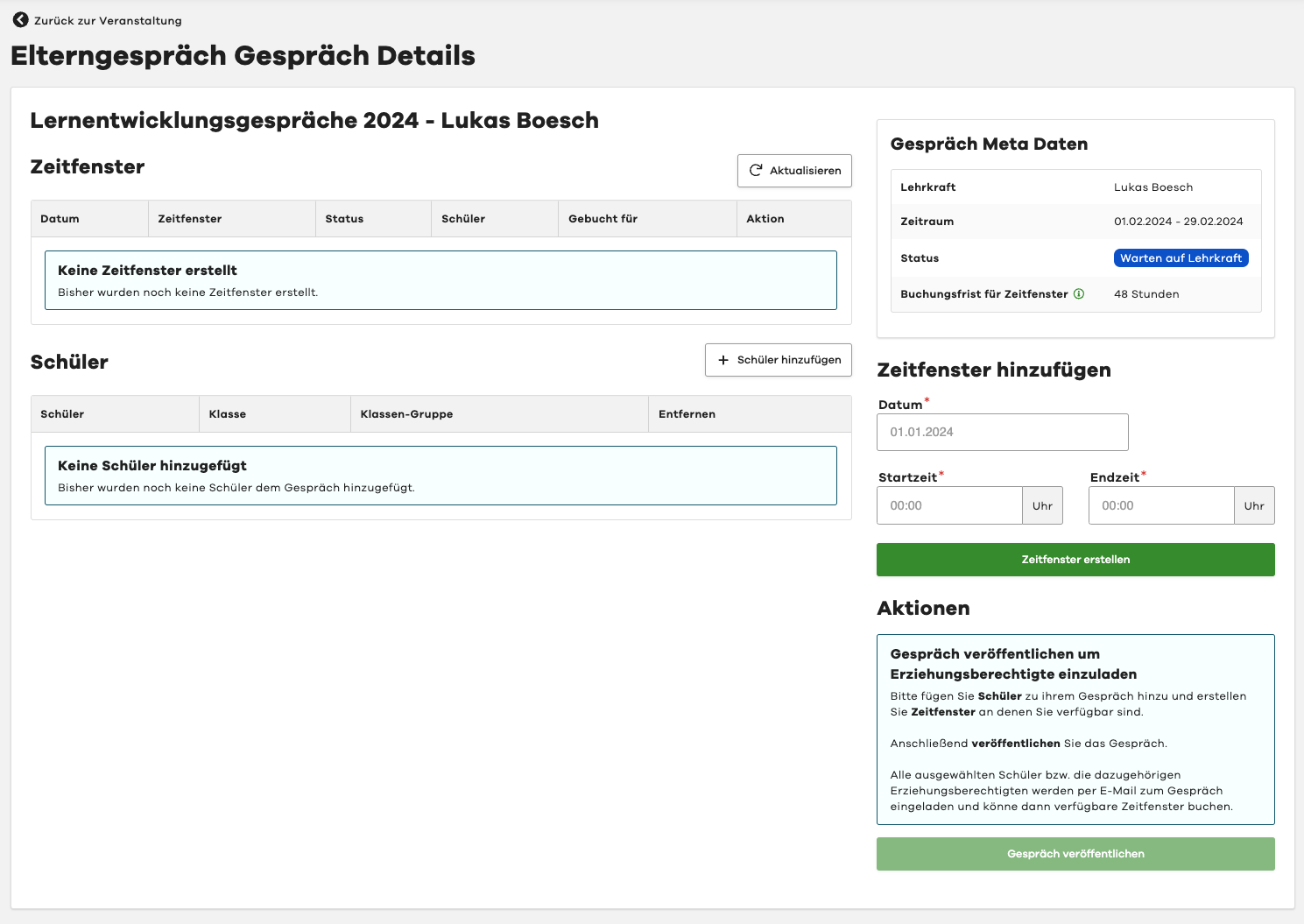
As a user with the "Legal Guardian Meetings: Administrator" permission, you can view the meeting data here and perform the same actions as the associated teacher.
For more information, see the guide for Teachers.
Publish Meeting
Once all students have been added and the time slots have been created, the meeting can be published.
By publishing, the legal guardians will be invited via email to book a time slot.
To do this, please select the "Publish Meeting" button in the "Actions" section on the right.
A teacher can also publish the meeting themselves.
We recommend that each teacher publishes their own meeting.
Cancel Meeting
If a teacher can no longer conduct a meeting, you can cancel it on their behalf.
The teacher can also cancel it themselves.
To do this, please select the "Cancel Meeting" button in the "Actions" section on the right.
You will then need to confirm the cancellation and provide a reason for the cancellation.
If you cancel a meeting, all already booked time slots will also be automatically cancelled.
All already selected legal guardians will be notified of the cancellation with the specified reason via email.
A cancelled meeting cannot be restored!