Custom Excuse Reasons
Introduction
edjufy offers you the ability to define your own excuse reasons. These reasons can then be selected when creating an excuse. Some reasons are already predefined in the base system. These cannot be deleted or renamed. However, you can create your own reasons and hide default reasons.
Overview of All Excuse Reasons
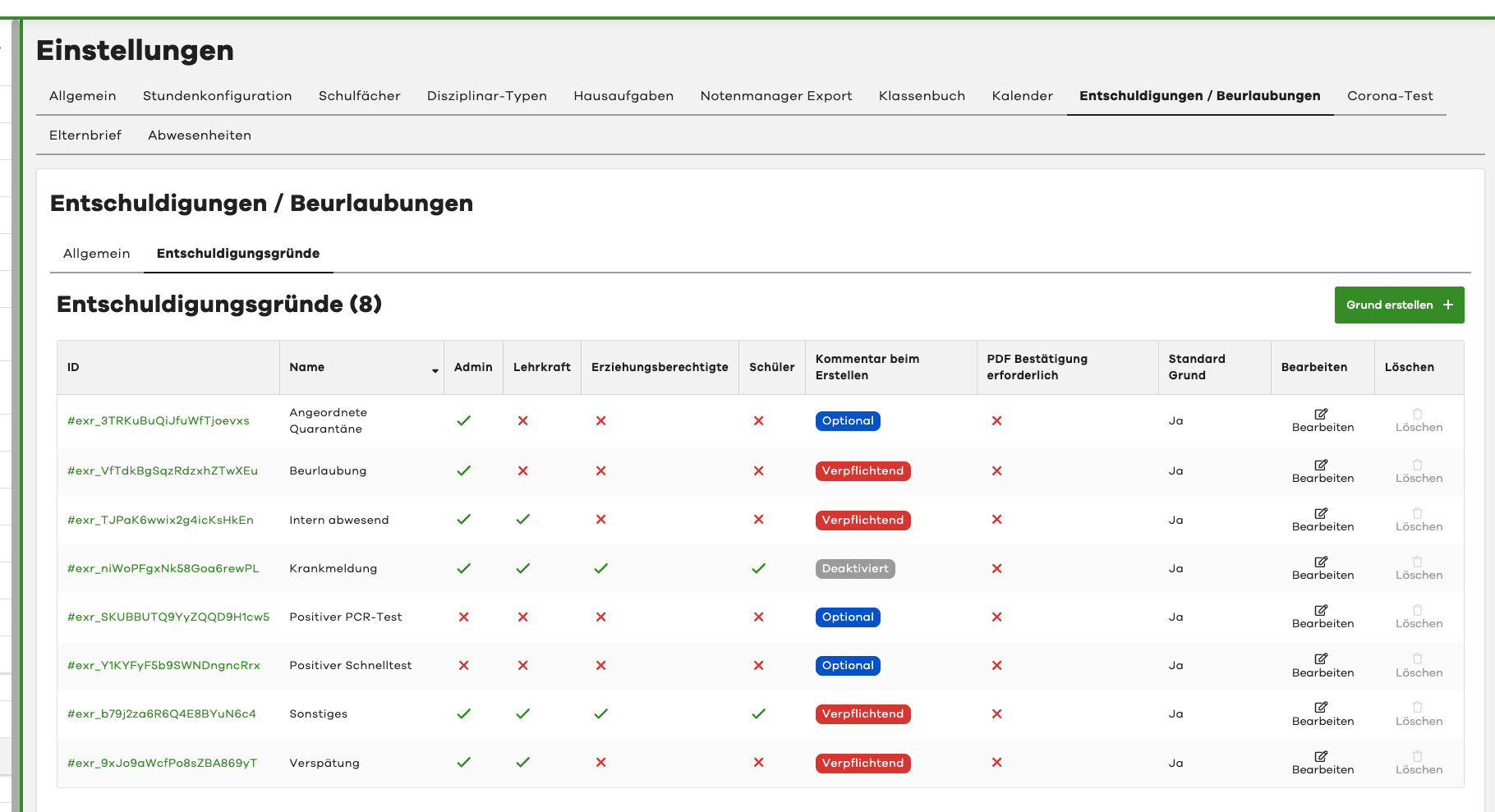
To manage excuse reasons, open the "Settings" menu and select the "Excuses / Leave of Absence" tab.
Then select the "Excuse Reasons" tab.
You will now see a list of all available excuse reasons:
Create Custom Reasons
To create a custom excuse reason, a user with administrator rights is required.
Proceed as follows:
- Open the "Settings" menu and select the "Excuses / Leave of Absence" tab.
- Then select the "Excuse Reasons" tab.
- Click the "Create Reason" button in the top right.
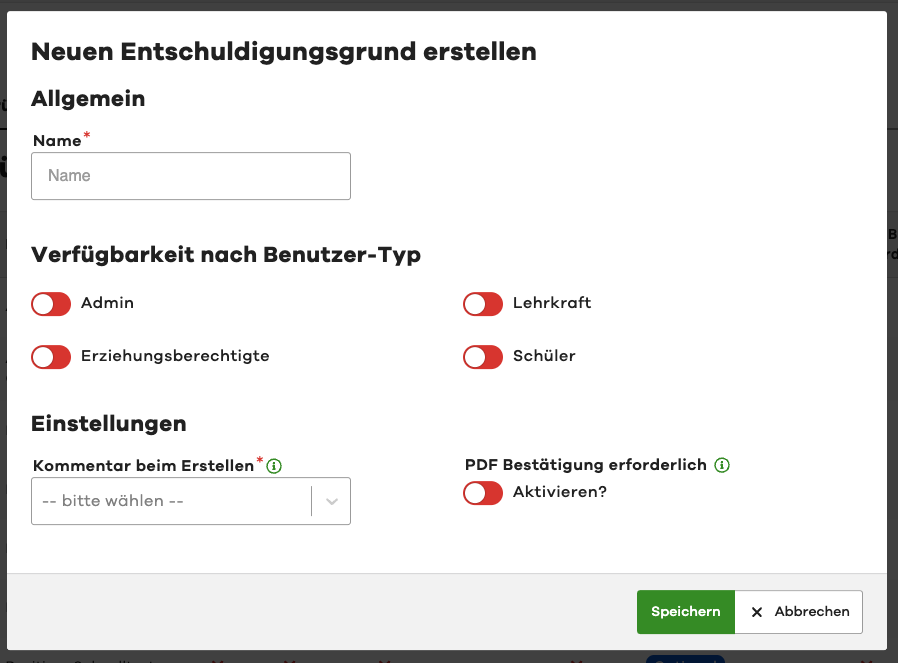
- A window opens where you can configure the new reason.
- Enter the name and select the desired availability and settings.
- Click "Save".
Availability Explained
For an excuse reason, you can define different availabilities by user type. Below is an explanation of each availability:
| Availability | Description |
|---|---|
| Admin | The reason is visible to users with administrator rights. |
| Teacher | The reason is visible to all teachers. |
| Legal Guardian | The reason is visible to all legal guardians. |
| Pupil | The reason is visible to all pupils. |
Settings Explained
For an excuse reason, you can define various settings.
Comment on Creation
With the "Comment on Creation" setting, you can specify whether a comment is required, optional, or disabled when creating an excuse. The setting has the following options:
| Option | Description |
|---|---|
| Required | When creating an excuse with this reason, a comment must be entered. |
| Optional | When creating an excuse with this reason, a comment can be entered. |
| Disabled | When creating an excuse with this reason, a comment cannot be entered. |
PDF Confirmation Required
With the "PDF Confirmation Required" setting, you can specify whether a PDF confirmation should be generated when creating an excuse with this reason.
If you enable this option, edjufy automatically generates a PDF confirmation after creating an excuse with this reason. This confirmation can then be downloaded by the legal guardians and subsequently returned signed to the school.
In the interest of digitalization and sustainability, we recommend only enabling the PDF confirmation when absolutely necessary.
Edit Excuse Reason
After creating an excuse reason, you can edit it at any time. You can adjust the name, availability, and settings.
Please note that renaming a reason also affects already created excuses.
To edit a reason, proceed as follows:
- Return to the "Excuse Reasons" tab in the settings under "Excuses / Leave of Absence".
- Click the "Edit" button next to the desired reason in the list.
- A window opens where you can adjust the reason accordingly.
- Click "Save" when finished.
Hide / Disable Default Reasons
To hide a predefined default reason, proceed as follows:
- Return to the "Excuse Reasons" tab in the settings under "Excuses / Leave of Absence".
- Click the "Edit" button next to the desired reason in the list.
- A window opens where you can adjust the reason accordingly.
- Disable the availability for all user types.
- Click "Save" when finished.
The reason is now hidden for all user types and can no longer be selected.
Delete Excuse Reason
To delete an excuse reason, proceed as follows:
- Return to the "Excuse Reasons" tab in the settings under "Excuses / Leave of Absence".
- Click the "Delete" button next to the desired reason in the list.
- Confirm the deletion in the dialog that appears.
Please note that deletion of a reason is only possible if it has not yet been used for an excuse.
Alternatively, you can first update the corresponding excuses or simply hide the reason for all user types.