Create Excuse
Introduction
An excuse in edjufy can be created via various methods.
The most common ways to create an excuse are described below.
Create Single Excuse
To create a single excuse for a pupil, proceed as follows:
- Navigate to the Excuses module.
- Select the Create Excuse button in the top right.
- Fill out the displayed form.
- Upload an attachment to the excuse if necessary.
- Finally, click Create Excuse.
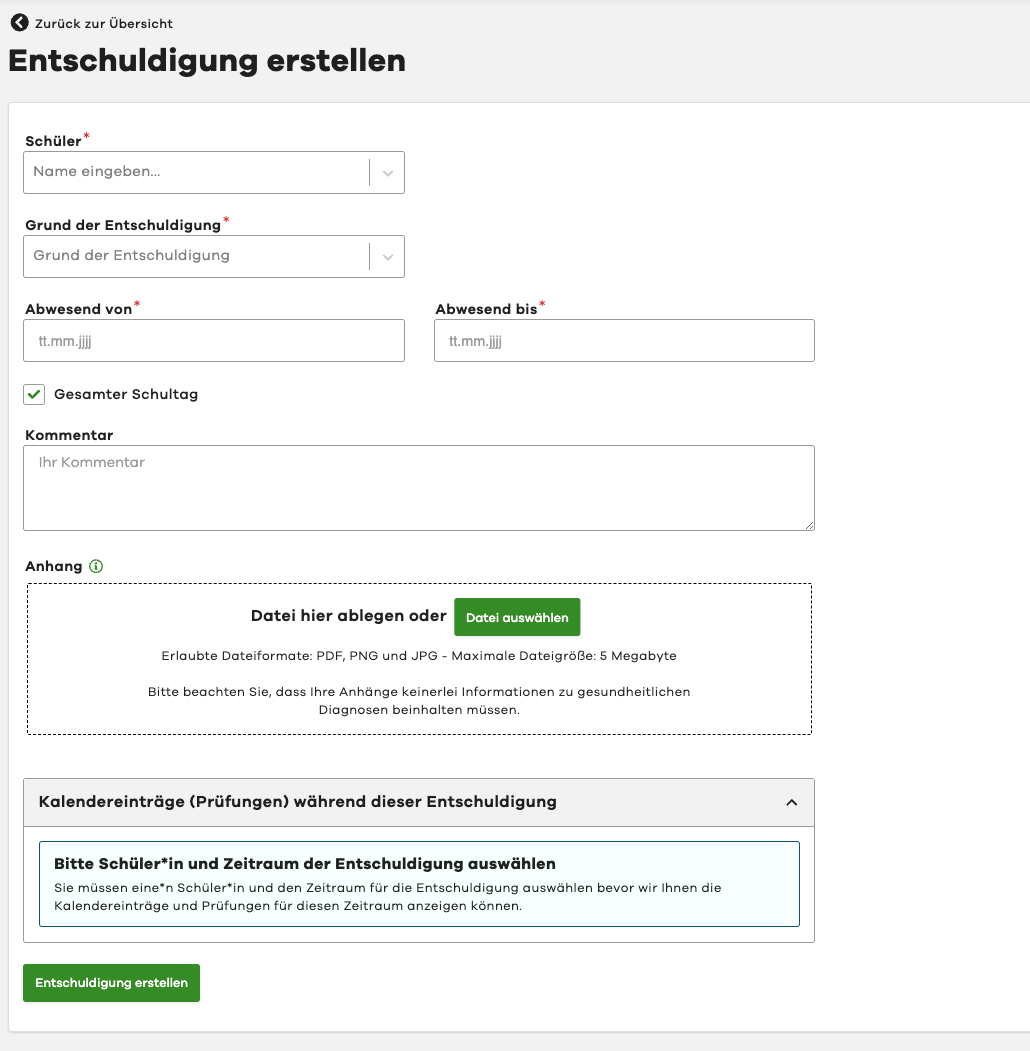
The excuse will now be created and automatically assigned to the responsible class teacher.
You will be redirected directly to the detail view of the excuse.
There you can review the excuse again and add further information if needed.
Other Ways to Create Excuses
In addition to directly creating an excuse, it can also be created, for example, in the Absences module in the "Recording" tab.
In this case, an absence is created together with a matching excuse.
Further details can be found in the documentation for the Absences module.
Additionally, excuses can also be created when ending an absence or in the detail view of an absence via the "Create Excuse" button.
In these cases, the excuse is always created to match the absence.