Two-Factor Authentication
edjufy offers you the option to set up two-factor authentication (2FA for short) for enhanced protection of your edjufy account. With two-factor authentication enabled, you will need a six-digit code in addition to your email address and password when logging in - the so-called second factor. This code is generated using a corresponding smartphone app.
edjufy uses the widely adopted standard TOTP (Time-based One-time Password Algorithm) for this. This method is supported by all common authentication apps.
We can recommend the following apps for two-factor authentication:
- Google Authenticator (iOS App | Android App)
- Microsoft Authenticator (iOS App | Android App)
- Twilio Authy (iOS App | Android App)
Set up Two-Factor Authentication
To enable two-factor authentication for your edjufy user, please proceed as follows:
- Log in to your edjufy account with your email address and password.
- Click on the menu item "My Profile" and then open the "Security" tab.
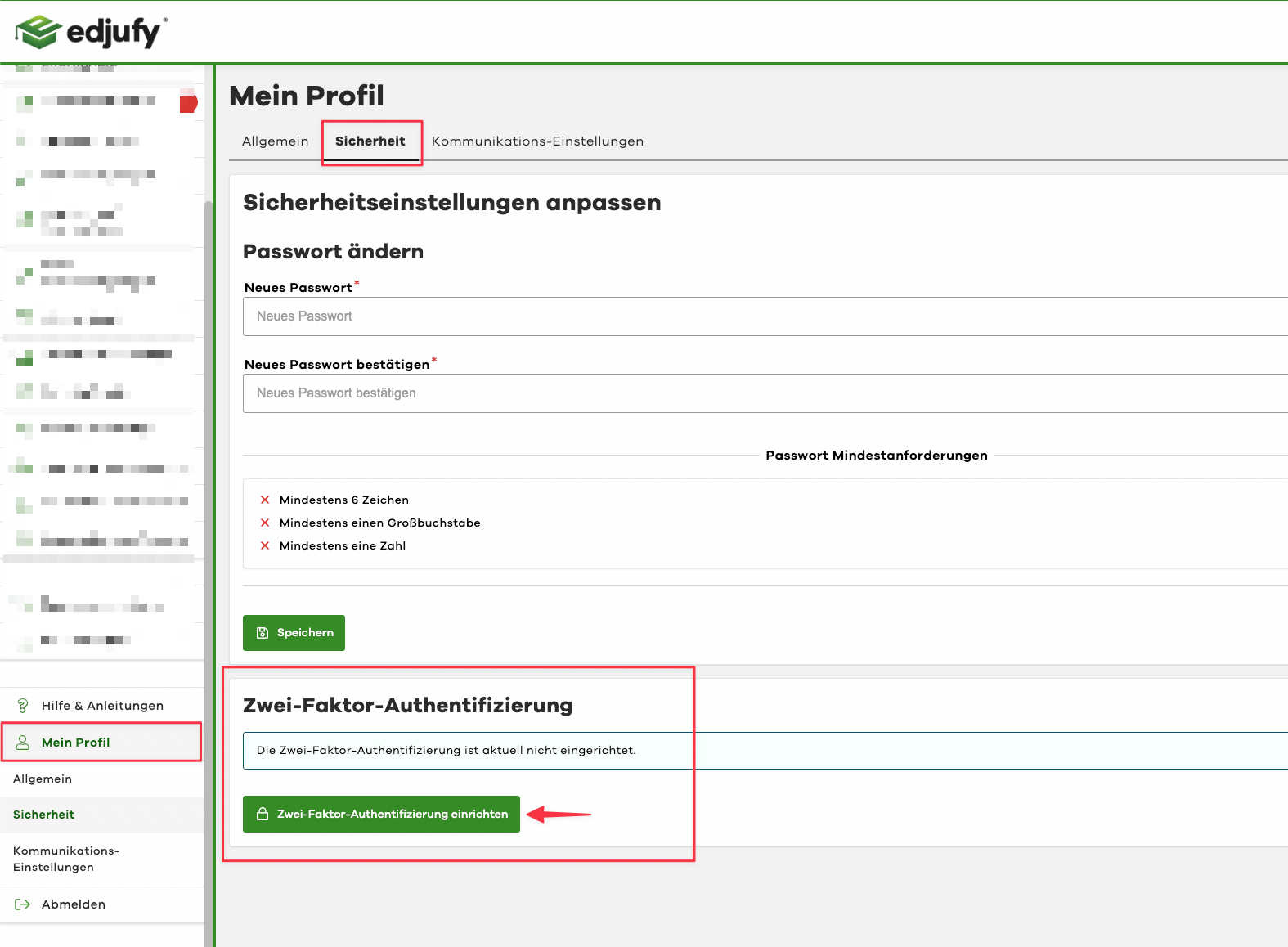
- At the bottom of the page, you will find the "Two-Factor Authentication" section. Click on the "Set up Two-Factor Authentication" button here.
- Now follow the on-screen instructions and scan the QR code with the authentication app of your choice.
- Then enter the six-digit code generated by the authentication app.
- Click on the "Submit Code" button to enable two-factor authentication.
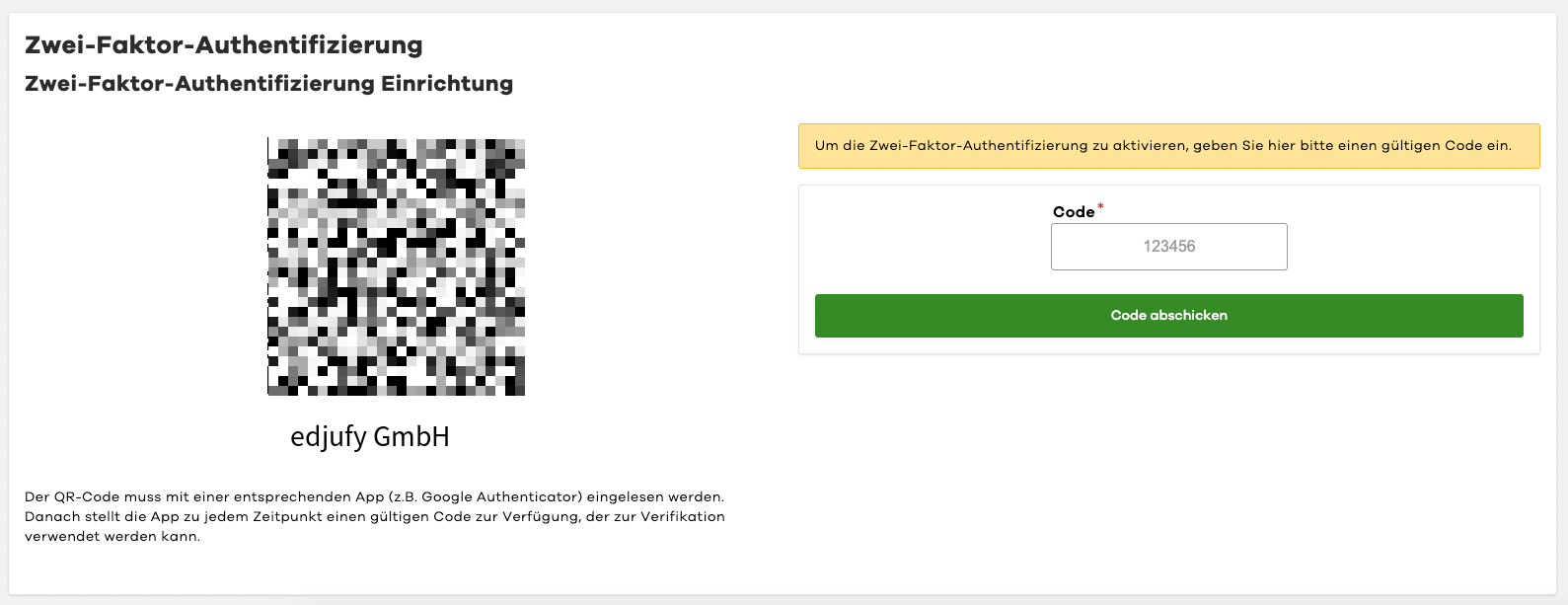
Your account is now protected with two-factor authentication enabled. For future logins, you will now need to enter the six-digit code generated by the authentication app in addition to your email address and password.
Reset Two-Factor Authentication
To reset two-factor authentication for your edjufy user, please proceed as follows:
- Click on the menu item "My Profile" and then open the "Security" tab.
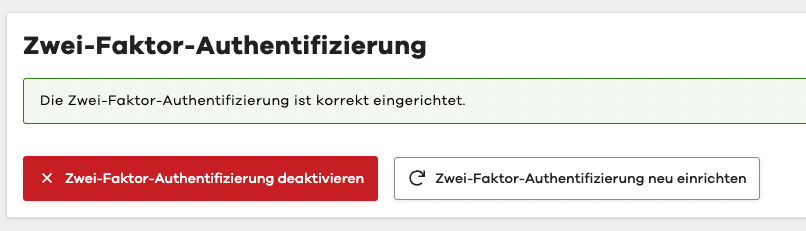
- At the bottom of the page, in the "Two-Factor Authentication" section, you will find the "Reset Two-Factor Authentication" button.
- Select this button and follow the on-screen instructions to reset two-factor authentication.
Disable Two-Factor Authentication
To disable two-factor authentication for your edjufy user, please proceed as follows:
- Click on the menu item "My Profile" and then open the "Security" tab.
- At the bottom of the page, in the "Two-Factor Authentication" section, you will find the "Disable Two-Factor Authentication" button.
- Select this button to disable two-factor authentication.